Tasks on your Wrist
Thought, care and passion went into creating this. We could have made a basic app for the Apple Watch, but we went above and beyond. Extremely proud to announce Tasks for watchOS 10!
Let us dive into the details of what you can do on the Watch and how, here's a list:
- Onboarding
- Projects
- Scheduled
- Project Detail Screen
- Columns
- Filters
- Tasks
- Settings
Onboarding
Sign up is extremely simple, just tap Sign in with Apple and you're in. If you have existing projects synced with Tasks Cloud on your iPhone, iPad or Mac, they appear on the Watch within seconds! If you don't have any existing projects, just try out our Sample Project or create your own Project.
Projects
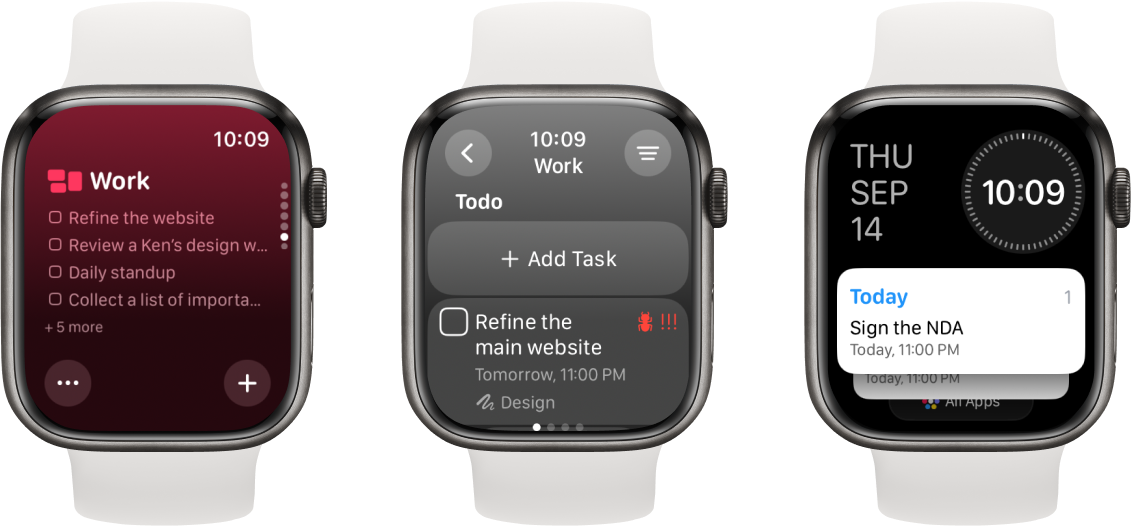
A card with a gradient that has your picked color for the project along with a preview of your upcoming tasks of that project so you don't have to go into the detail screen unless you need to.
You then see two buttons - a + icon on the right to quickly add a task to that project and a ··· icon to perform two actions, Edit and Delete.
With watchOS 10 you can add a widget for your project.
Scheduled
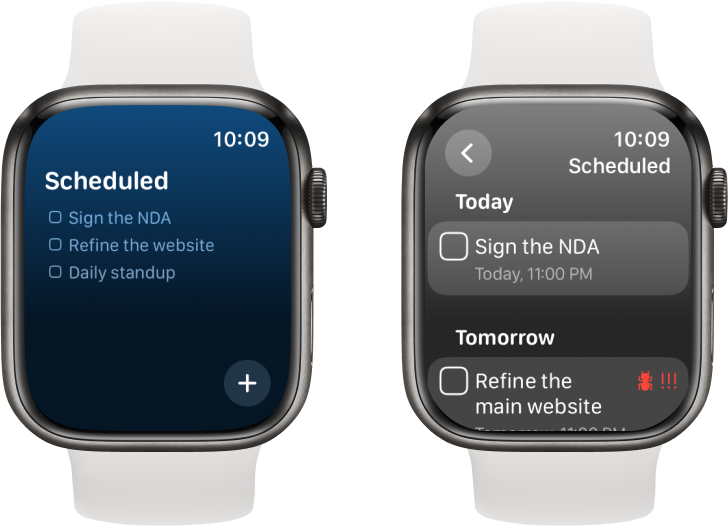
We understand the Watch is a place where you would necessarily go to quickly see what you need to complete and get on top of that. Hence the scheduled section to see your upcoming tasks. Tasks here are arranged in the order of the due date field within them.
With watchOS 10 you can add a widget to see your Today or Scheduled tasks right from the Watch main screen.
Project Detail Screen
Columns
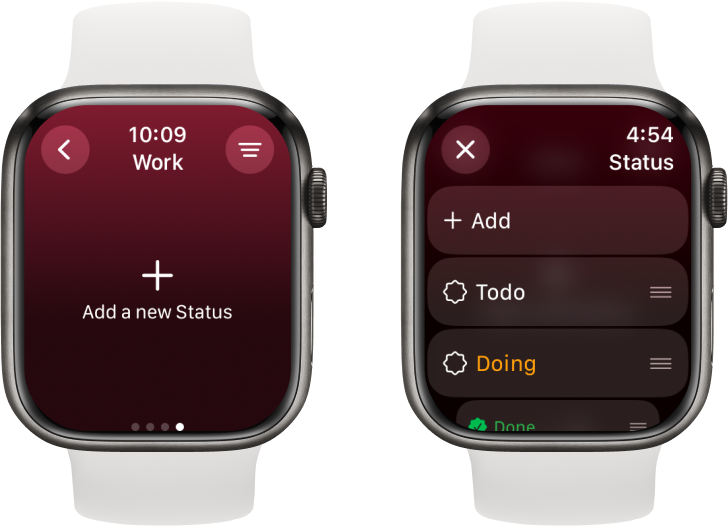
Swipe horizontal for statuses (columns) and scroll vertically to see more tasks in your project. It is just that simple. Swiping all the way to the last column will allow you to add more statuses to that project.
Filters
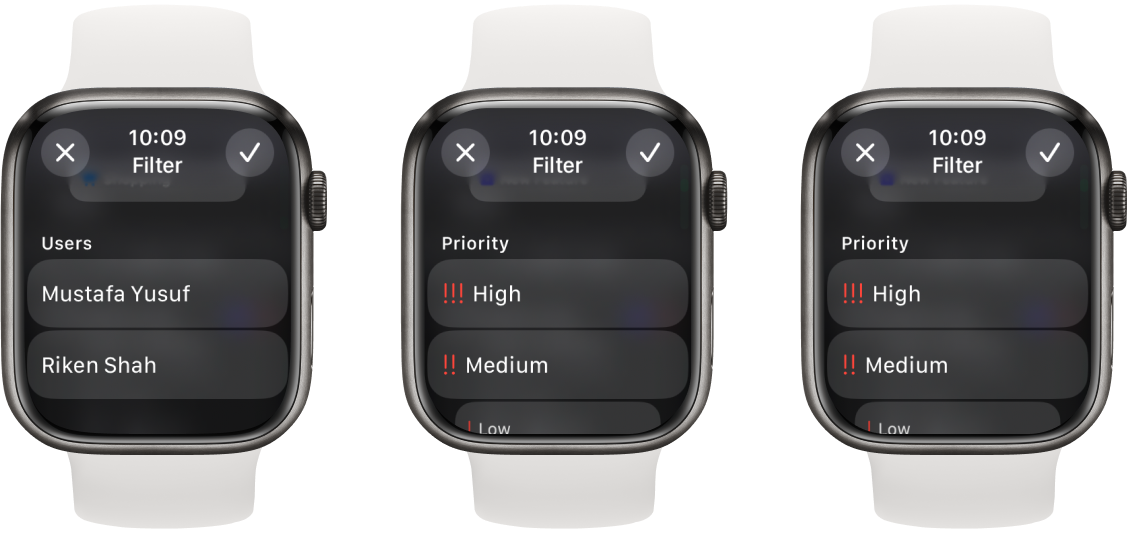
Finding tasks on the Watch can be hard because you can only see so much at a time. You can tap the Filter icon on the top right and quickly filter out your tasks from that project to get just the things you need. For example, you are at your local grocery store and use the tag #groceries. You can quickly filter the list with that tag and see just the tasks you need to.
You can filter by tags, priorities, task types and even collaborators.
Do you want to see all tasks assigned to you which are tagged as bugs and have a high priority? You can with 3 taps!
Tasks
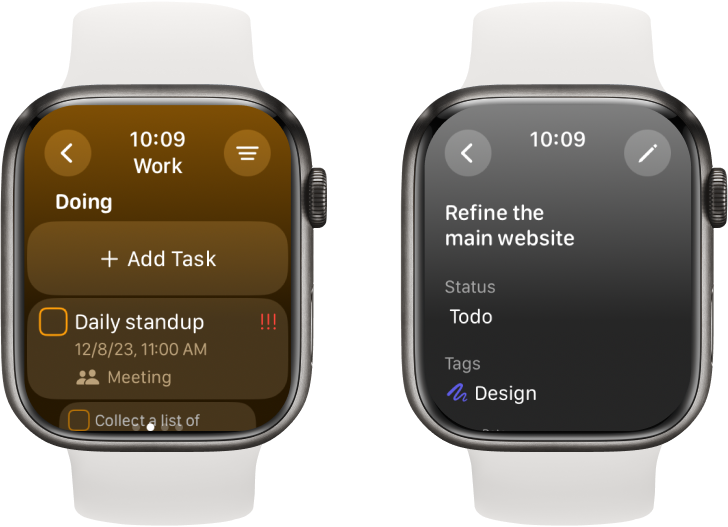
Tasks are shown in the list in a rich manner. You can quickly glance at it and see its title, date, priority and tags if any.
In the task detail screen you can see all the other information. You may tap the pencil icon on the top right corner to edit your task details.
Attachments, comments and repeat task options are currently not available in the Watch app.
Settings
You can perform the following from here:
- Create a new project (note only 2 free projects are allowed to non Plus users)
- Reorder your projects
- Profile to view your email address and to logout
- Tasks Plus - to purchase the Plus plan
Purchasing Tasks Plus on the Watch unlocks Tasks Plus on all of your devices without limit.
We hope you enjoy our Apple Watch app as much as we enjoyed designing and developing it for you. If you have any suggestions or reports, kindly let us know. We're very eager and prompt in our replies!
Stay productive and take care!