Getting Started with Tasks
Whether you're managing a work project or keeping on top of personal goals, Tasks helps you stay organized and focused. Learn the basics to take control of your life.
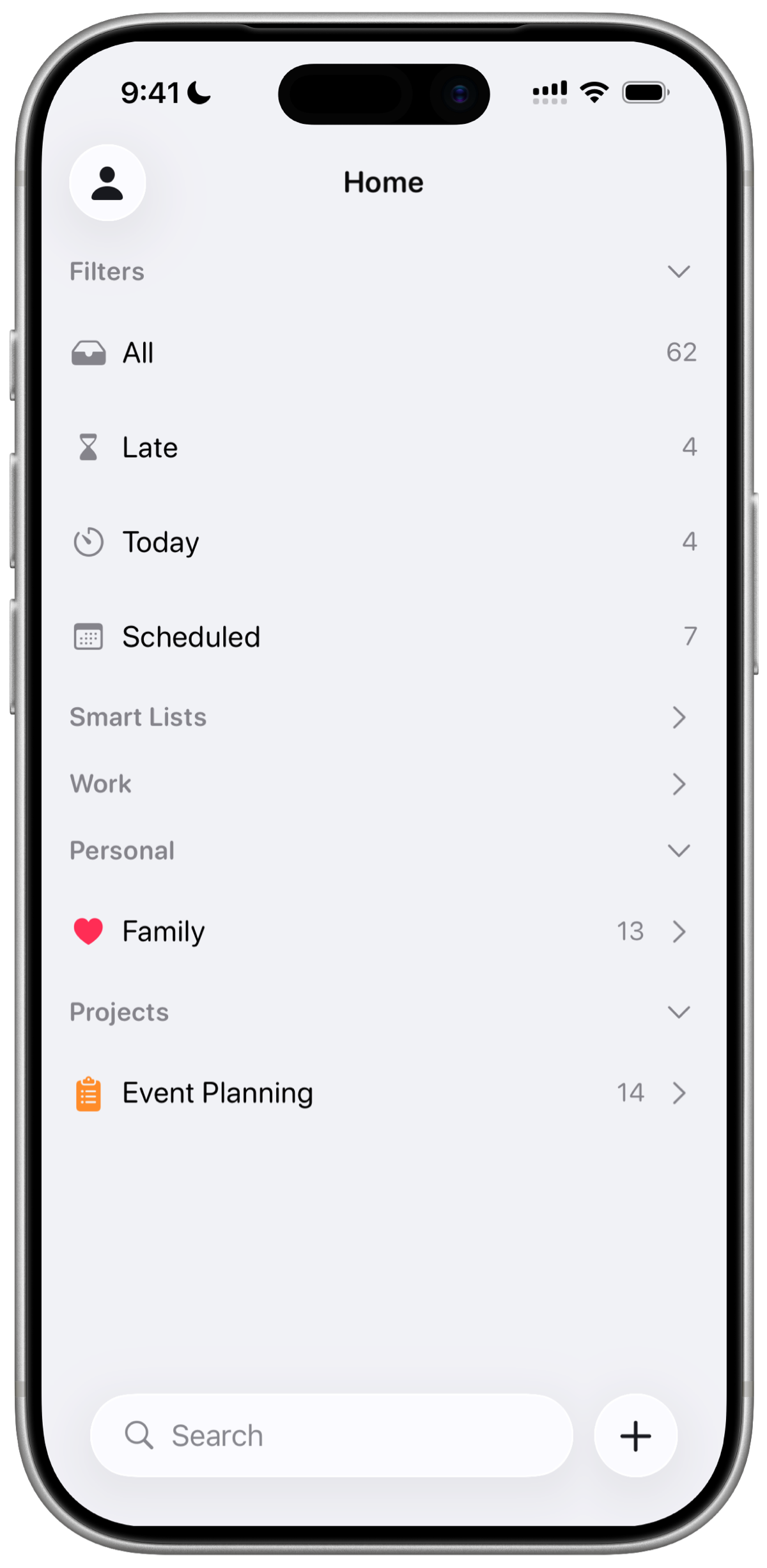
Understand your Home Screen
Tasks is built around two core building blocks: Projects and Tasks. Once you understand how they fit together, everything else clicks into place.
- Projects are where your tasks lives. A work project and a personal project can look completely different from each other.
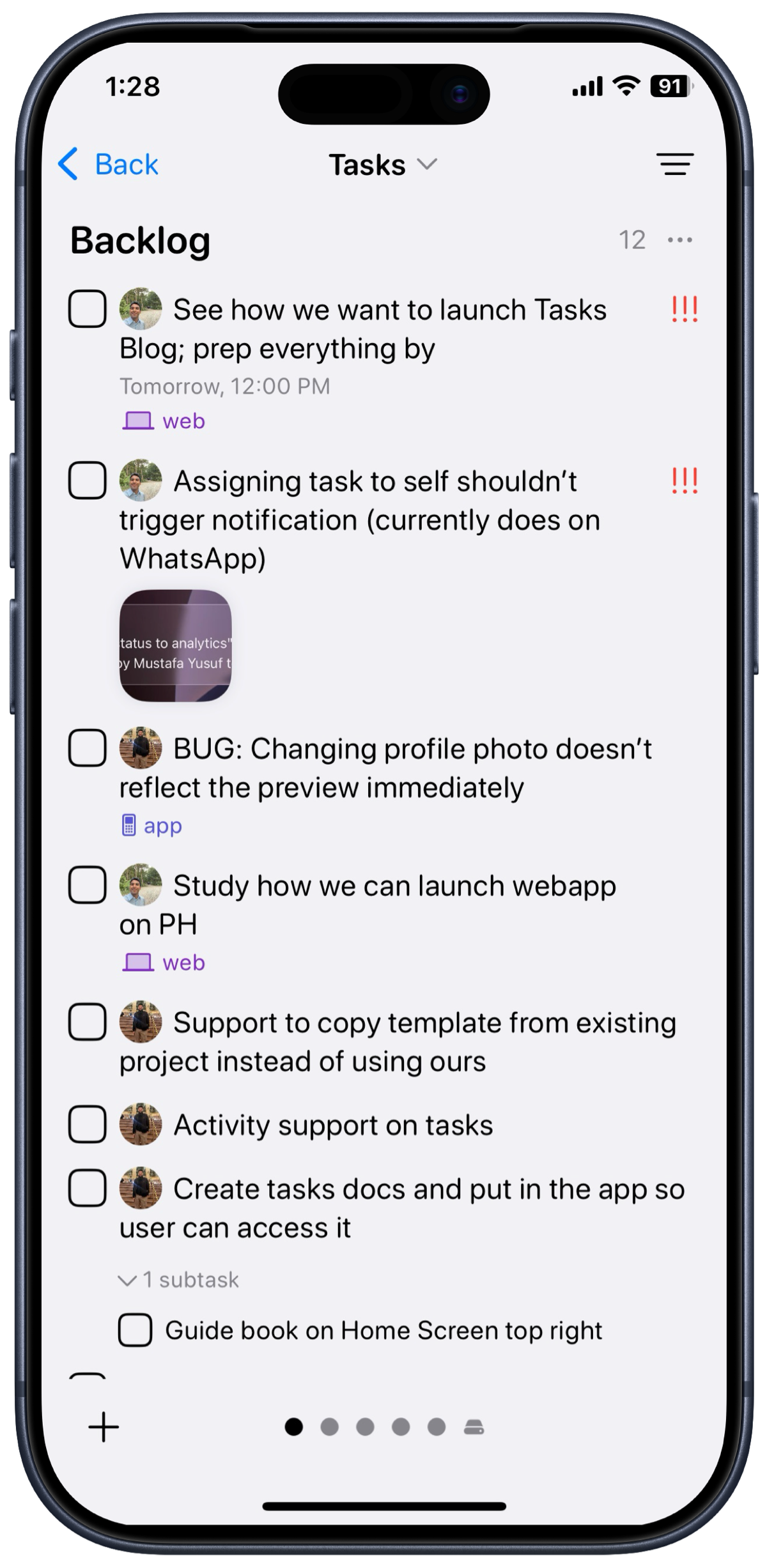
- Tasks are the items you add to projects. It includes all the necessary context to complete it
Add your first task
By default, every new account starts with an Inbox project, a great place to capture tasks before deciding where they belong.
Once you're inside a project, tap + and start typing. The best tasks tend to be specific, actionable, and completable.
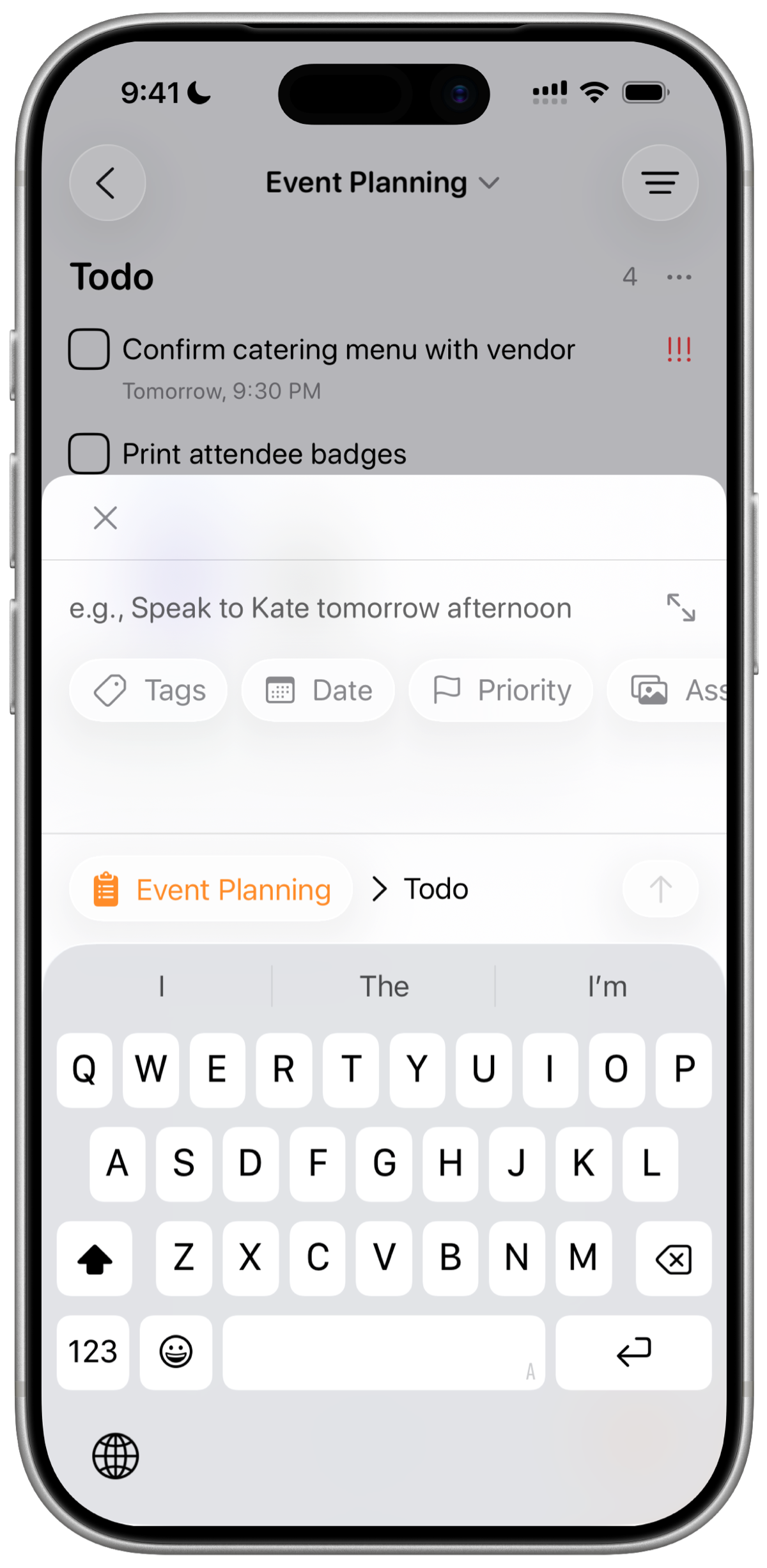
On iPhone, pull down anywhere on your task list to instantly bring up the add task input without tapping anything.
Here is how a task looks on your Kanban board - you can see its date, priority, tags, task type, and assets all at a glance without opening it.
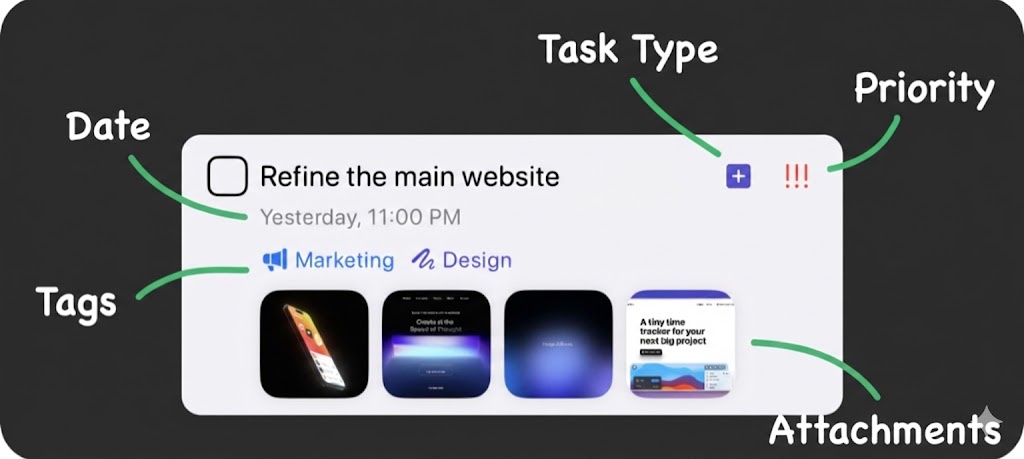
The fields you see on a task depend on how each project is set up. You can add, remove, or rename fields anytime from Modify Fields.
Break big tasks into subtasks
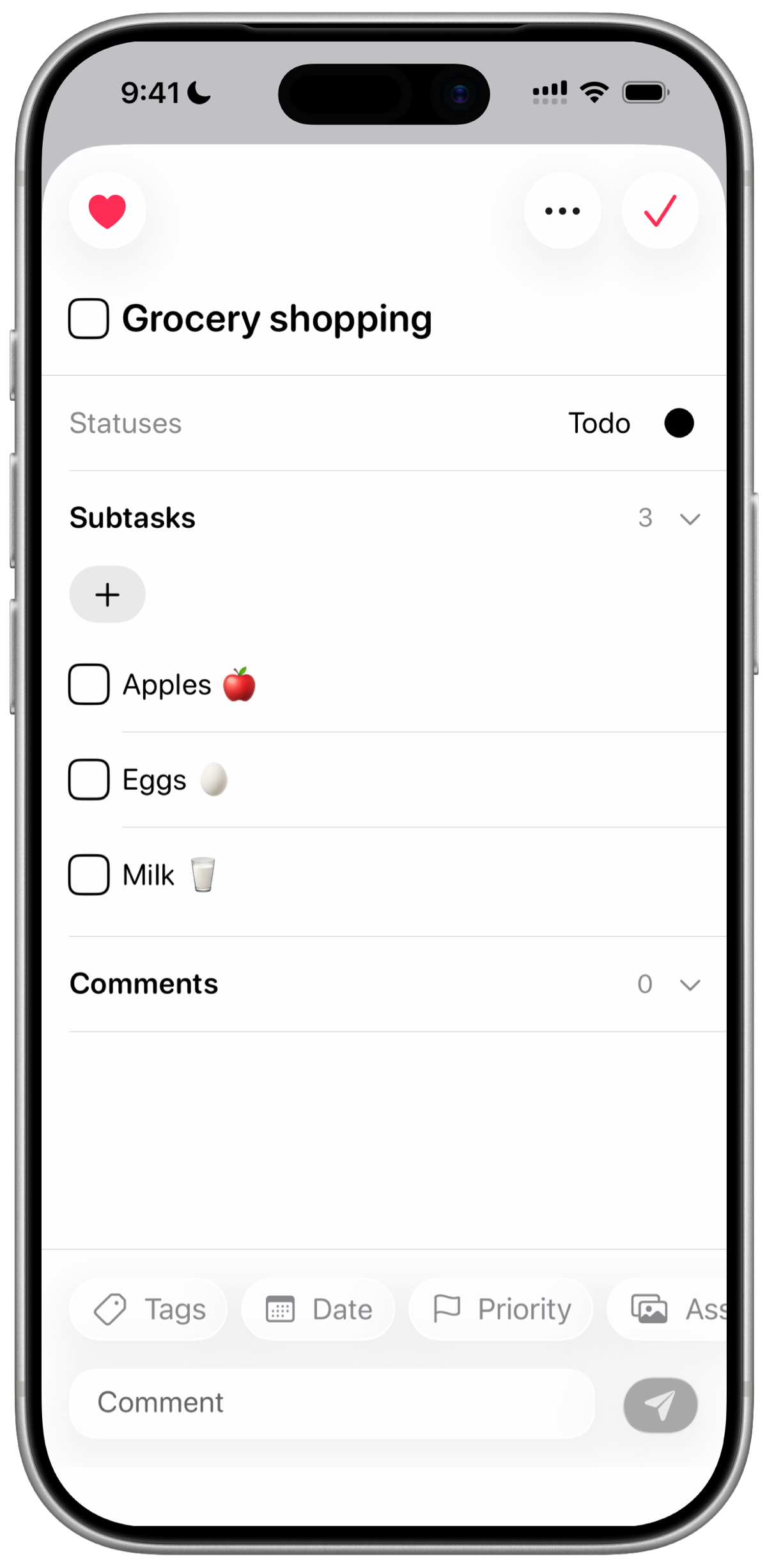
Large goals are easier to tackle when they are broken into smaller pieces. Open any task and tap the + inside the Subtasks section to add a subtask. Back on the board, a subtask count on the parent task lets you see progress at a glance.
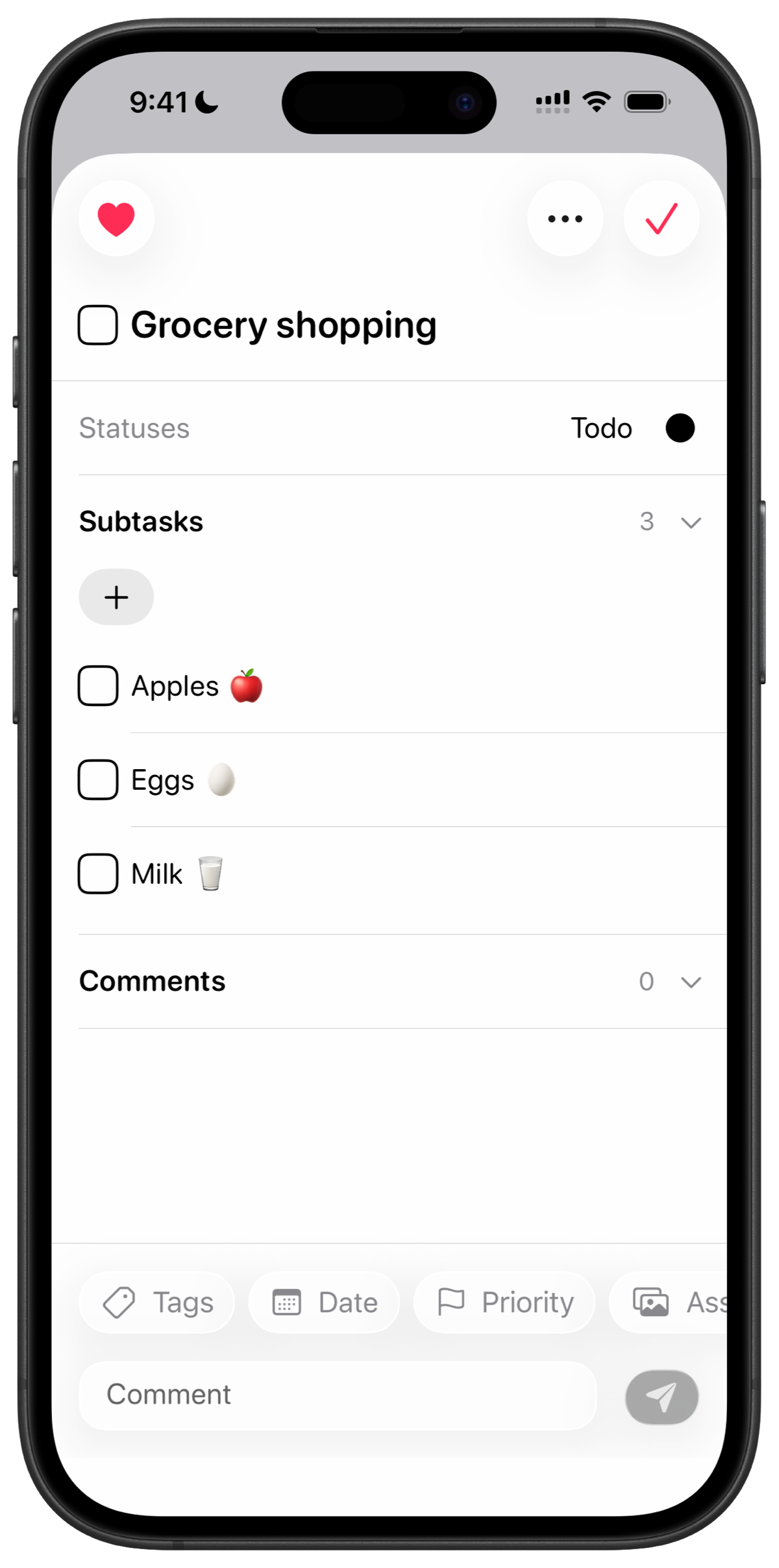
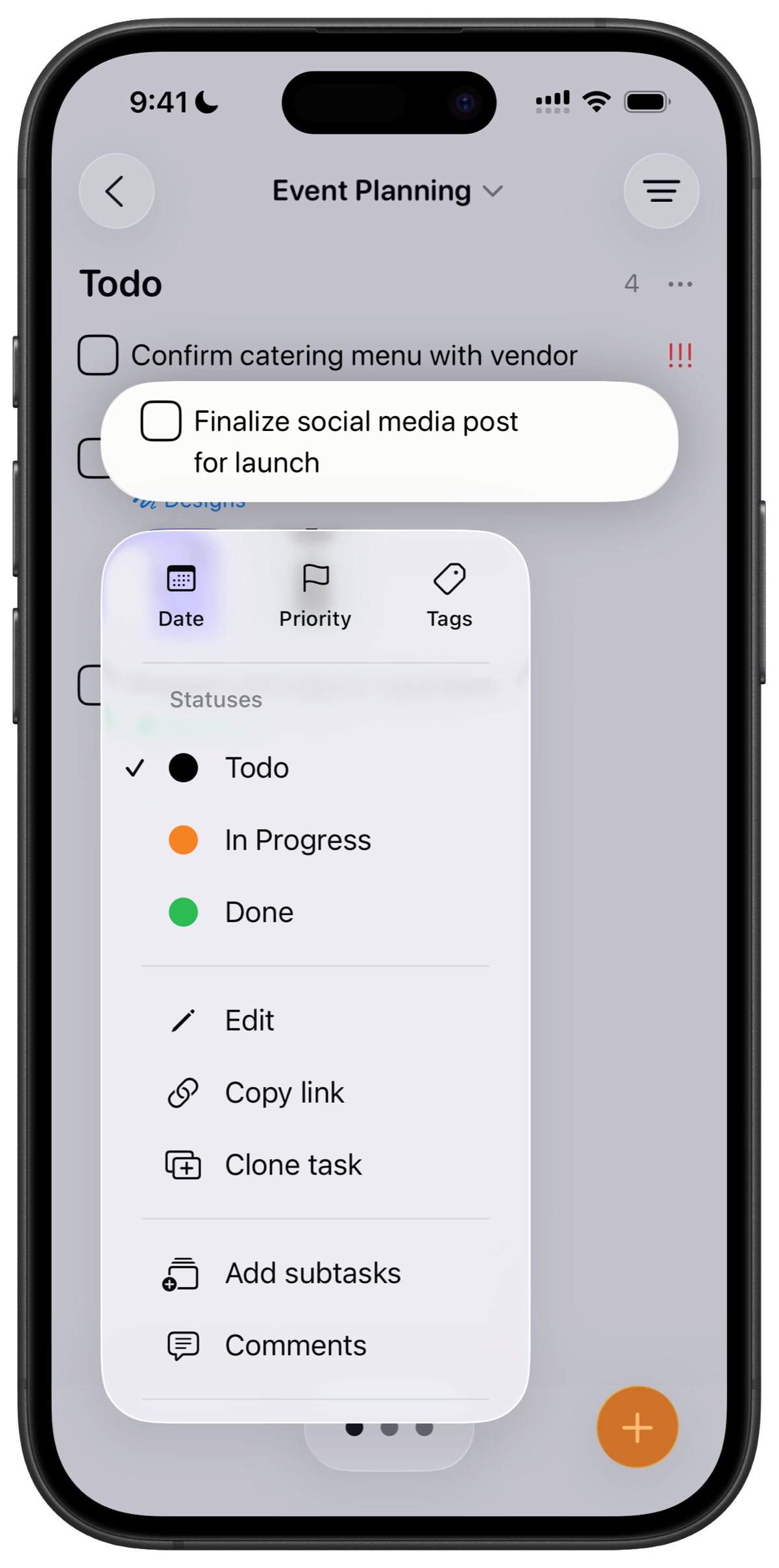
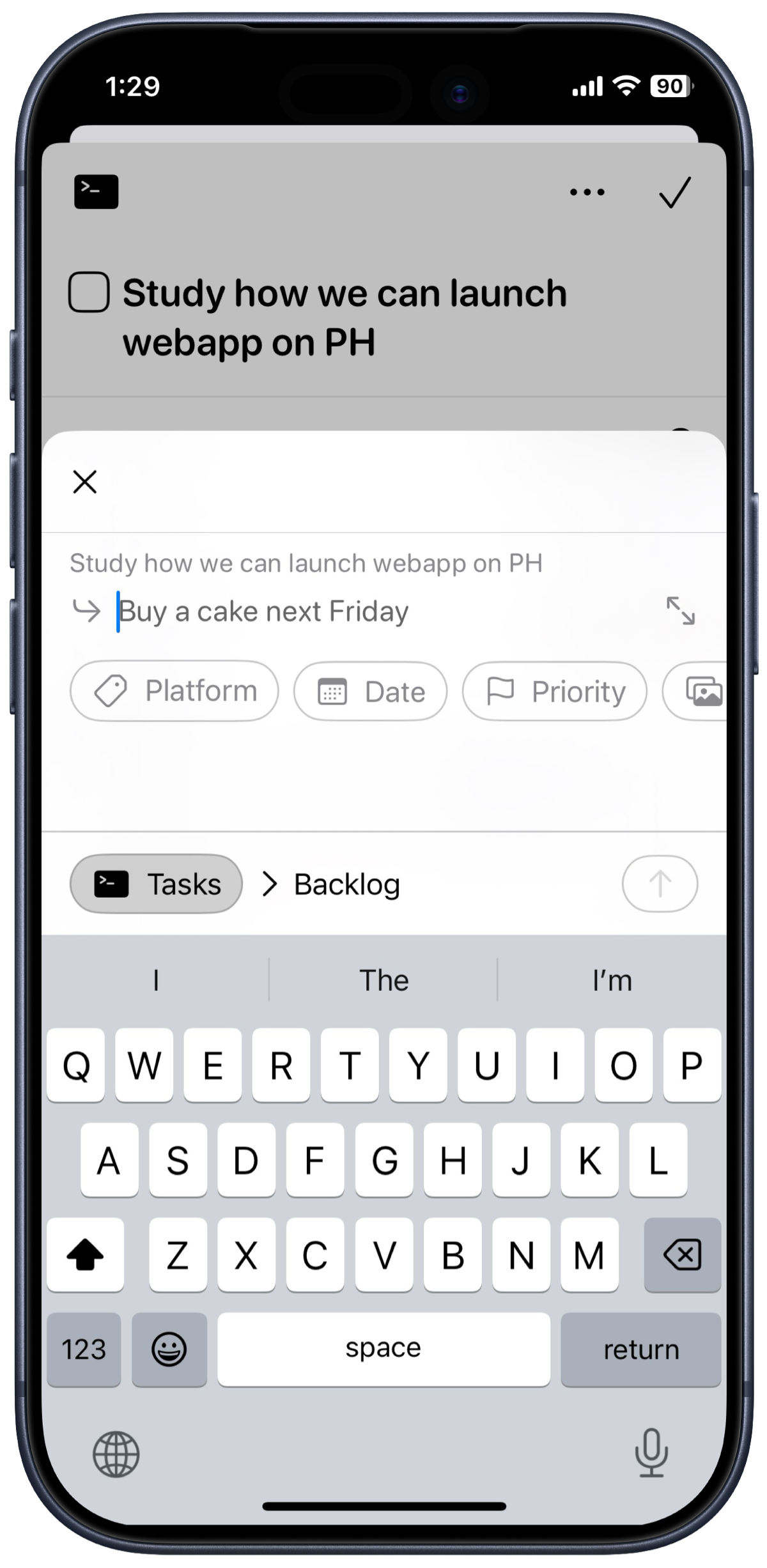
You can long press on any task add subtasks too.
Recurring Tasks
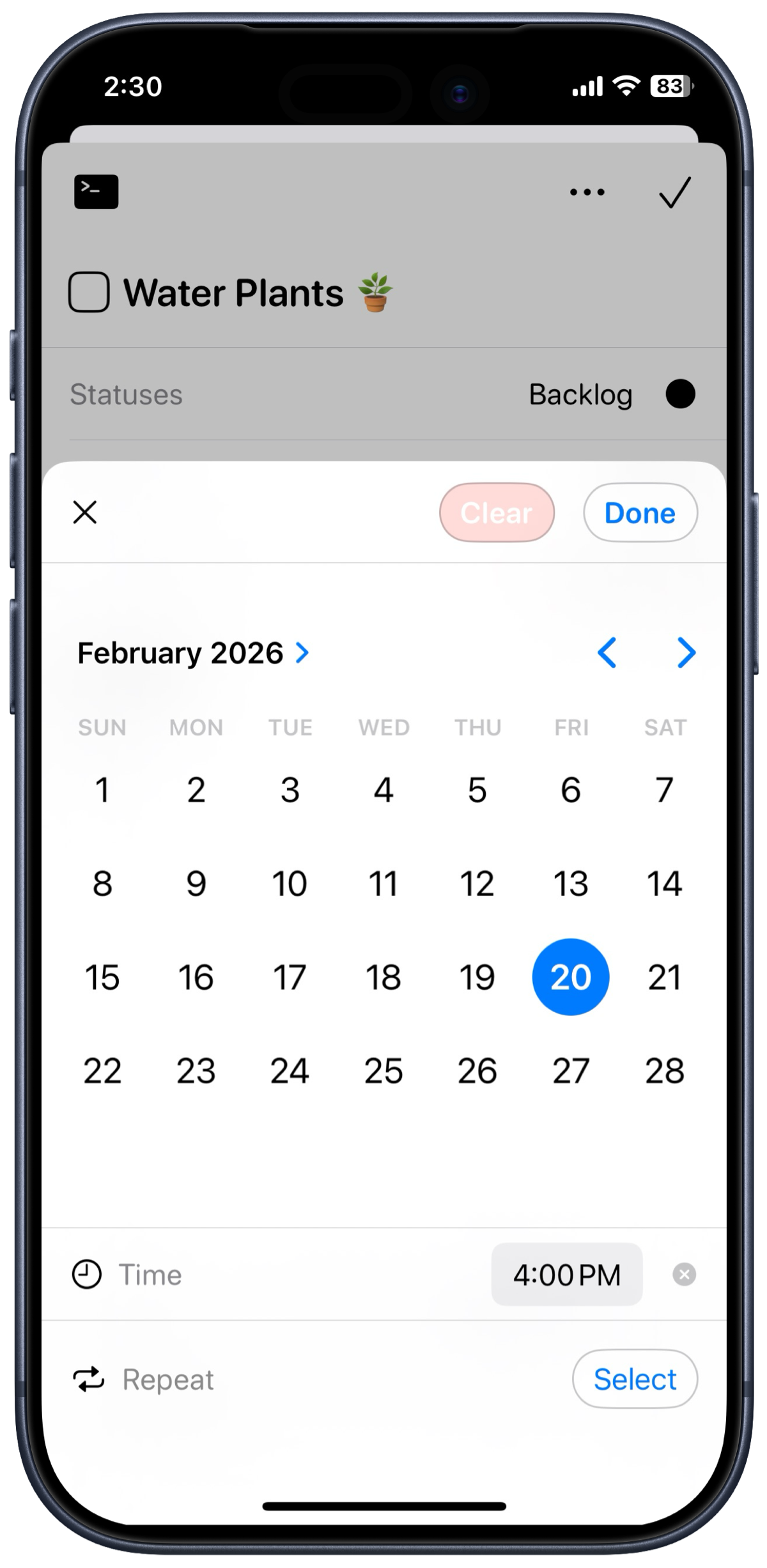
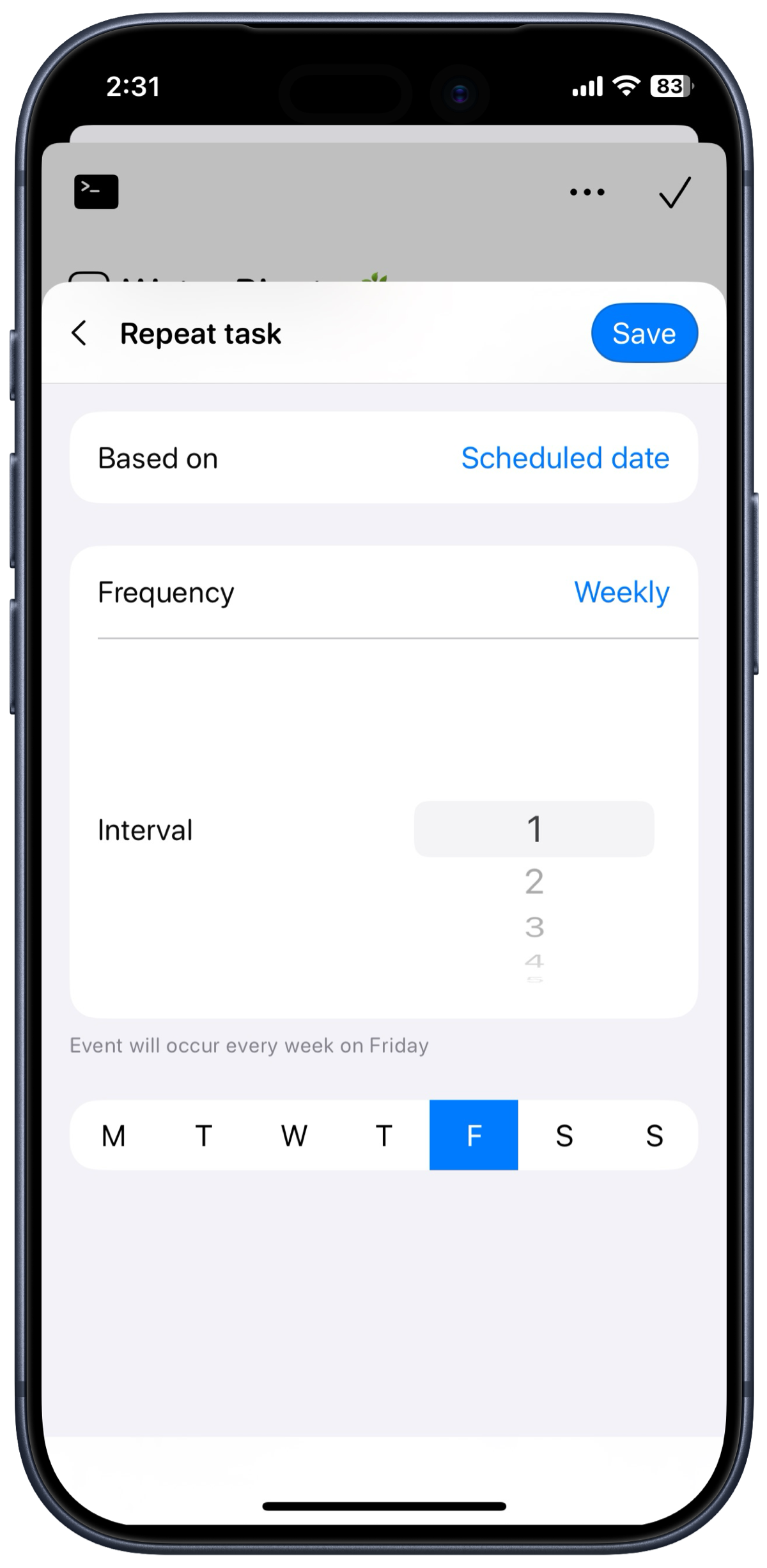
Some tasks come back around no matter how many times you check them off. Water the plants. Practice French. Weekly team sync. Tasks has you covered.
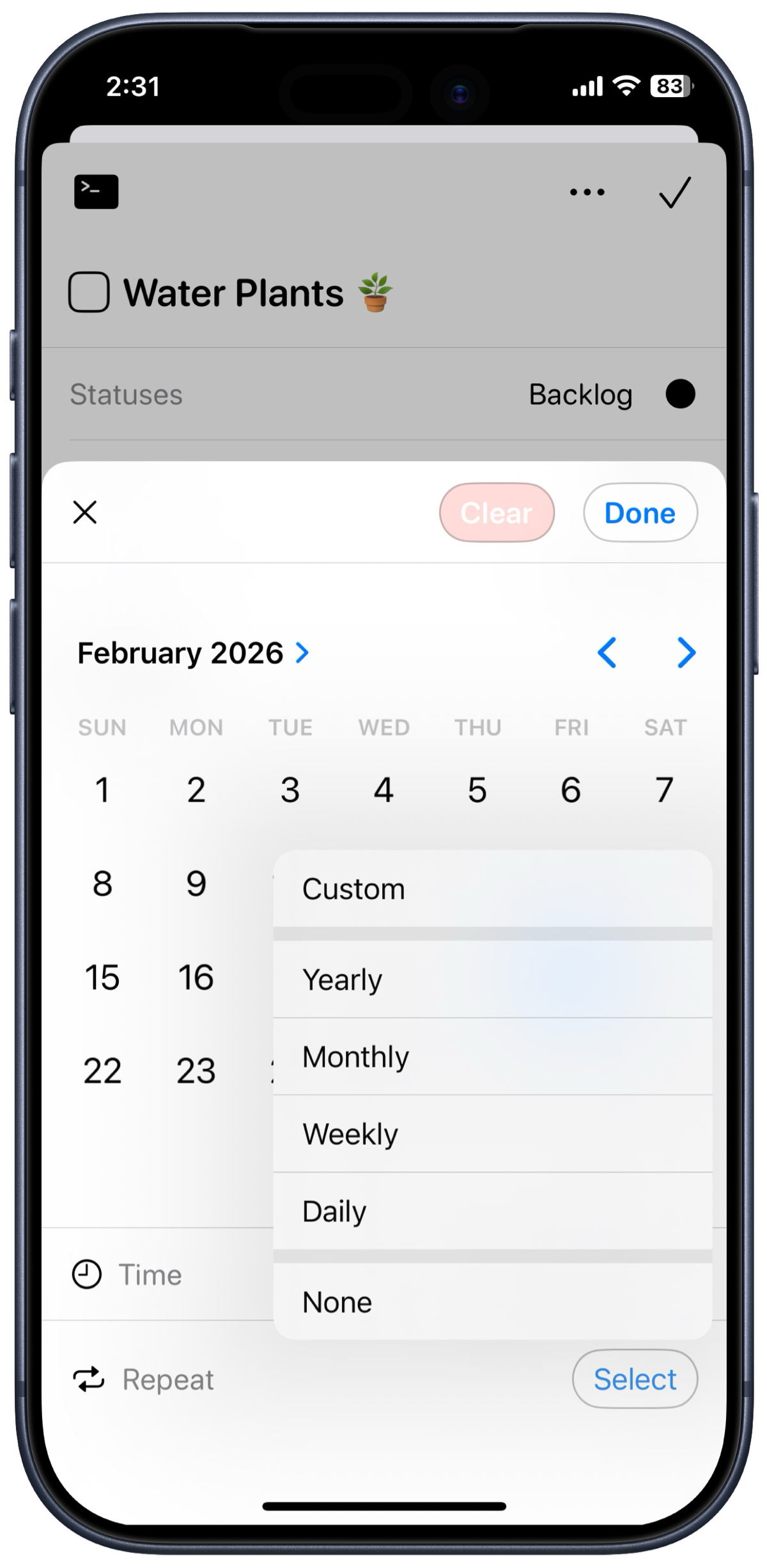
When creating a task, you can naturally type the date and Tasks will pick it up and assign it automatically. From there, tap Repeat to set a recurrence. Choose from Daily, Weekly, Monthly, Yearly, or set a fully Custom schedule if your routine does not fit a standard frequency.
Create your first project
Each project comes with a fully customizable Kanban board so you can track work the way that makes sense to you.
To create a project, tap the + icon in the sidebar under Projects. You will be taken to the template picker where you can choose from 16+ ready-made templates across Personal, Work and Business, Students, and Family and Home categories. Pick one that fits your goal, or start from scratch.
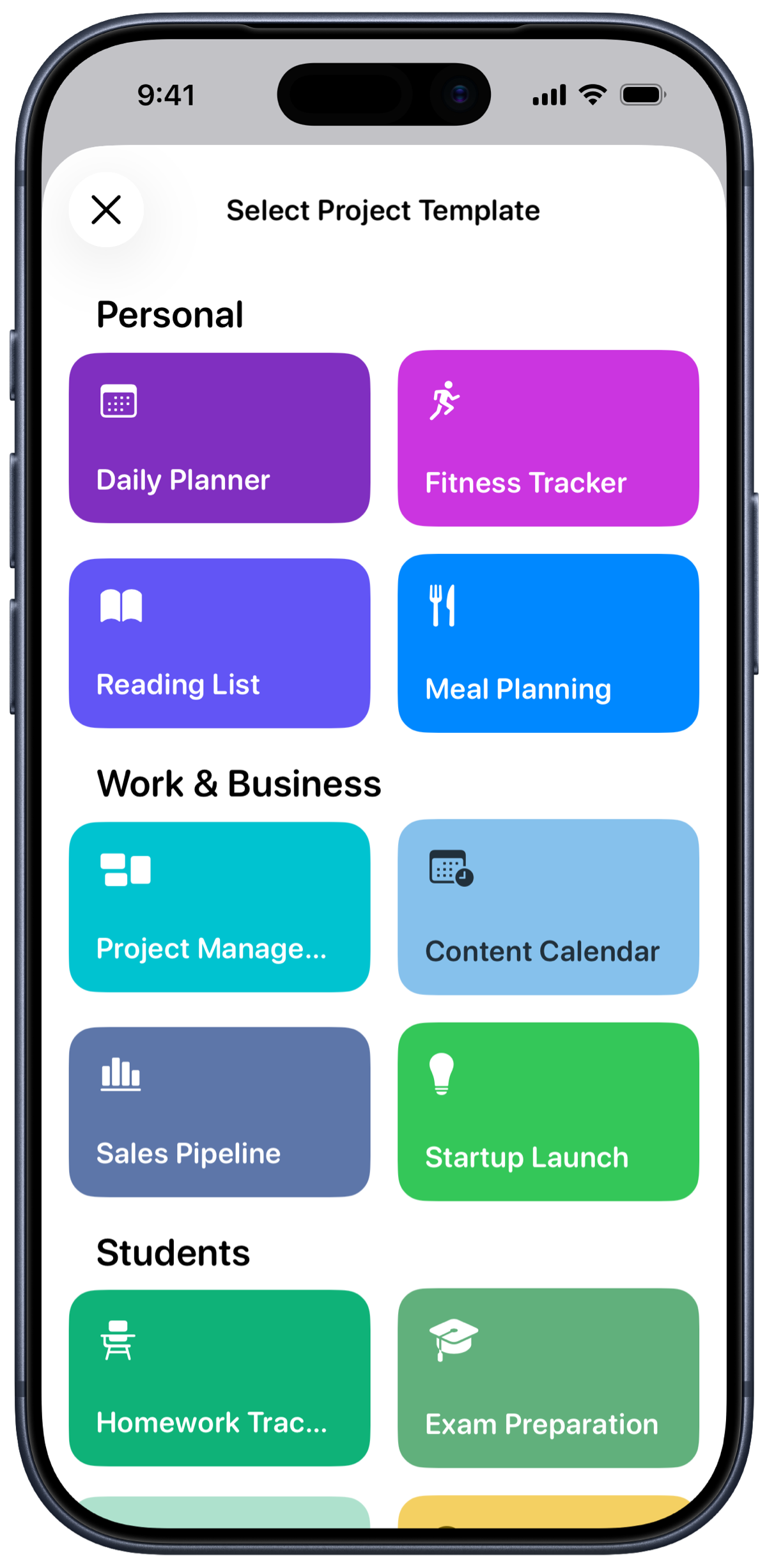
After picking a template, Tasks walks you through a quick setup before creating the project:
Statuses: Review the default workflow columns for your template. You can add new statuses, remove ones you do not need, reorder them.
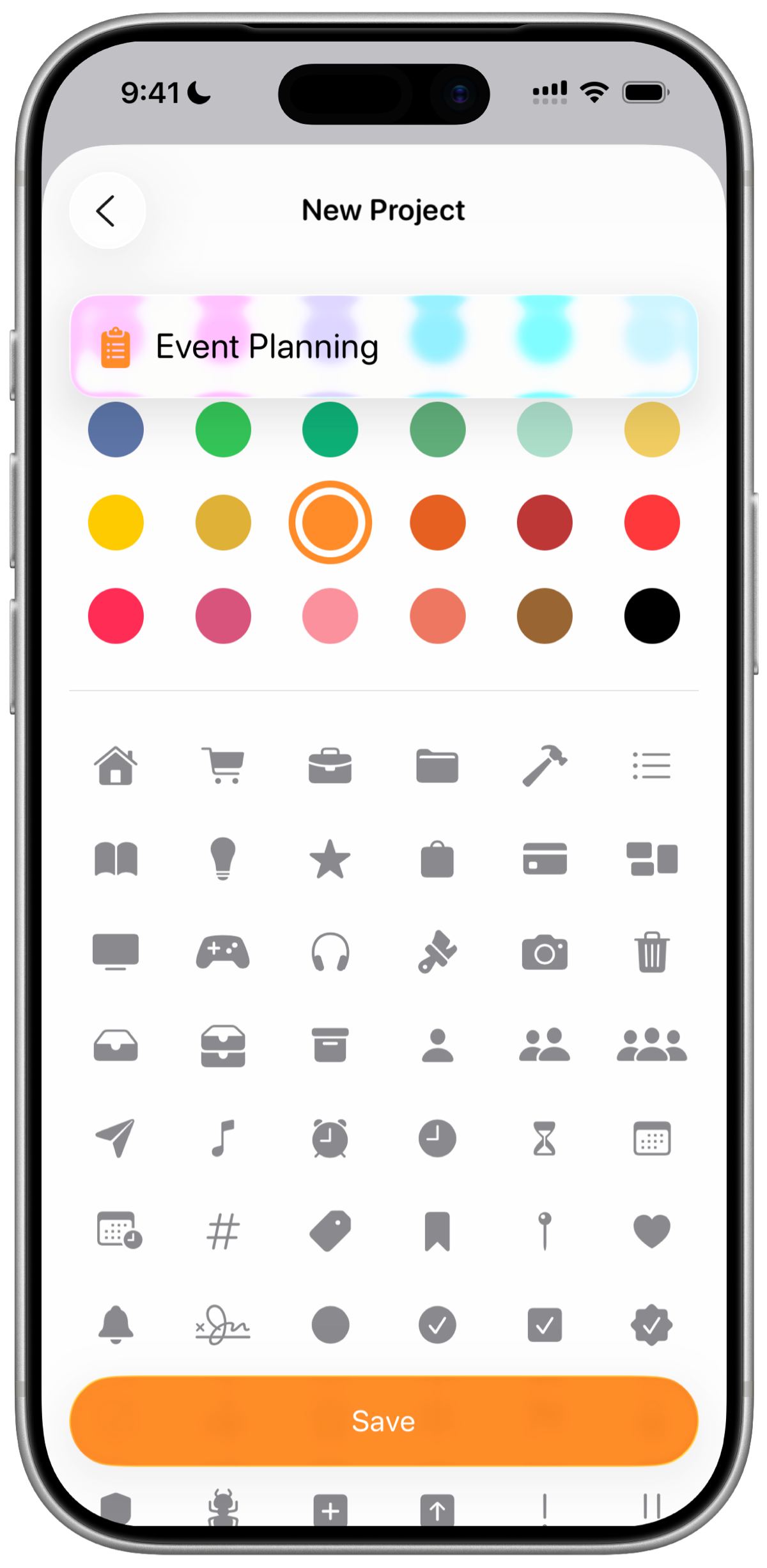
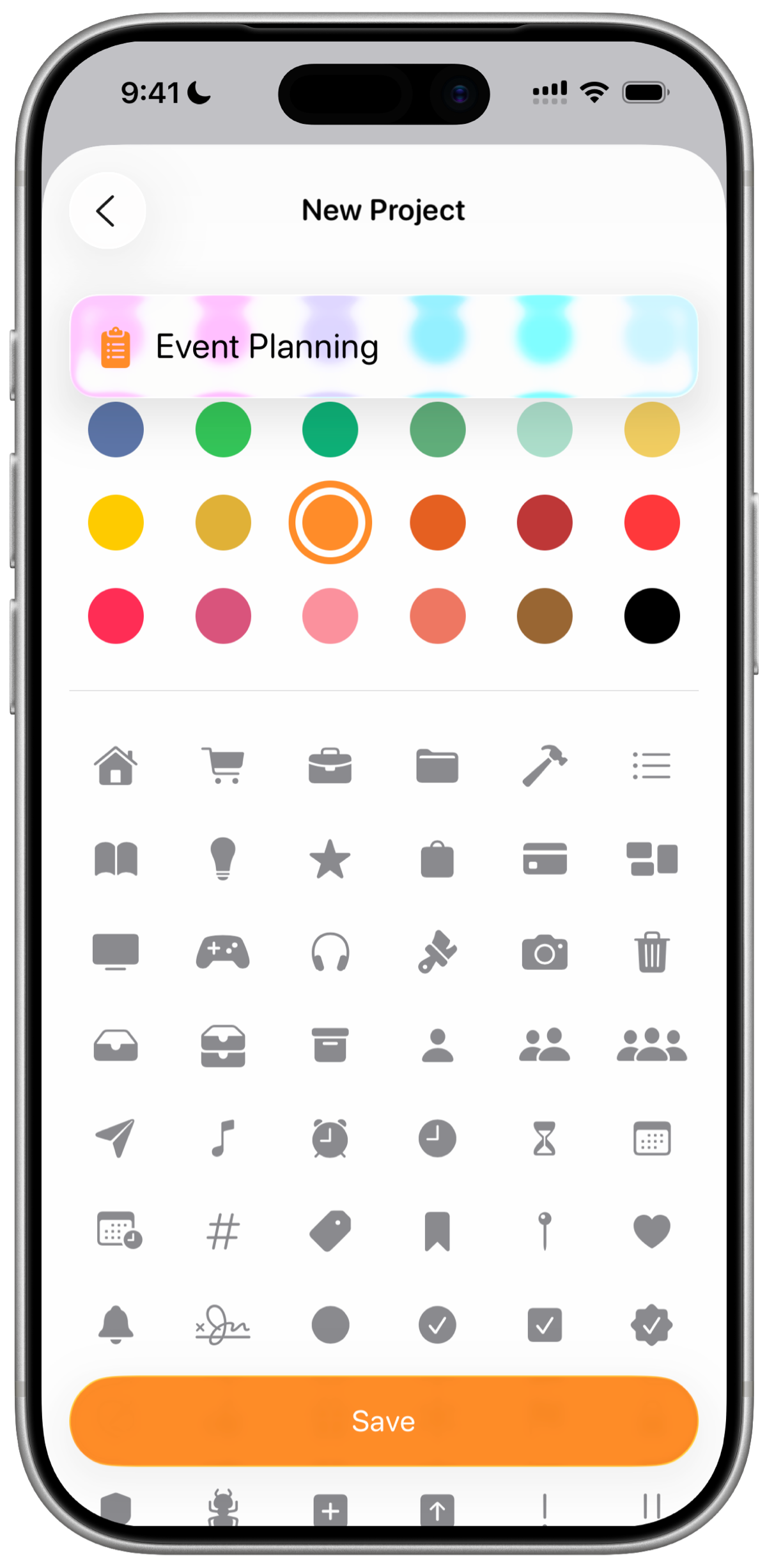
Long press on status and move them to reorder.
Tags: Add the tags you want available in this project from the start. For a grocery list that might be fruits, vegetables, and snacks. For a work project it might be Bug, Feature, and Design.
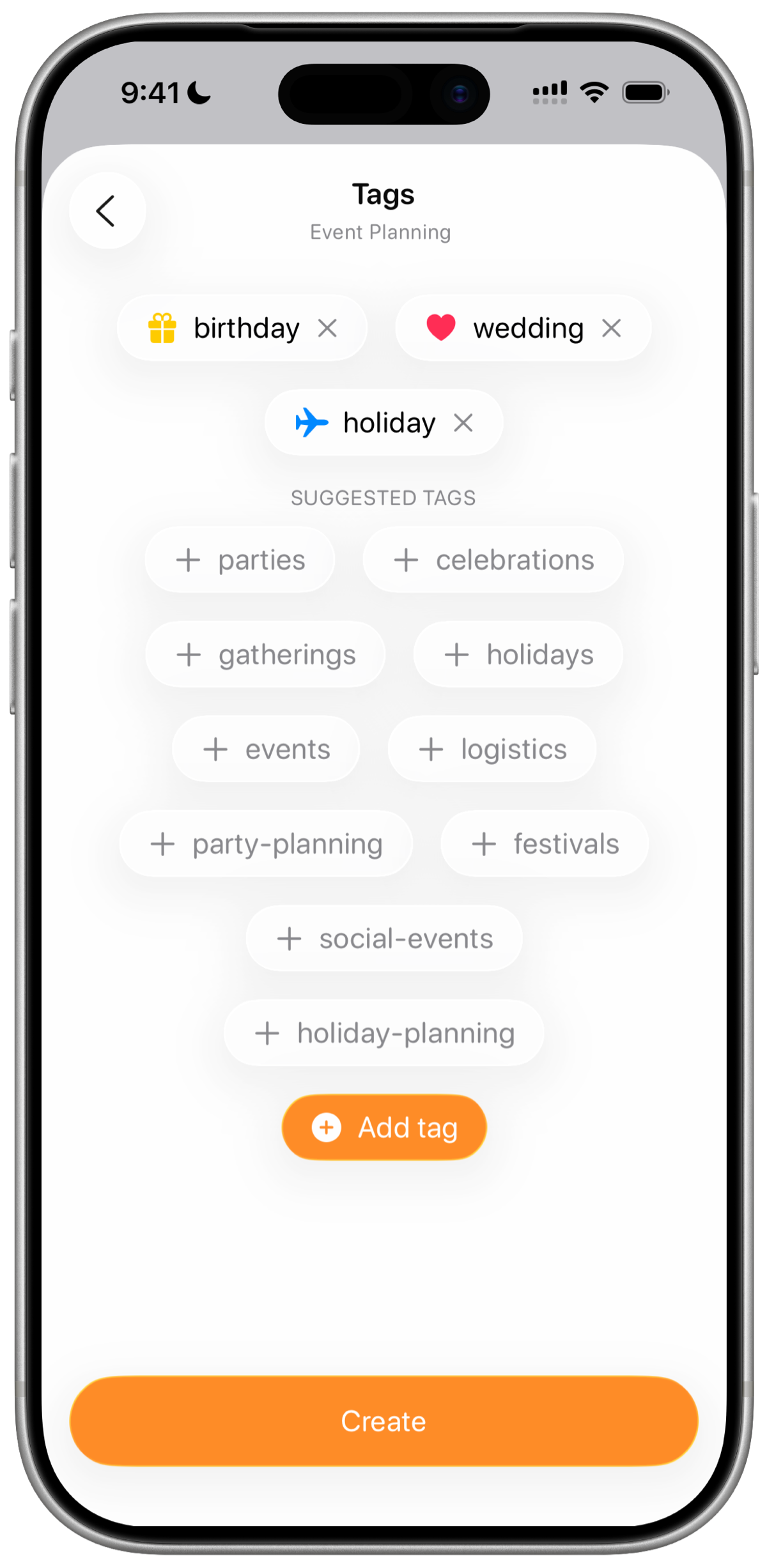
You can always update any of this later. Long press on a project in the home screen to access Modify Statuses and Modify Fields.
Do you know we support widgets too? Learn more about them here.
Happy Tasking!
Now you know the basics of Tasks. Go take on the day. If you have any questions, our support team is always happy to help.
Don't wait, add your first task.