Interactive Widgets
Apple introduced interactive widgets with iOS 17 and now our widgets are complete and more powerful than ever.
We love widgets a lot and have put in care and attention into crafting them for you. We have the following widget options:
-
Tasks within a Project
- Home Screen (all sizes supported)
- Lock Screen (medium size)
- StandBy
- Apple Watch
-
Smart Lists & Filters
- Home Screen (all sizes supported)
- Lock Screen (medium size)
- StandBy
- Apple Watch (only Today and Scheduled)
-
Tags, Statuses, Task Types and Priorities
- Home Screen (all sizes)
- Lock Screen (small size)
- StandBy
Project Widget
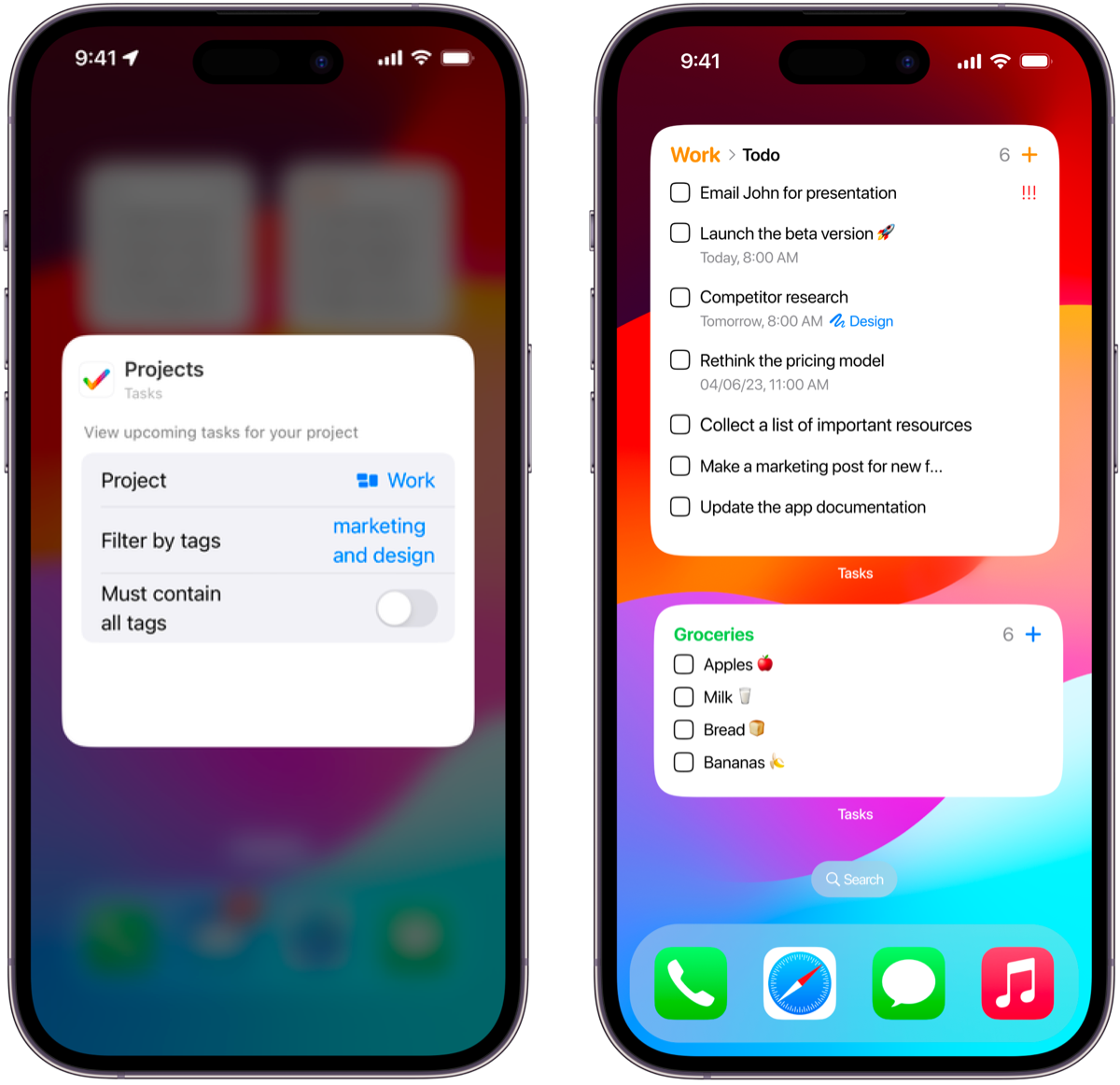
This is the first option you see when adding our widgets. Once you add this widget you get the following options that you can customise:
- Project - select the project and you'll see tasks from it.
- Filter by tags - select the tags you wish to filter the tasks in the widget by.
- Must contain all tags - you can turn this condition as you prefer.
For example, this is how you would set up a widget to see all tasks in Project Work where tags can be either #marketing or #design:
- Project -
Work - Filter by tags -
#marketing,#design - Must contain all tags - Switch would be off (because we said marketing or design and not both)
Our large widget size has a special ability to move between statuses of your project. You can tap the All button right next to the project name to switch it to your first column tasks only, and tap that to continuously switch across all the statuses - it will circle back to All.
Smart Lists & Filters
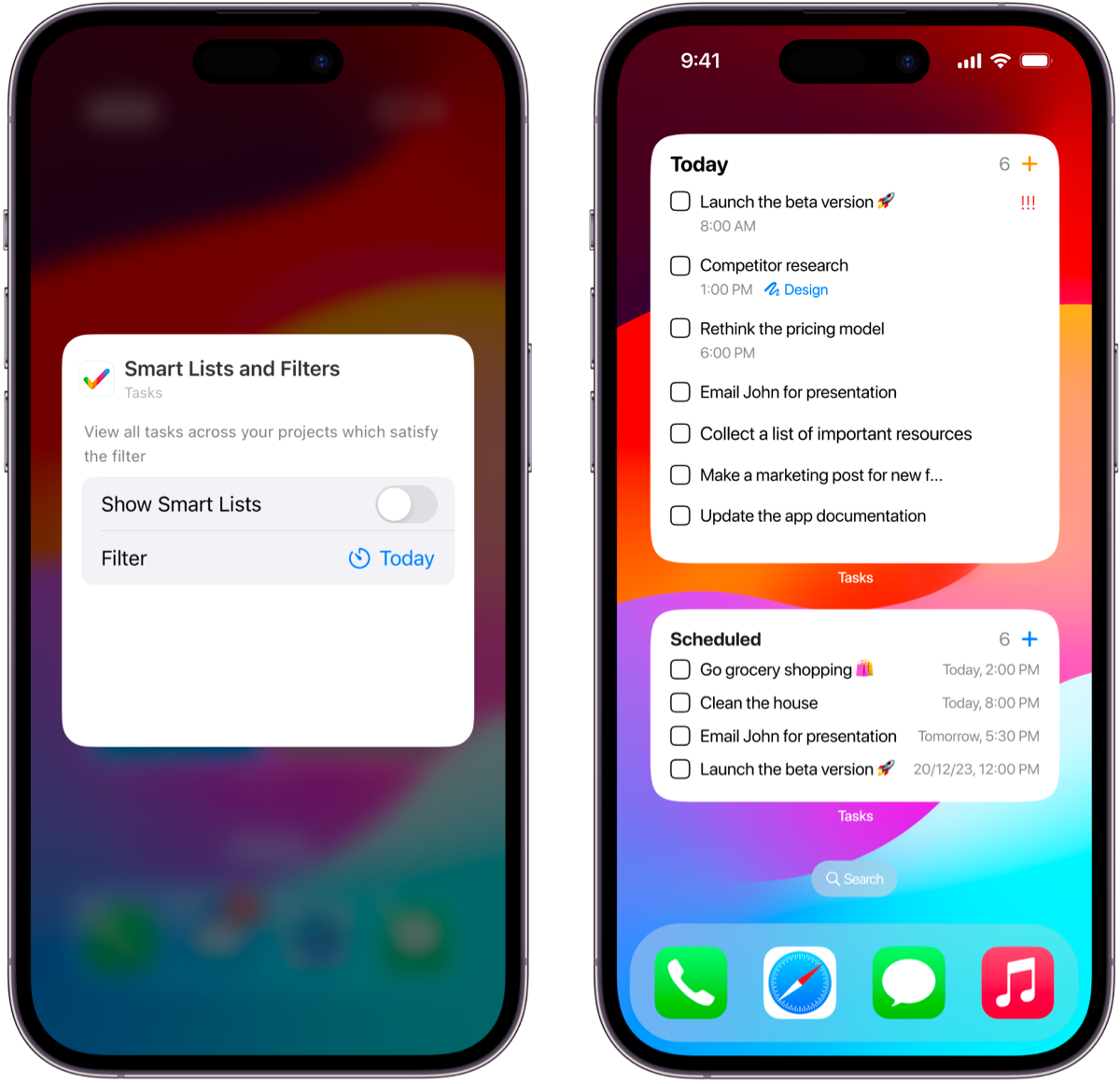
If you want to see tasks from our predefined filters or your configured Smart Lists, you can. Scroll to the widgets that read Smart Lists & Filters and select the widget size you prefer. Once you do, just tap on the widget to edit it and you'll see the following:
- Show Smart Lists
- If this is on you'll see -
Select Smart List - If this is off you'll see -
Filters
- If this is on you'll see -
Tags, Statuses, Task Types and Priorities
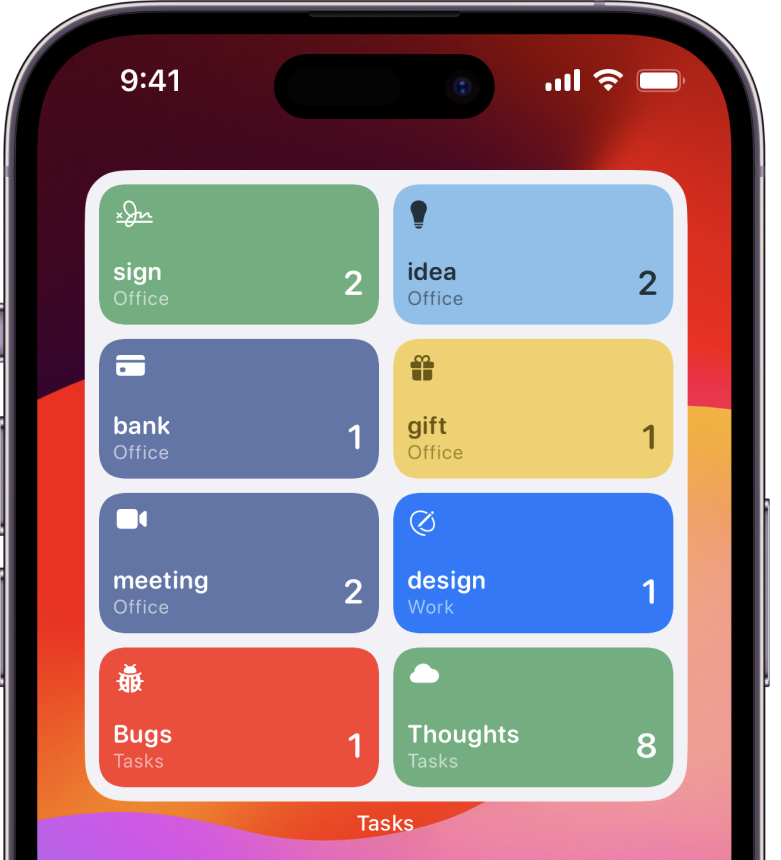
If you want a widget to show you just the count of a status (column) or the pending tasks of a tag, priority or task type, this widget is for you.
You head to adding the widget, you'll see this right at the end and can tap it to add it to your device. Long press and tap the widget to edit it and you'll be able to select the item you want to show on the widget. Tapping on this widget opens right to the item that you have selected!
Hope you enjoy our interactive widgets and if you have any feedback and suggestions, kindly reach out to us and we'll address it.
Sometimes if widgets don't appear or appear to look like they are stuck, you'll need to restart your device. This is an ongoing problem with widgets and something Apple is working towards perfecting and fixing.
Stay productive and take care!