Collaborate on Projects
Invite your team to any project and work together in one place. Only Owners and Admins of a project can invite or remove people.
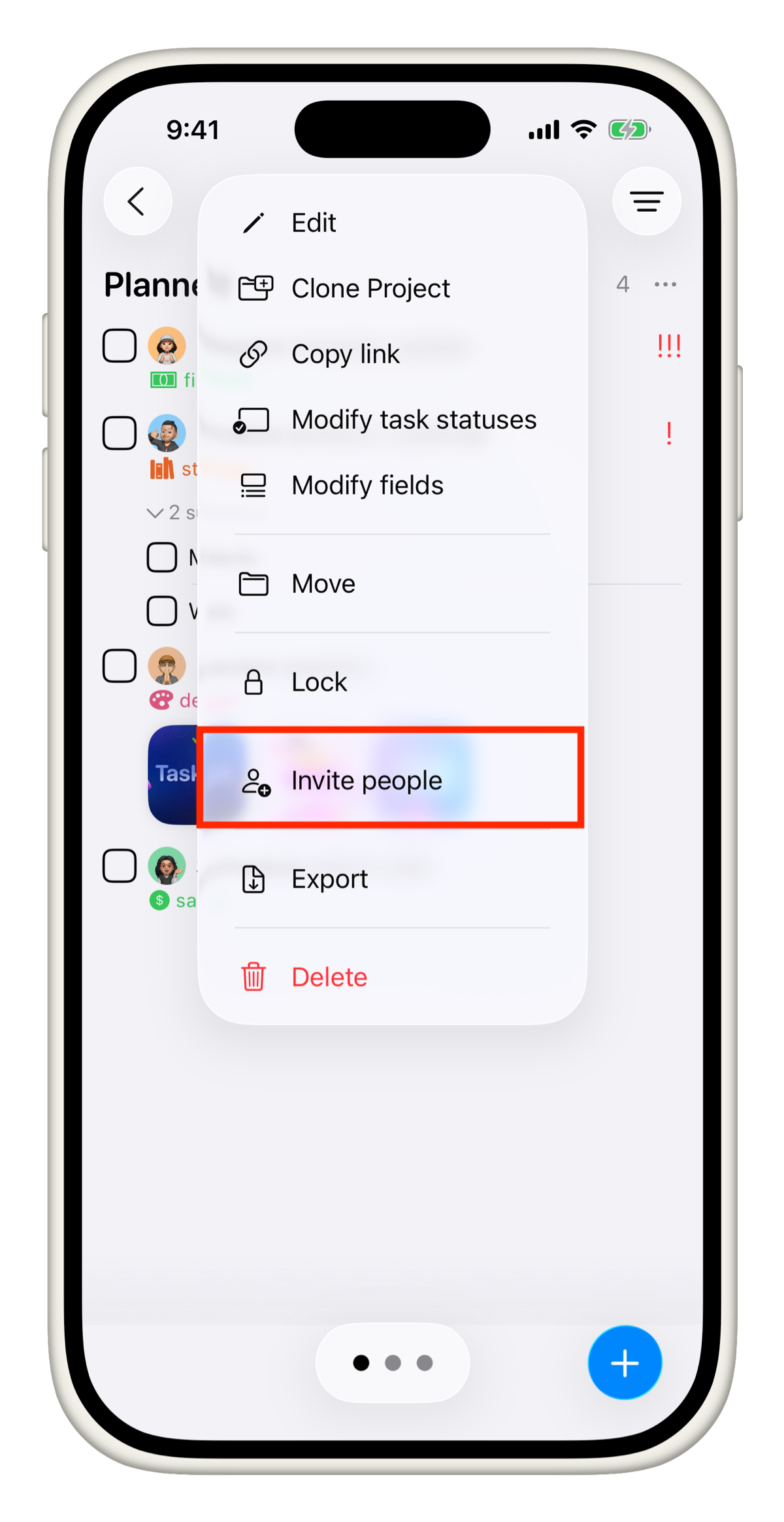
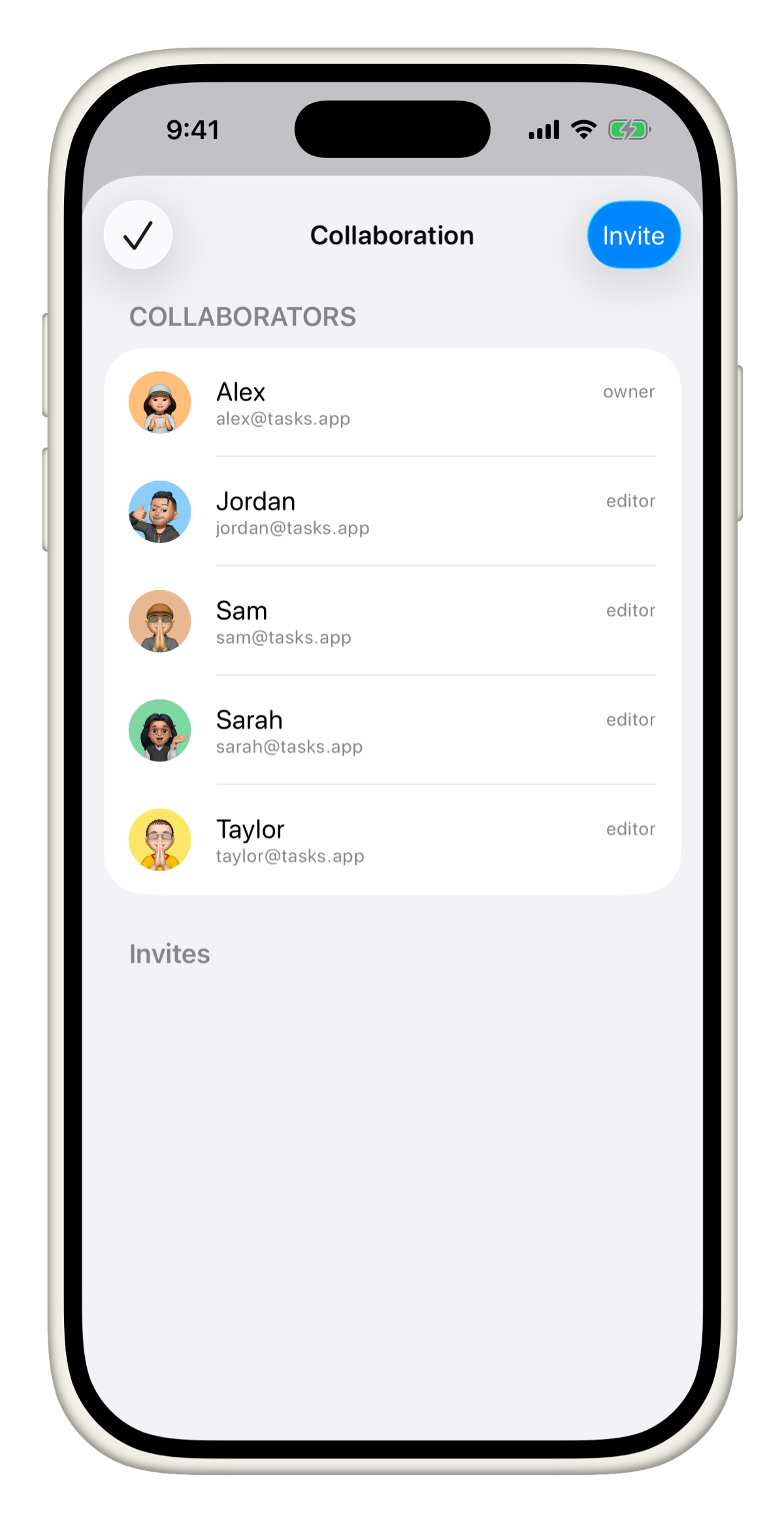
Not sure what your role is? Long press or right-click on the project in your sidebar and tap Invite People. Your role is shown at the top of the screen.
Invite by email
Long press or right-click on a project in the sidebar and tap Invite People. Select Private, enter one or more email addresses, choose a Role - either Editor or Admin - and tap Send. Each person will get an invite to join the project.
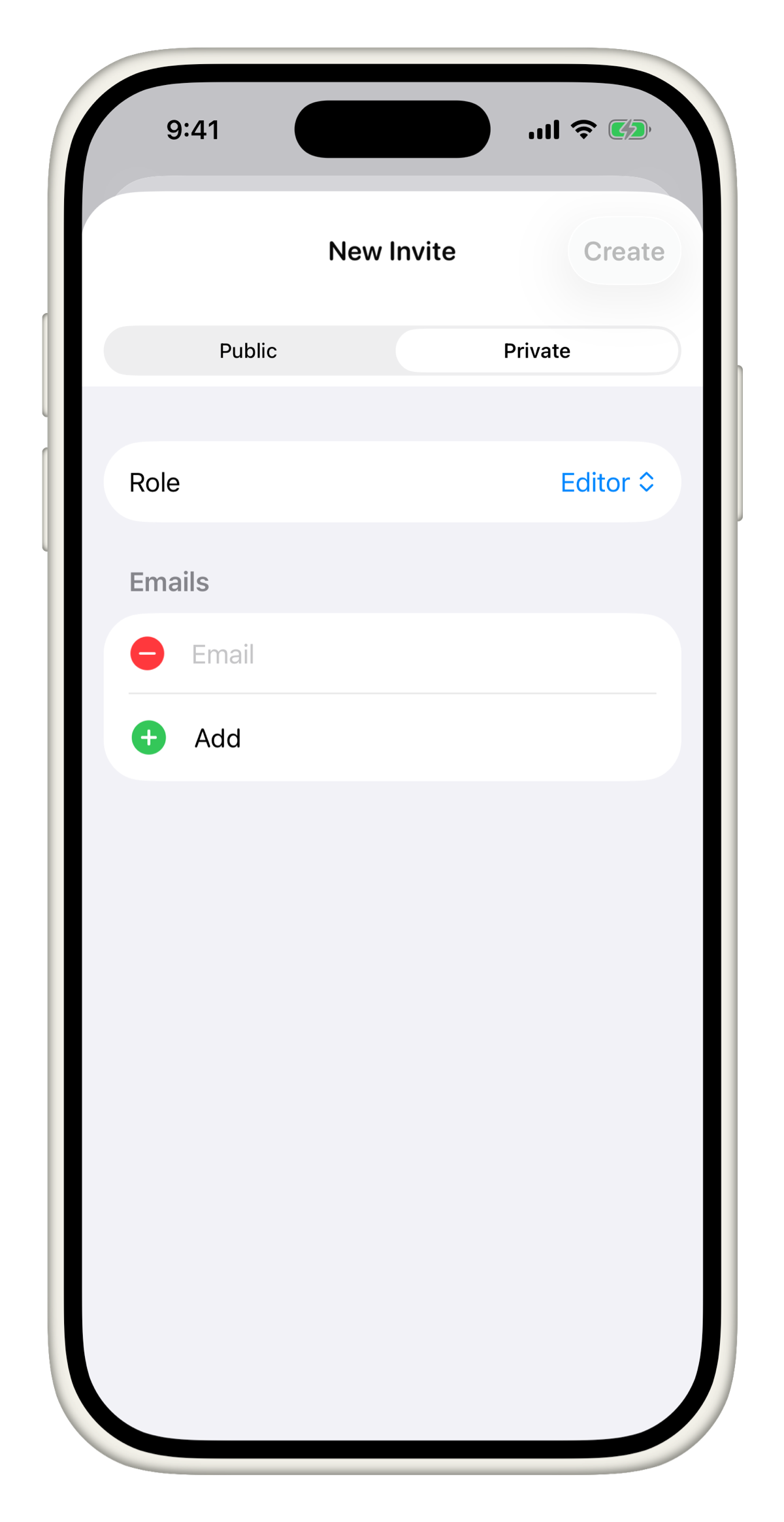
You can add multiple email addresses at once. Each person will receive an invite to join the project.
Invite with a link
If you prefer to share a link, select Public instead of Private. Set the Role, choose a Maximum Clicks limit and a Link Expiry date, then tap Create. Share the link with whoever needs access.
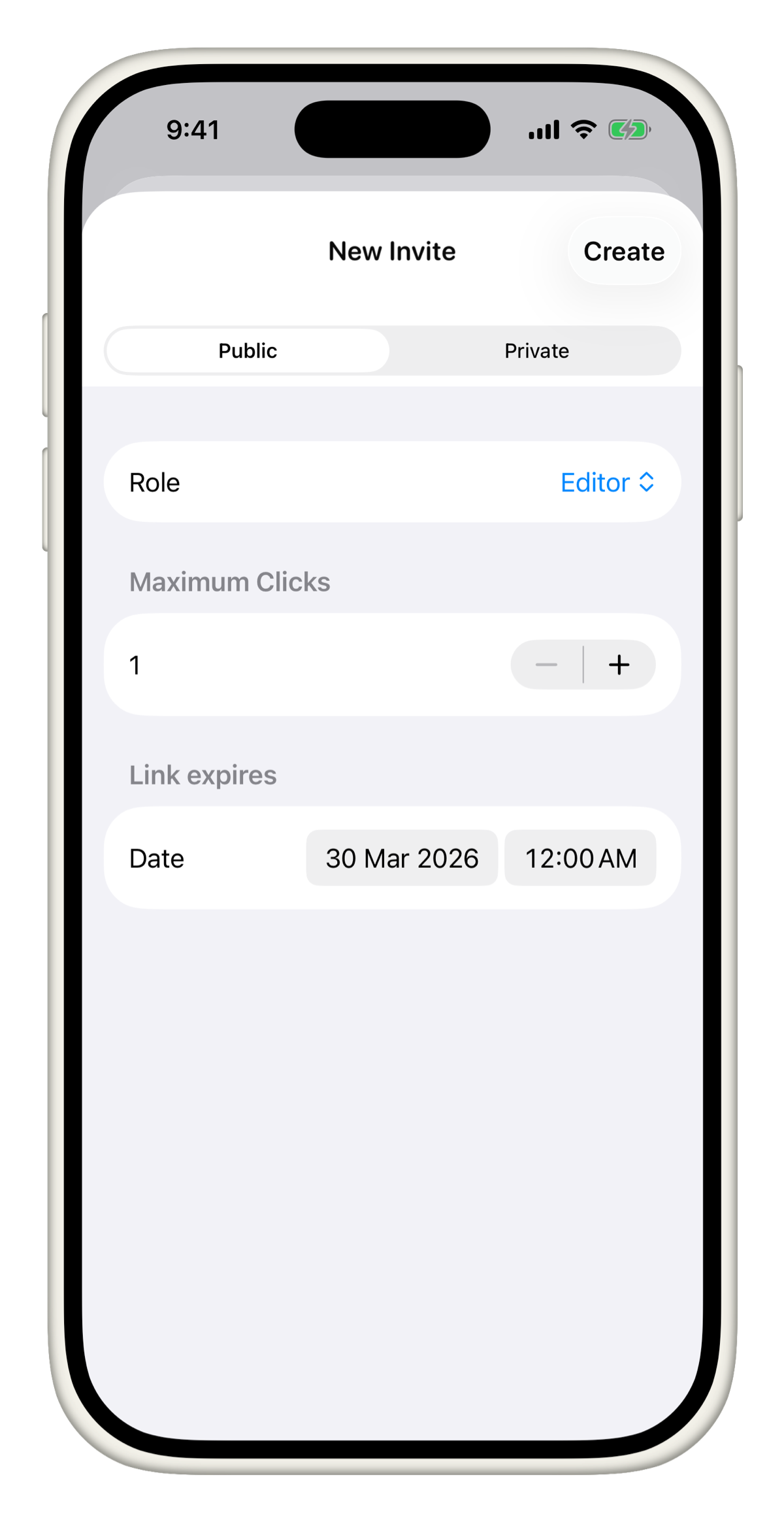
Use Maximum Clicks and an expiry date to keep your invite link under control. Once the limit is hit or the link expires, no one new can join with it.
A public link is accessible to anyone who has it. Be mindful of who you share it with.
Roles
There are three roles in a project. The Owner is the person who created it - there can only be one Owner. Admins can invite and remove people just like the Owner. Editors can create and edit tasks but cannot manage members.
| Role | Invite People | Remove People | Edit Tasks |
|---|---|---|---|
| Owner | Yes | Yes | Yes |
| Admin | Yes | Yes | Yes |
| Editor | No | No | Yes |
The Owner is the person who created the project. There can only be one Owner per project.
Remove people
Only Owners and Admins can remove members. Long press or right-click the project, tap Invite People, find the person you want to remove, tap their role and select Remove from Project.
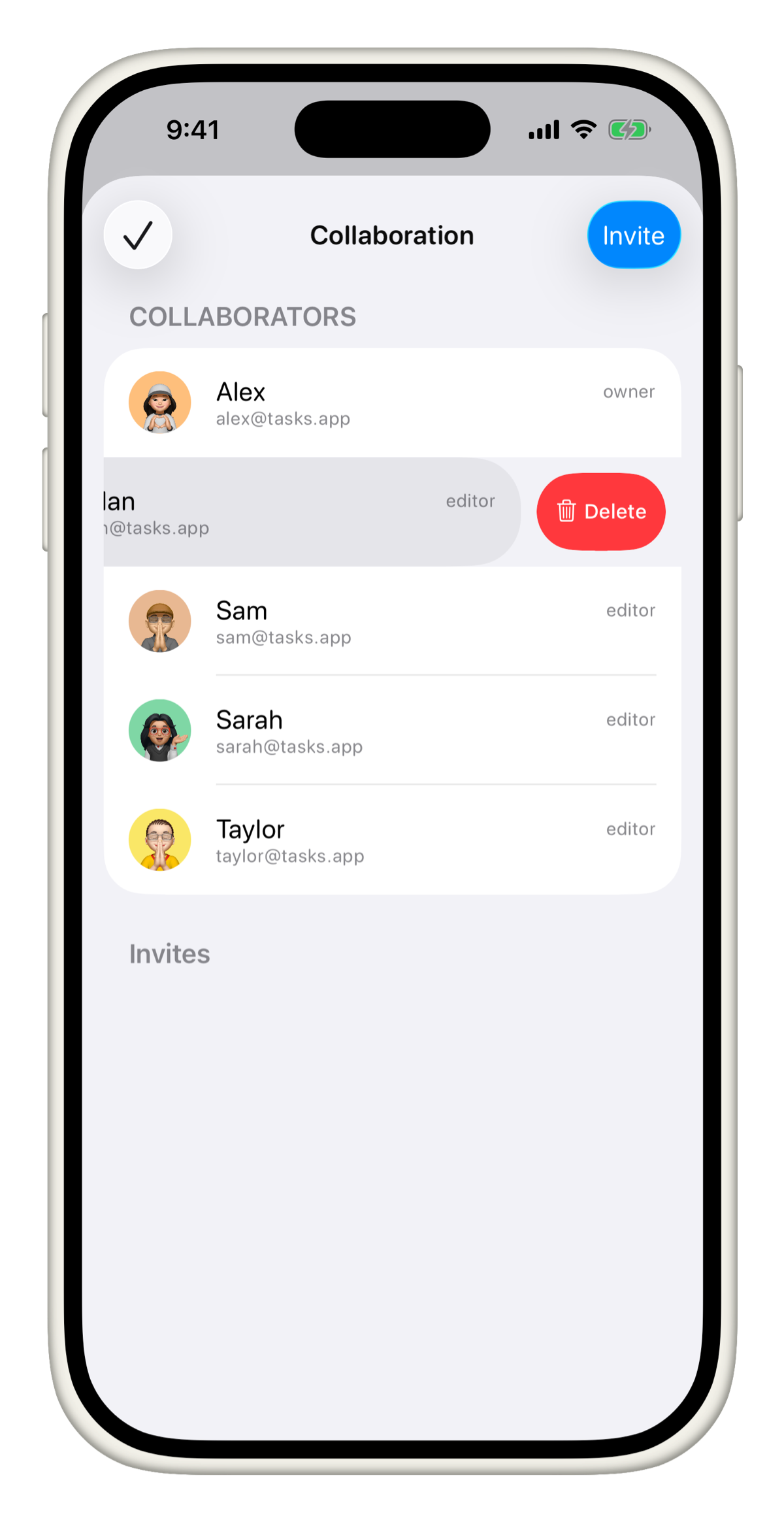
When someone is removed, all tasks assigned to them become unassigned but remain in the project. The removed member will no longer be able to view those tasks.
Troubleshooting invites
If someone is not receiving your invite, ask them to check their spam or junk folder. If the email still does not arrive, their inbox provider may have blocked it - use a public invite link instead and share it directly.
If an invite link is not working, make sure the person is logged in to their Tasks account. Also check that the link has not expired or hit its Maximum Clicks limit.
If you are still having trouble, reach out to us at tasks@msquarelabs.com.