Troubleshooting Sync
There are two sync options with Tasks:
- iCloud
- Tasks Cloud
iCloud
This is enabled by default for all projects in the app. The sync occurs without you having to specify anything. At times, the permission is disabled for the app, kindly ensure the below steps are turned on.
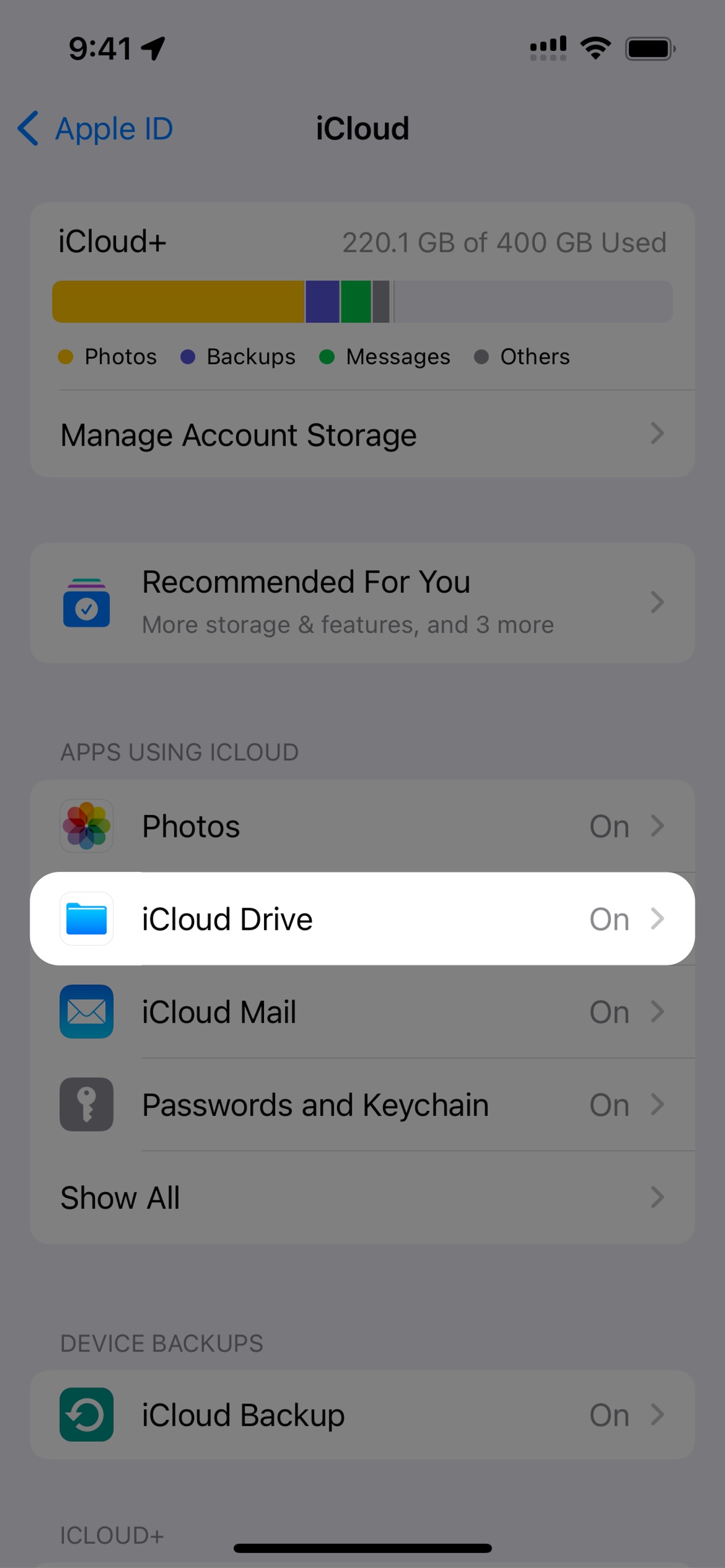
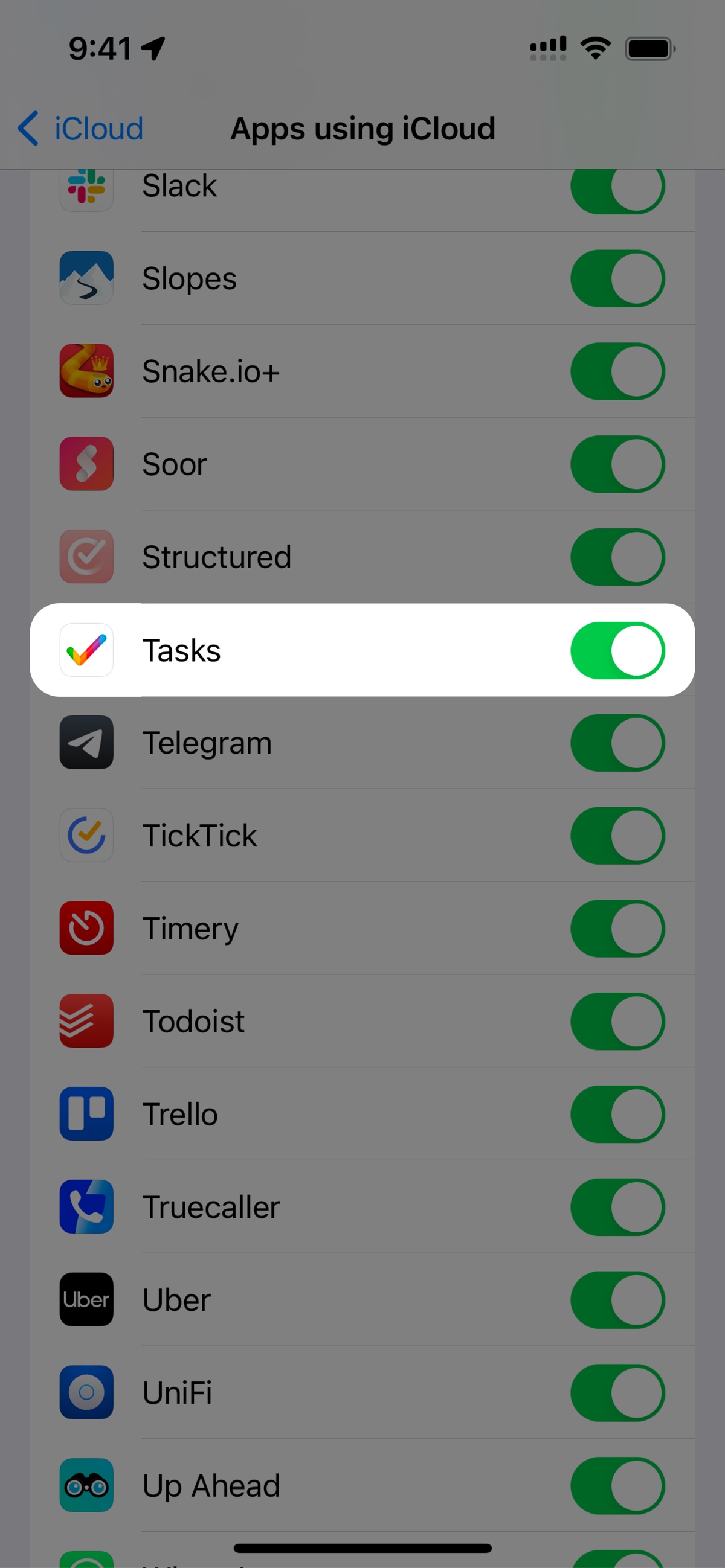
Go to the Settings app on your device. You'll find your name on the top of Settings, go into that and select iCloud. Now ensure the below steps are all correctly enabled:
- iCloud Drive is turned on
- Tasks is enabled to use iCloud
- Ensure you have enough space in iCloud (Tasks barely requires any space provided you don't have a lot of images to sync)
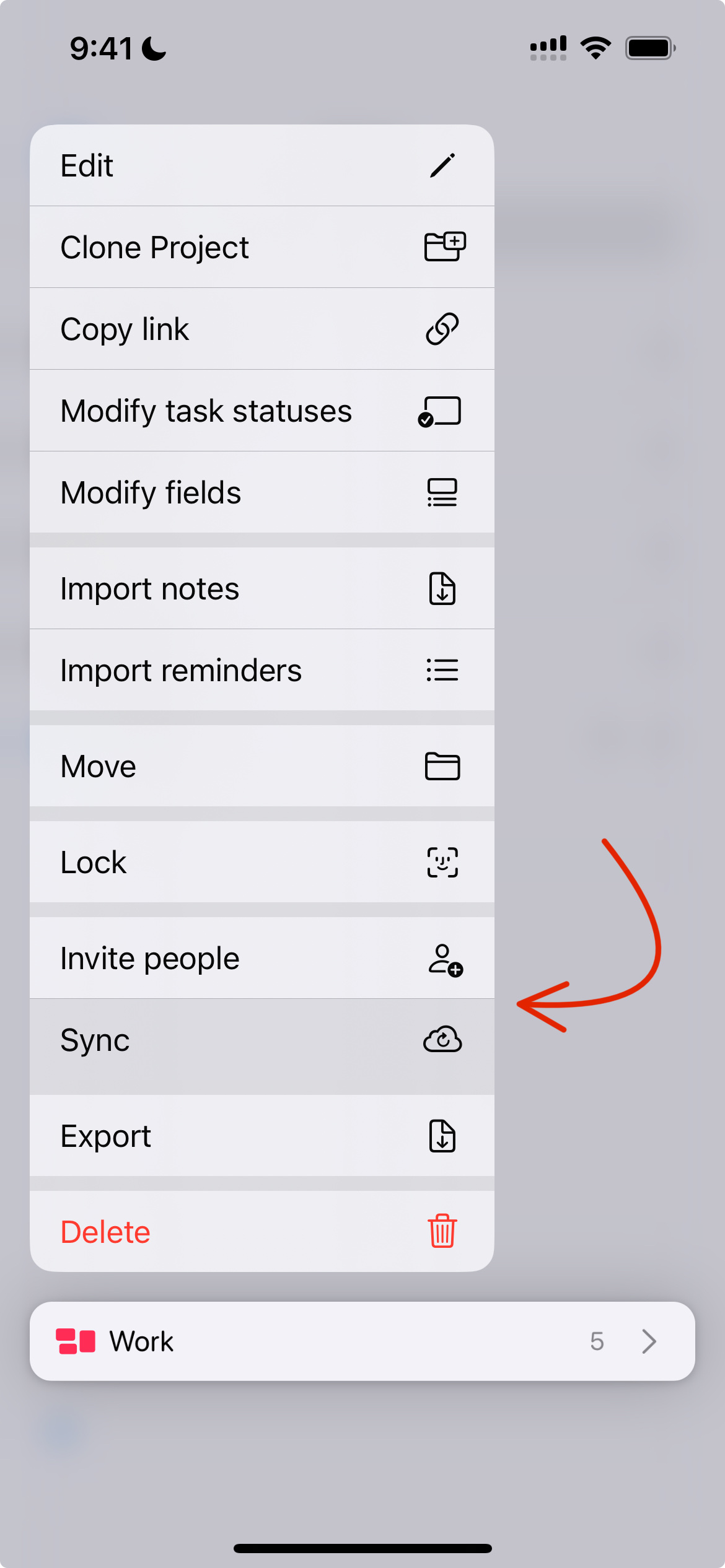
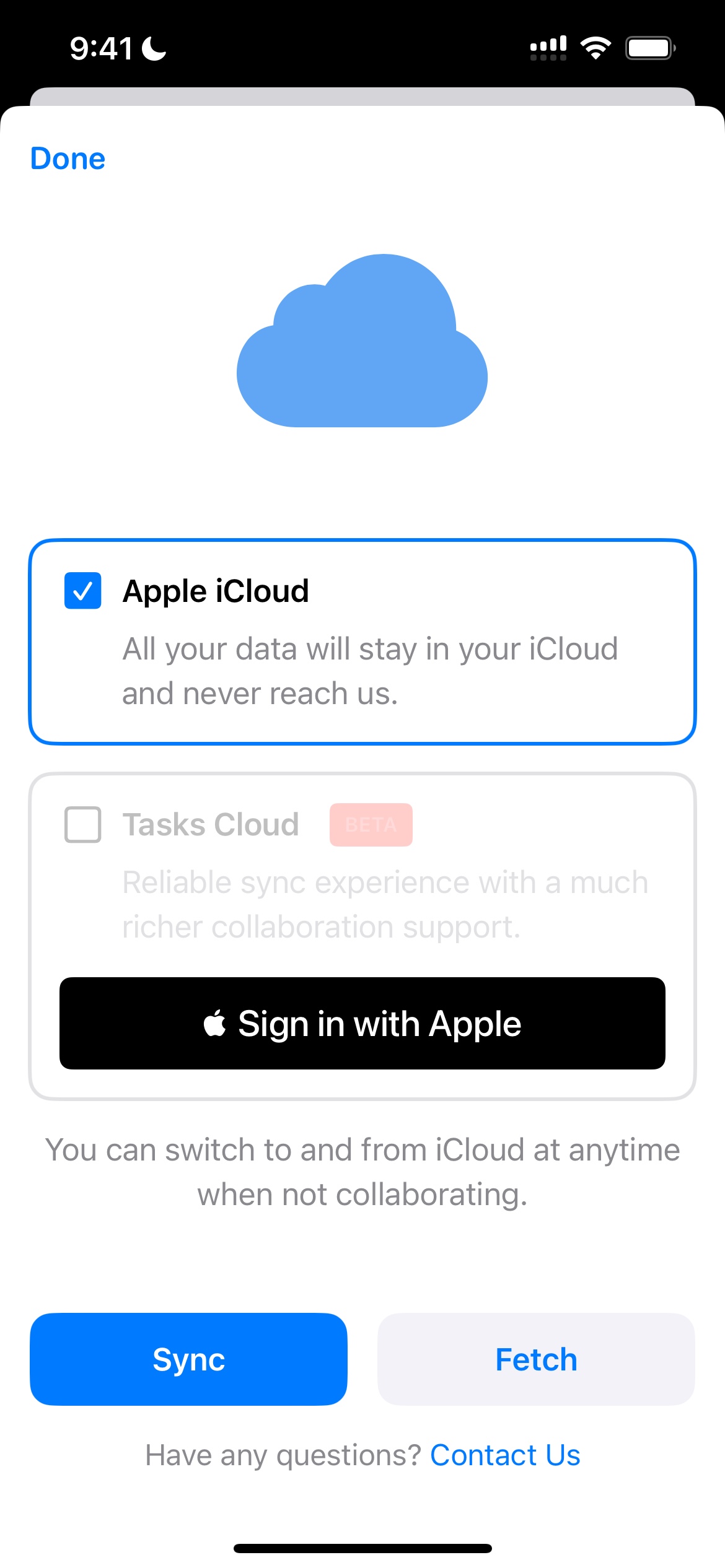
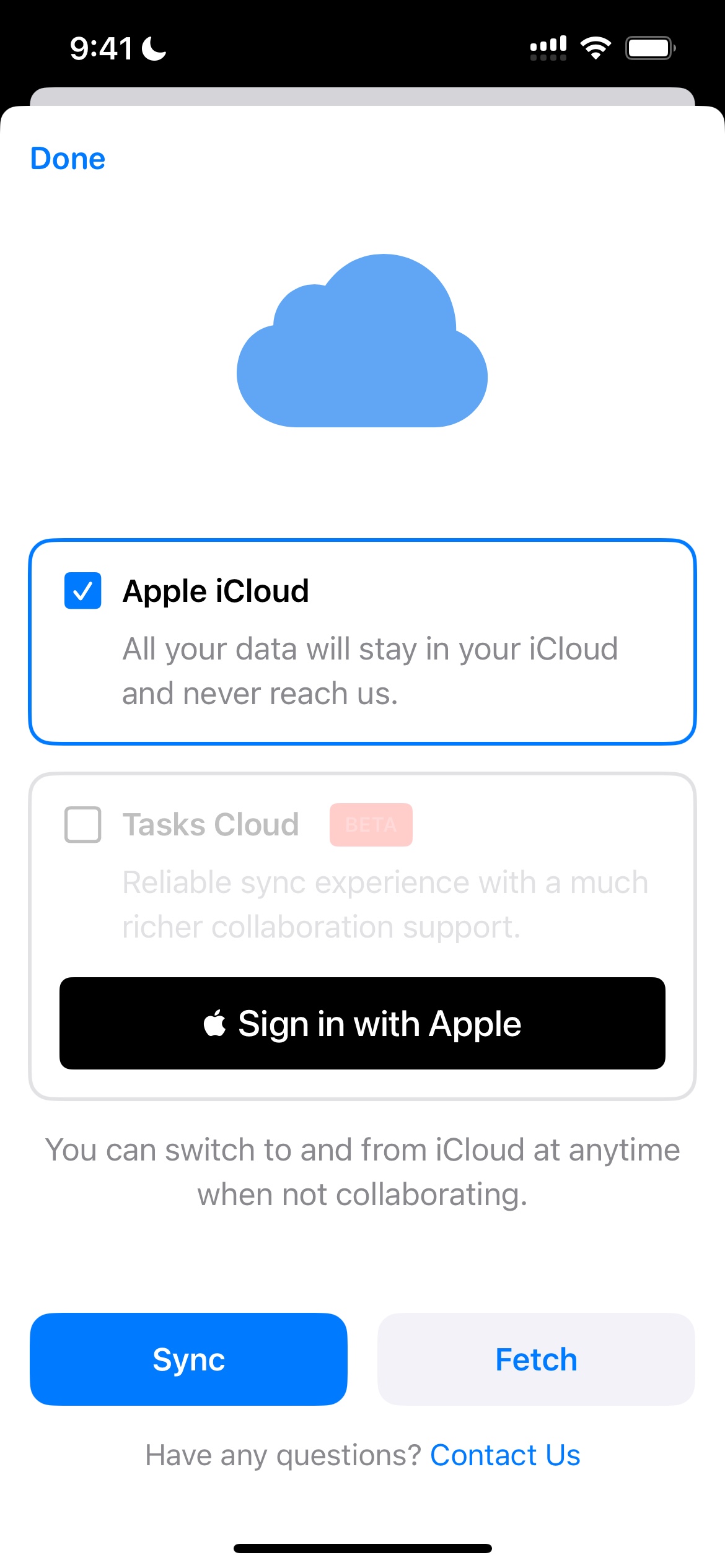
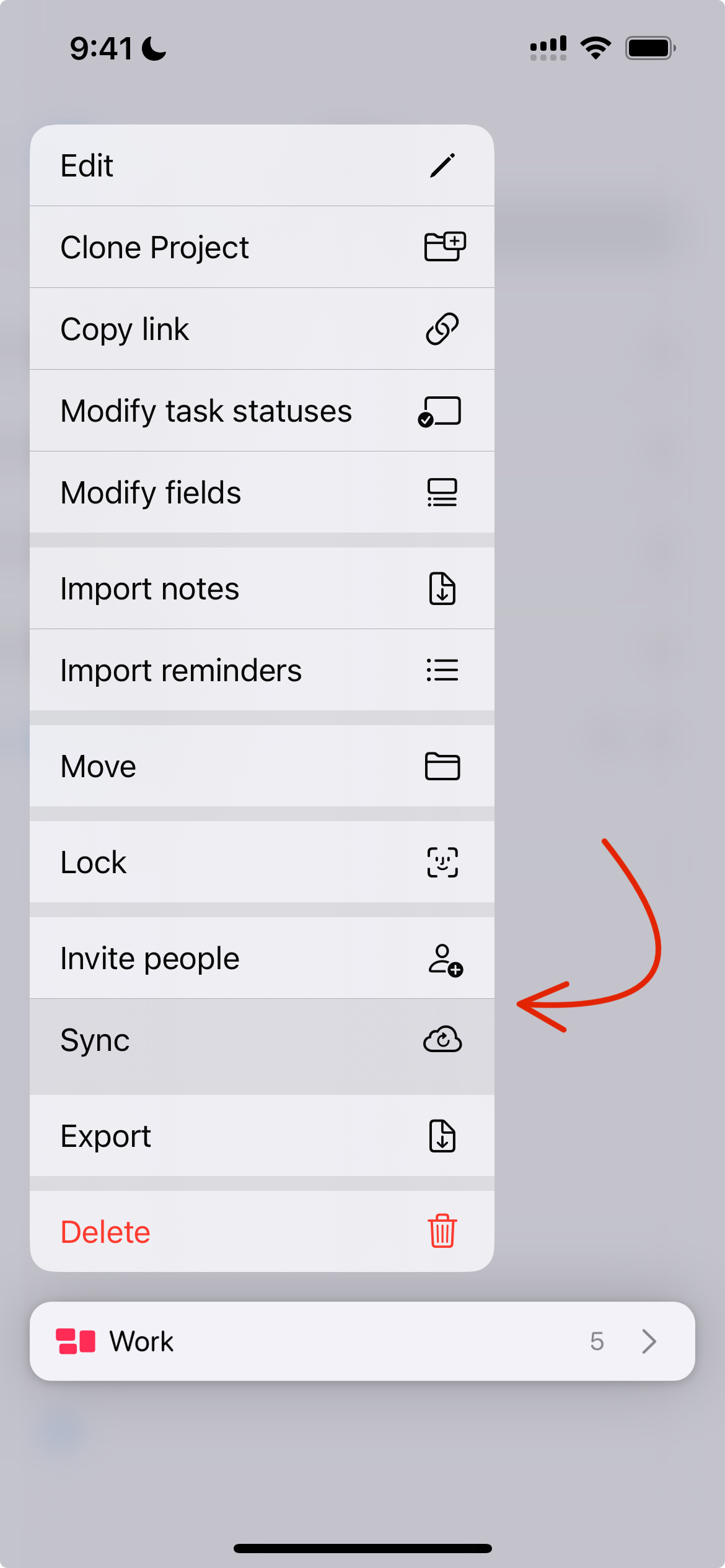
Now head into the project, long press or right click on the project and you should see an option labeled as "Sync". When you tap that you are greeted with a screen that allows you to do two actions:
-
Fetch
This fetches all the tasks that are in your iCloud into your device. This will override any unsynced changes on your device.
-
Sync
This forcefully syncs all the tasks within the project thereby overriding anything that might be in iCloud. Kindly proceed if you want to force sync the project.
Once you do this, you would receive a popup to share a sync report. You may choose to share this with us on the mail and we'll have a look at anything weird and try our best to have it fixed.
If all has gone as intended, you should see the synced changes appear on your other device. You ideally want to quit and then open Tasks on that device again if the changes don't appear immediately. The app usually gets the synced changes between 1 to 8 seconds.
Tasks Cloud (Beta)
iCloud was proving to be problematic and we realised we had to build our own solution and that is Tasks Cloud. It has proven to be more reliable than iCloud.
You can opt into this per project by right clicking or long pressing on a project and selecting the "Sync" option.
We recommend you don't directly switch a main working project of yours to Tasks Cloud.
Instead clone the project and switch that cloned project to Tasks Cloud and then if all has migrated properly you may delete your older project syncing with iCloud.
Once you're on Tasks Cloud you can follow the same steps illustrated for iCloud to force sync to Tasks Cloud and force fetch the changes to your device.
Ensure you're logged into the other device as well. You can check if you're logged in by visiting the Settings within Tasks.
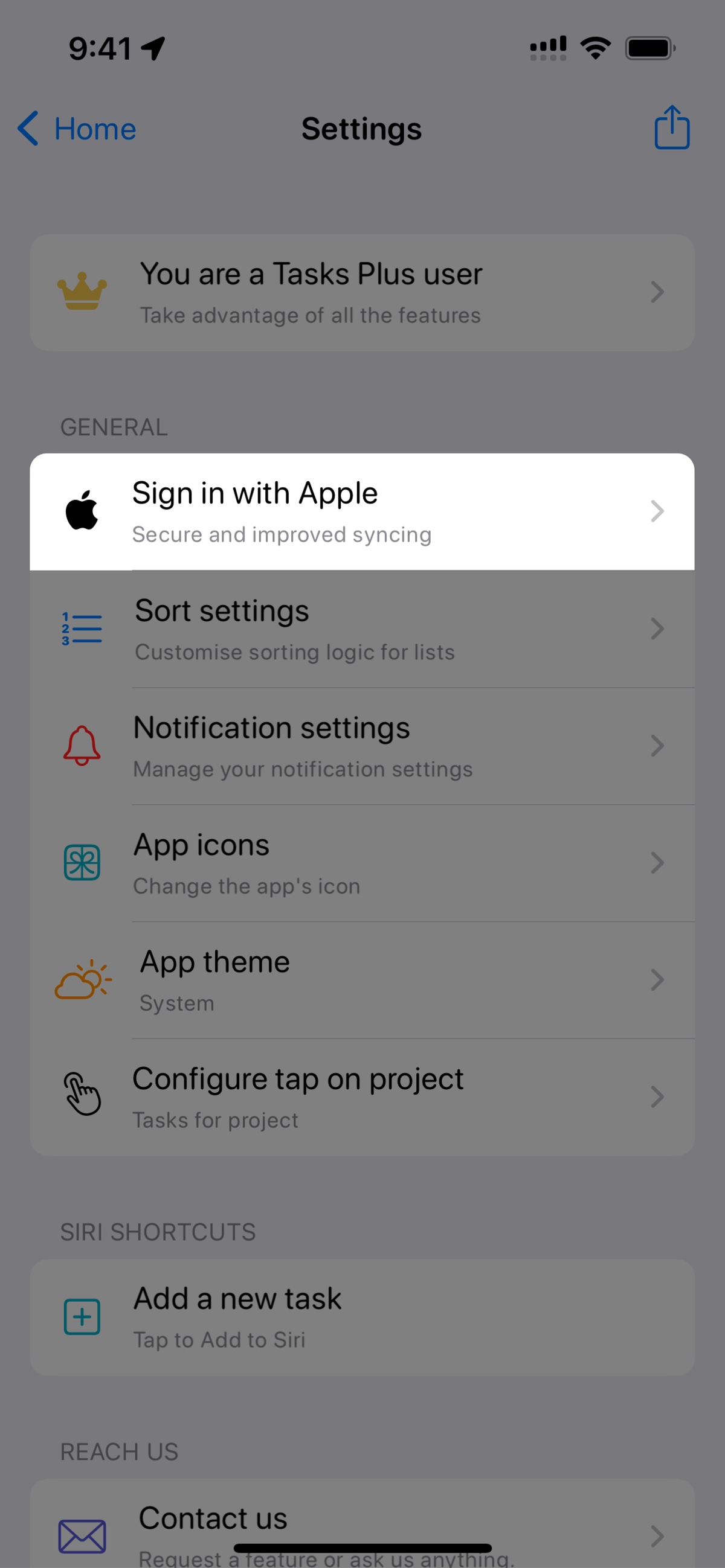
If you're facing further issues, please feel free to write to us. You'll find our details within the app's settings page.
Thank you for your patience and hope to get rid of these issues very soon!