Customize Statuses
Statuses are the columns on your Kanban board. They represent the stages a task moves through, from the moment you add it to the moment it is done. Every template comes with a default set of statuses, but you can make it completely your own.
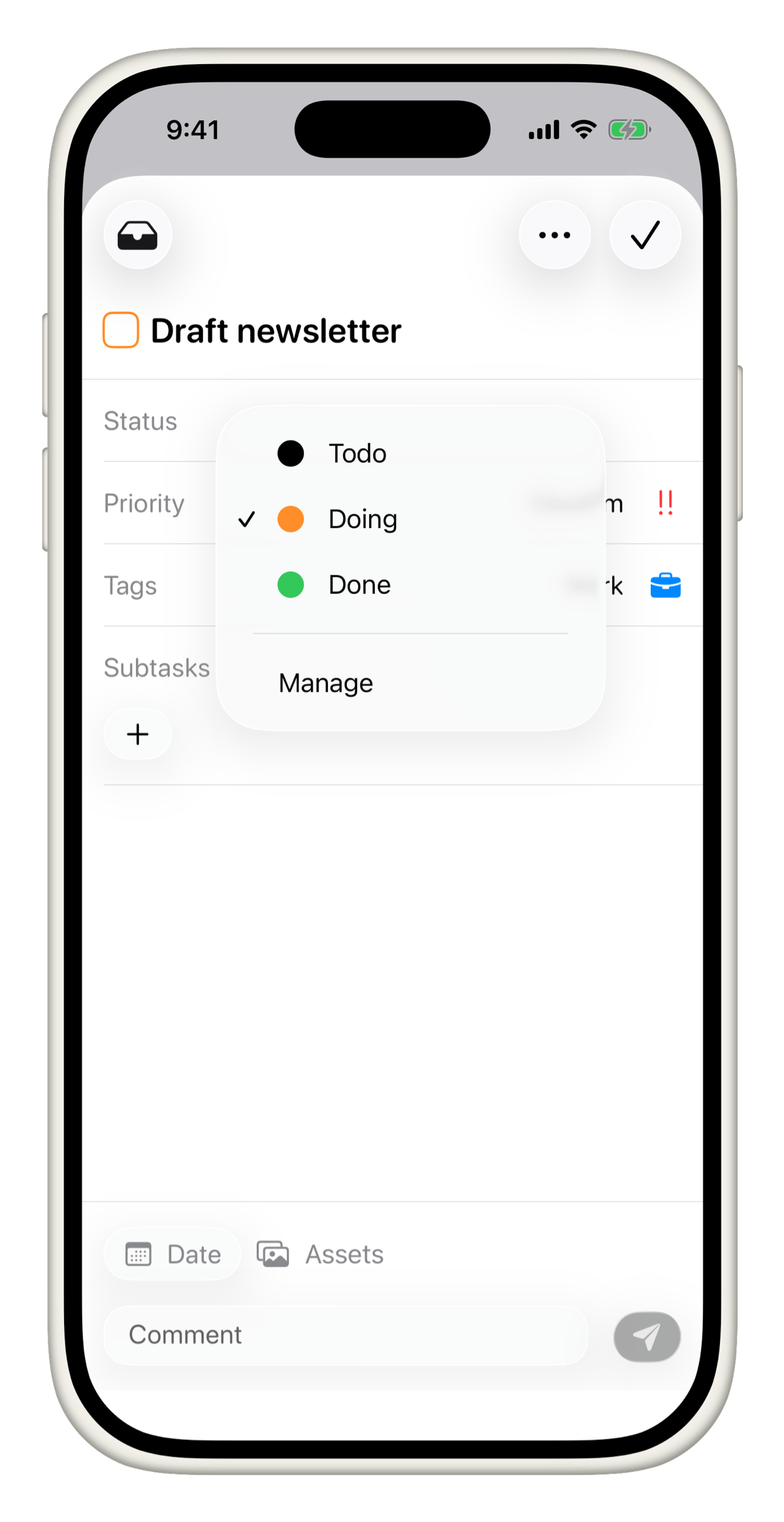
Set up statuses when creating a project
When you create a new project, Tasks walks you through a setup screen before anything is created. One of those steps is Statuses.
Here you can review the default columns for your chosen template, add new ones, remove what you do not need, and reorder them to match how you actually work.
It is worth spending a minute here. Getting your statuses right from the start means less reorganizing later.
Edit statuses on an existing project
You can update your statuses at any time after the project is created.
On iPhone:
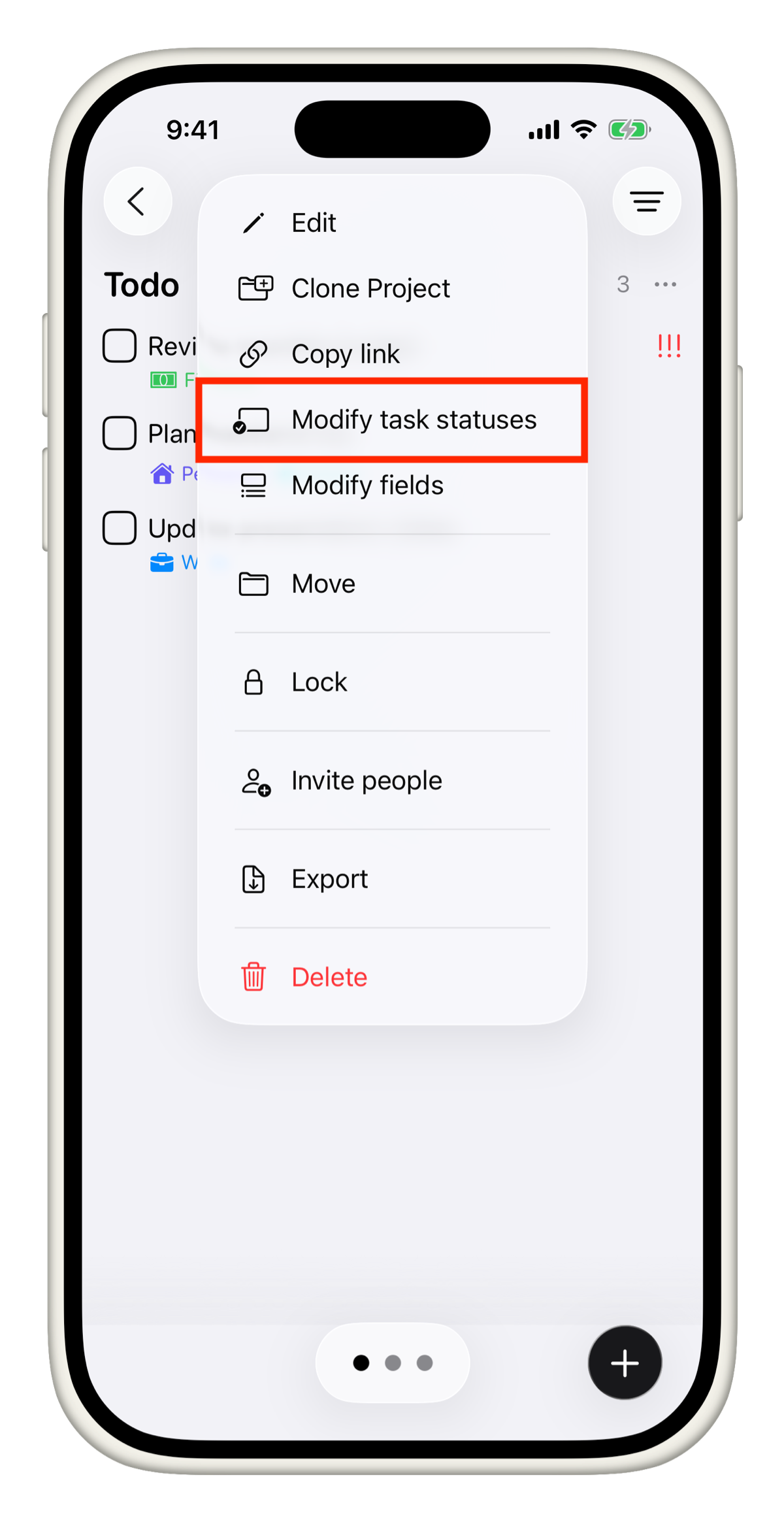
- Long press on the project name in the sidebar.
- Tap Modify Statuses.
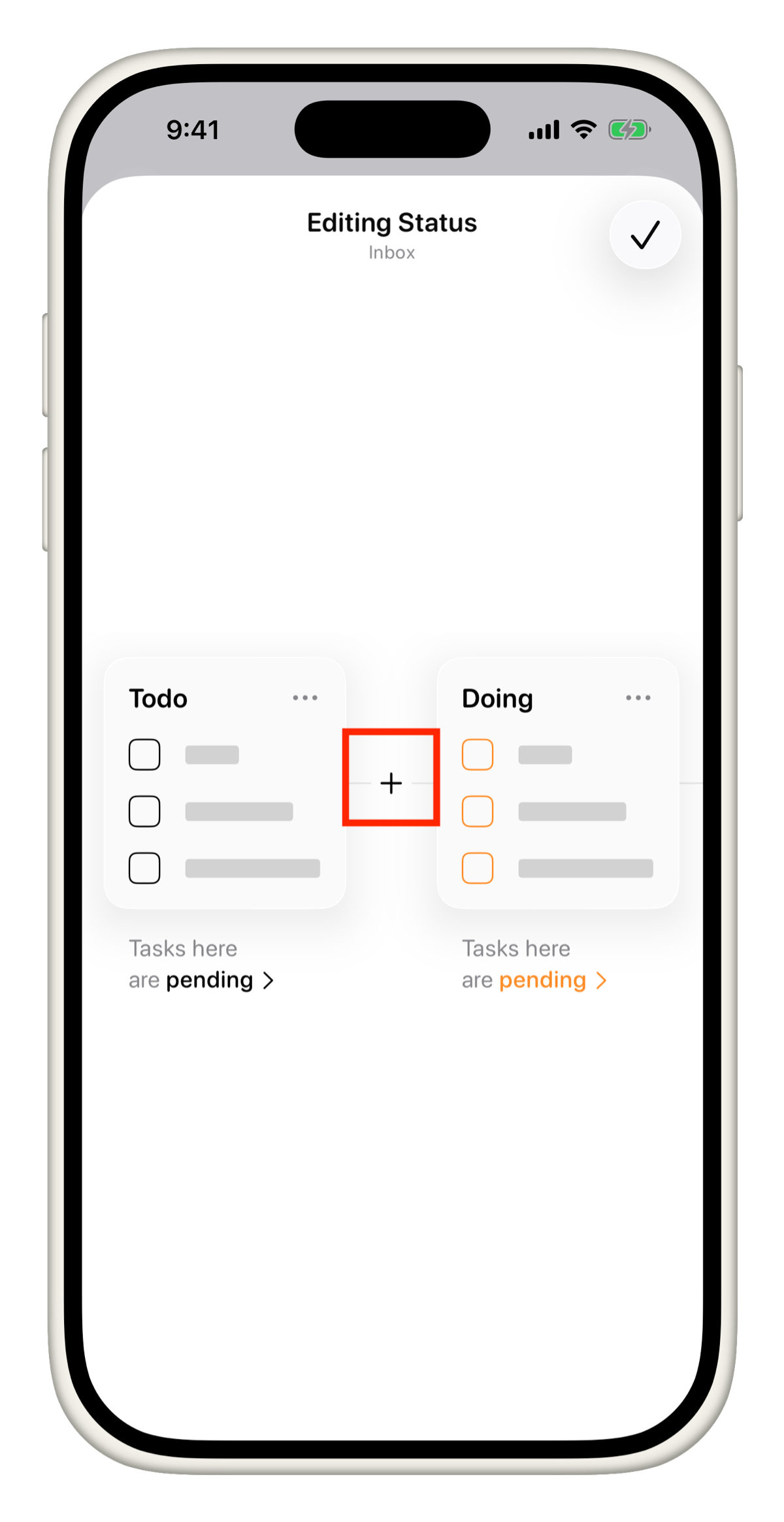
- Tap + in the top right to add a new status.
- Tap any existing status to edit its name, color, or icon.
- Tap the red minus button to delete a status.
- Long press on a status and drag to reorder.
- Tap Done when finished.
On Mac:
- Right-click on the project name in the sidebar, or click the ... menu next to it.
- Select Modify Statuses.
- Click + in the top right to add a new status.
- Click any existing status to edit its name, color, or icon.
- Click the minus button to delete a status.
- Drag to reorder statuses.
- Click Done when finished.
Pending vs Completed
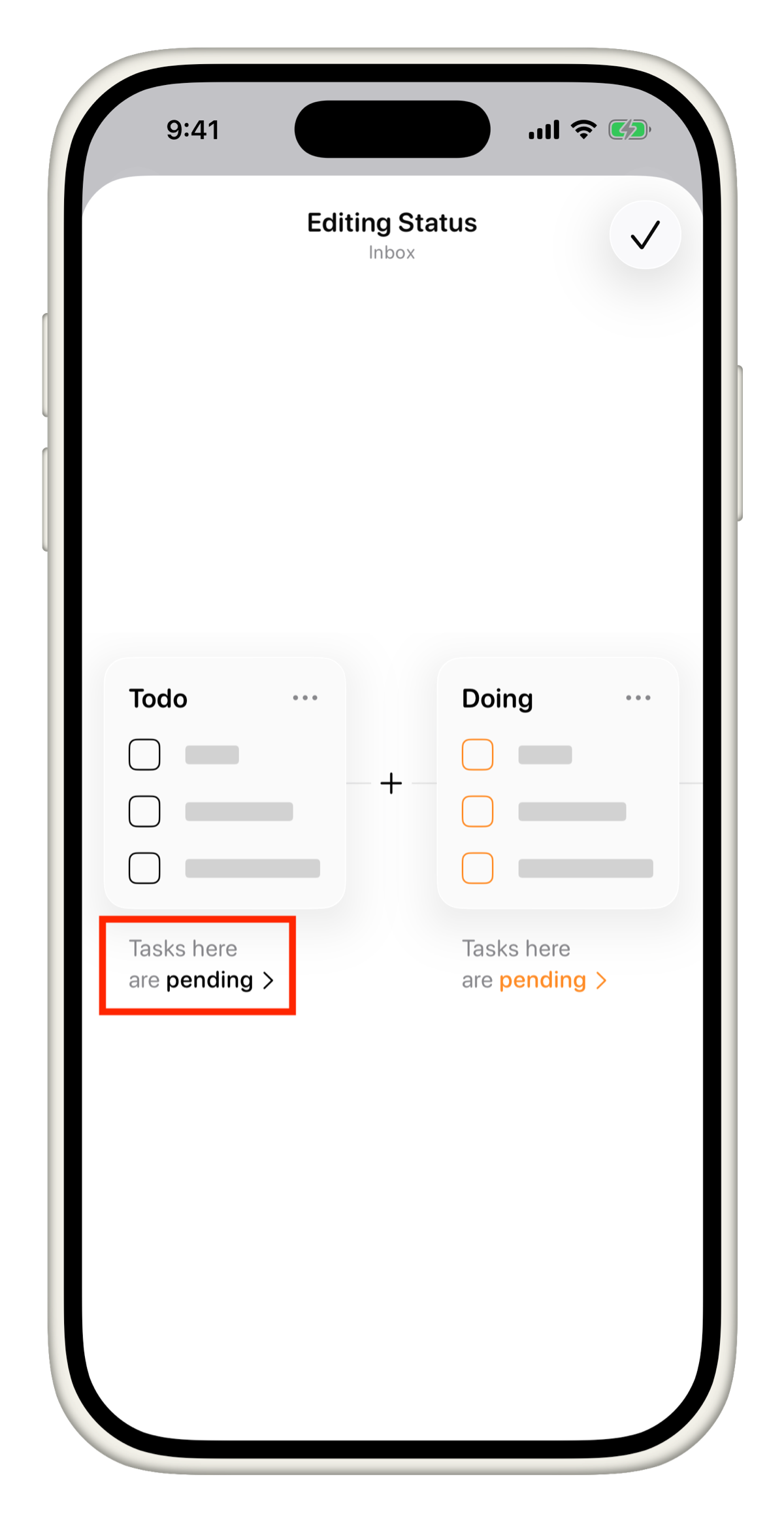
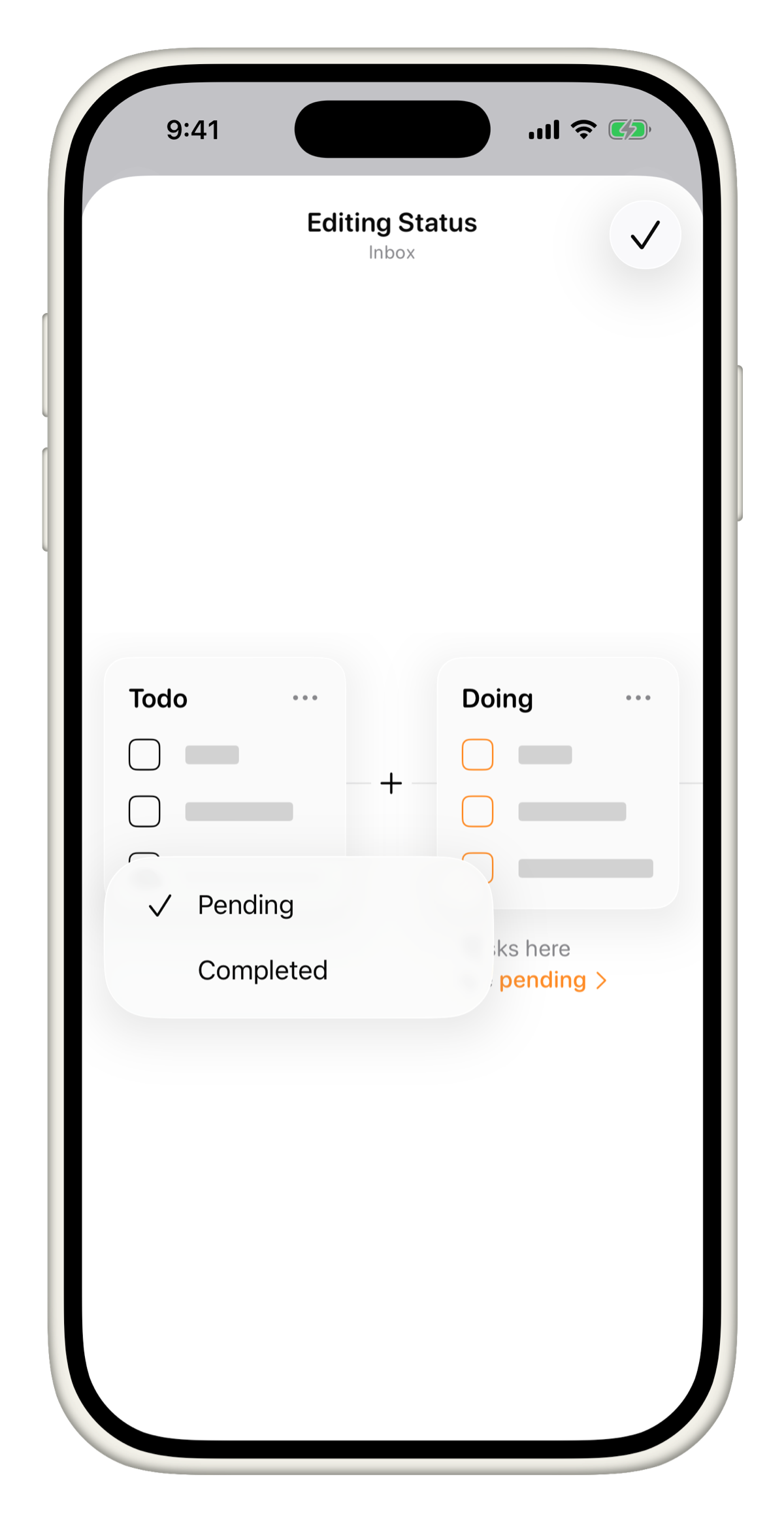
Every status is either Pending or Completed. This tells Tasks whether tasks in that column are still active or done.
- Tasks in a Pending status count toward your open task totals.
- Tasks in a Completed status are treated as done and filtered out of active views.
- You must have at least one Pending status and one Completed status in every project.
To change a status between Pending and Completed, tap or click the label at the bottom of that column.
Before deleting a status, make sure it has no tasks in it. Move any existing tasks to another status first, then delete it.
Customize the icon and color
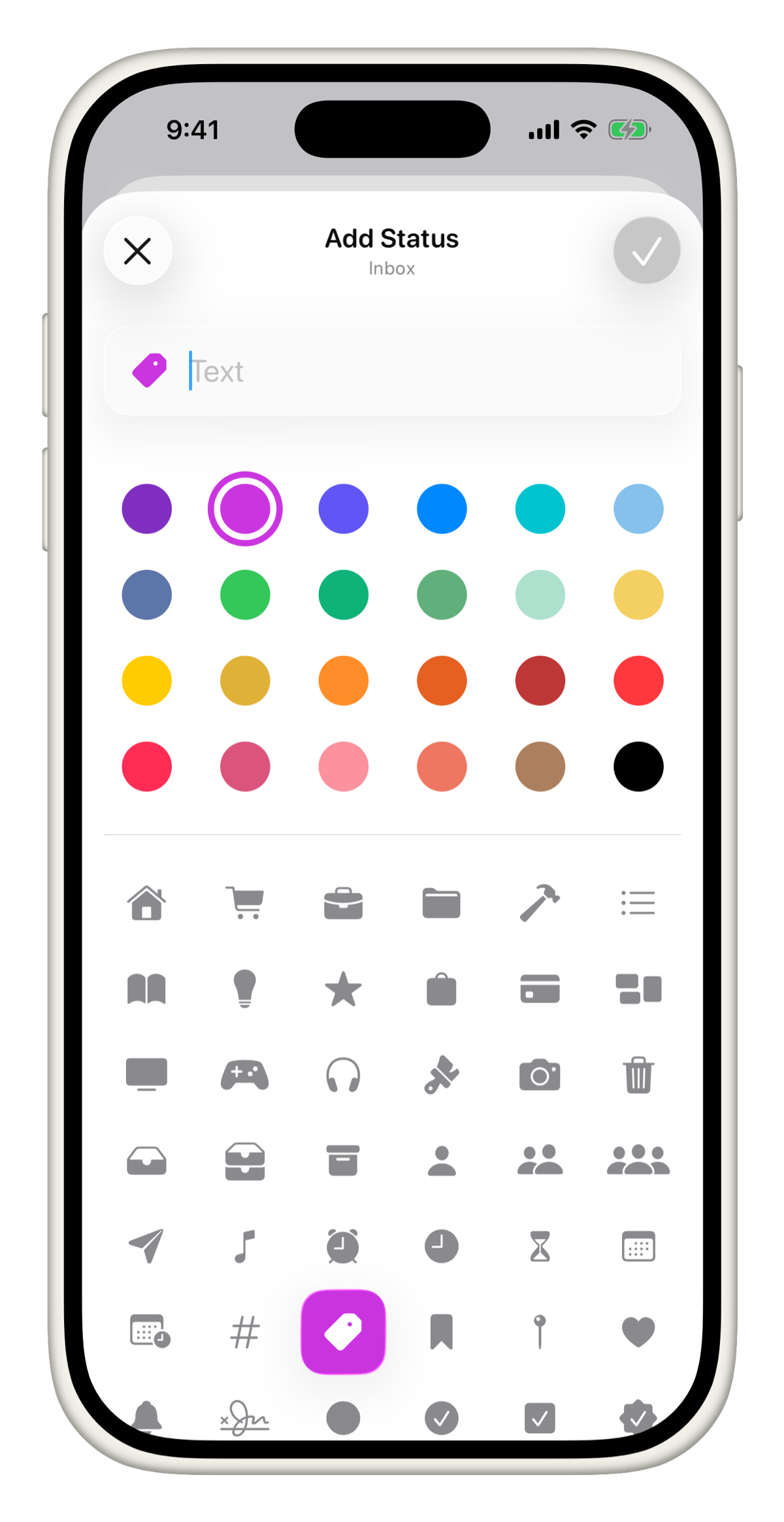
Each status can have its own color and icon so you can tell them apart at a glance.
When adding or editing a status:
- Tap the color circle to pick a color.
- Tap the icon button to choose from the icon library.
- Give it a name and tap Save.
Use distinct colors for your Pending and Completed statuses. It makes it much easier to read your board quickly.
Reorder statuses
The order of your statuses is the order of your columns on the board.
- On iPhone: Long press on a status in the Modify Statuses screen and drag it to the new position.
- On Mac: Click and drag a status row to reorder it.
If you have any questions, reach out to us at tasks@msquarelabs.com.