How to Create a Task
Tasks are the core of everything you do in Tasks. Here is how to add one and set it up properly.
Create a new task
On Mac:
- Click the + icon on the top left.
- Select Task.
On iPhone:
- Tap the + icon on the right.
- Tap Task.
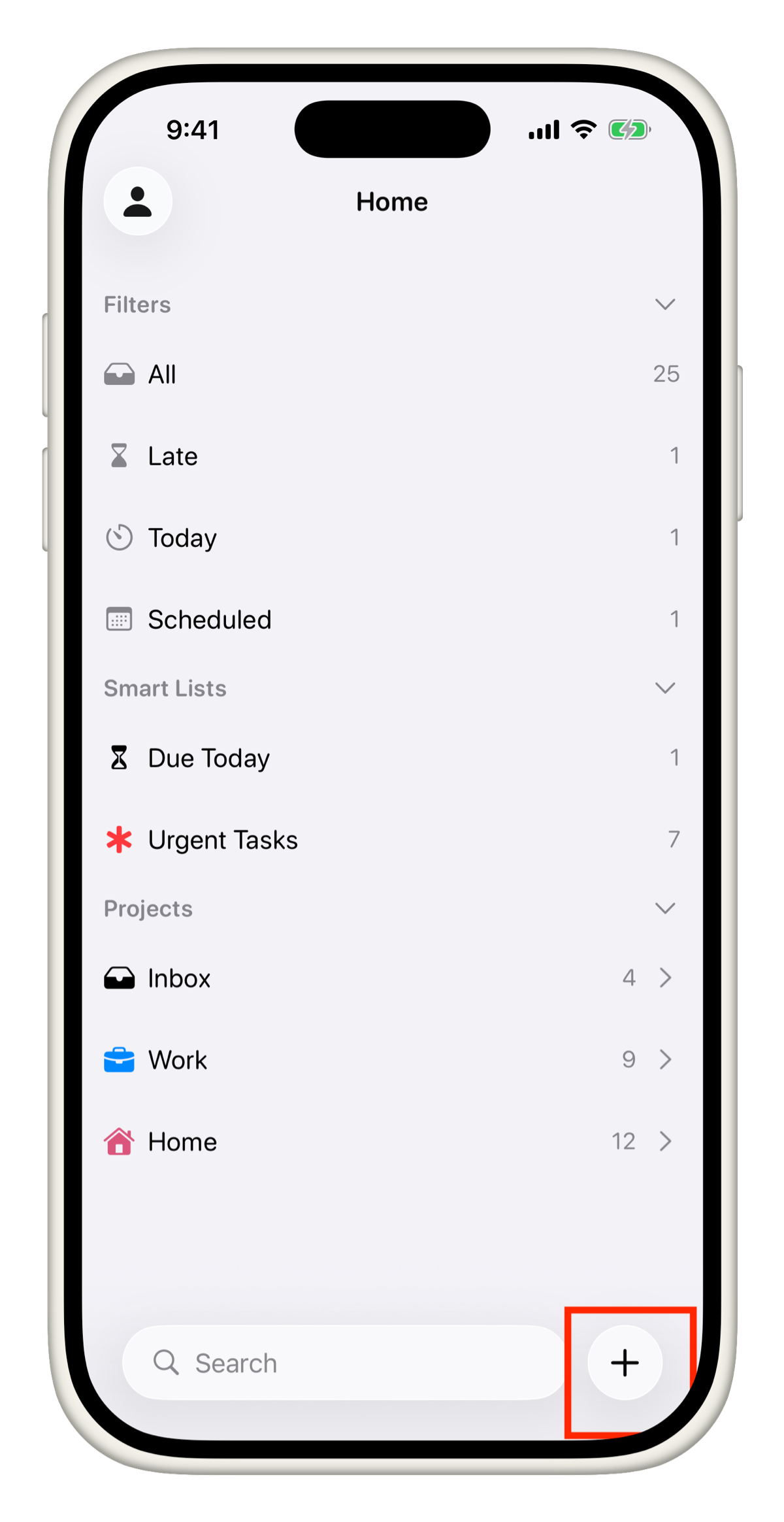
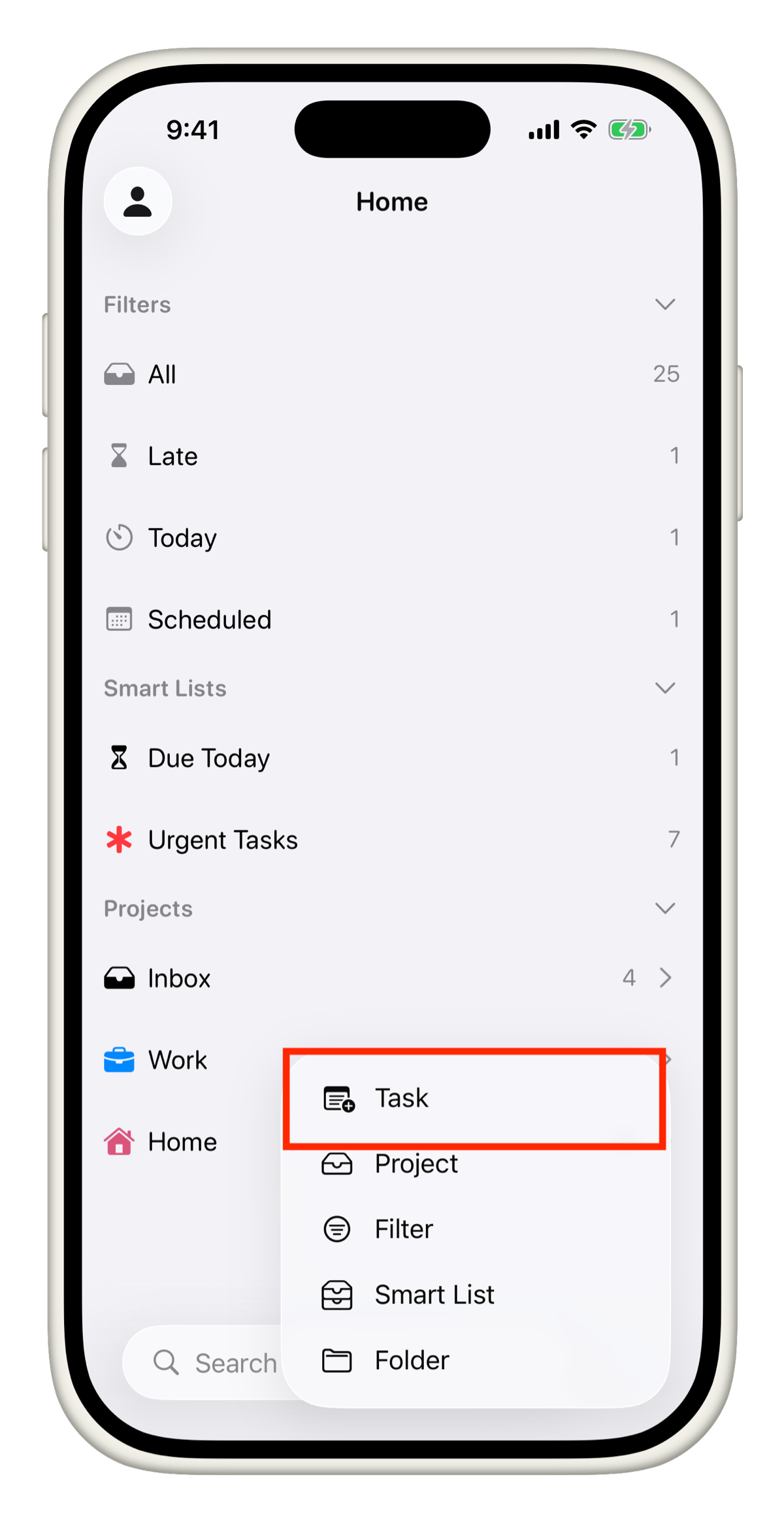
On iPhone, pull down anywhere on your task list to instantly bring up the add task input. On Mac, press Cmd + N to create a new task without touching your mouse.
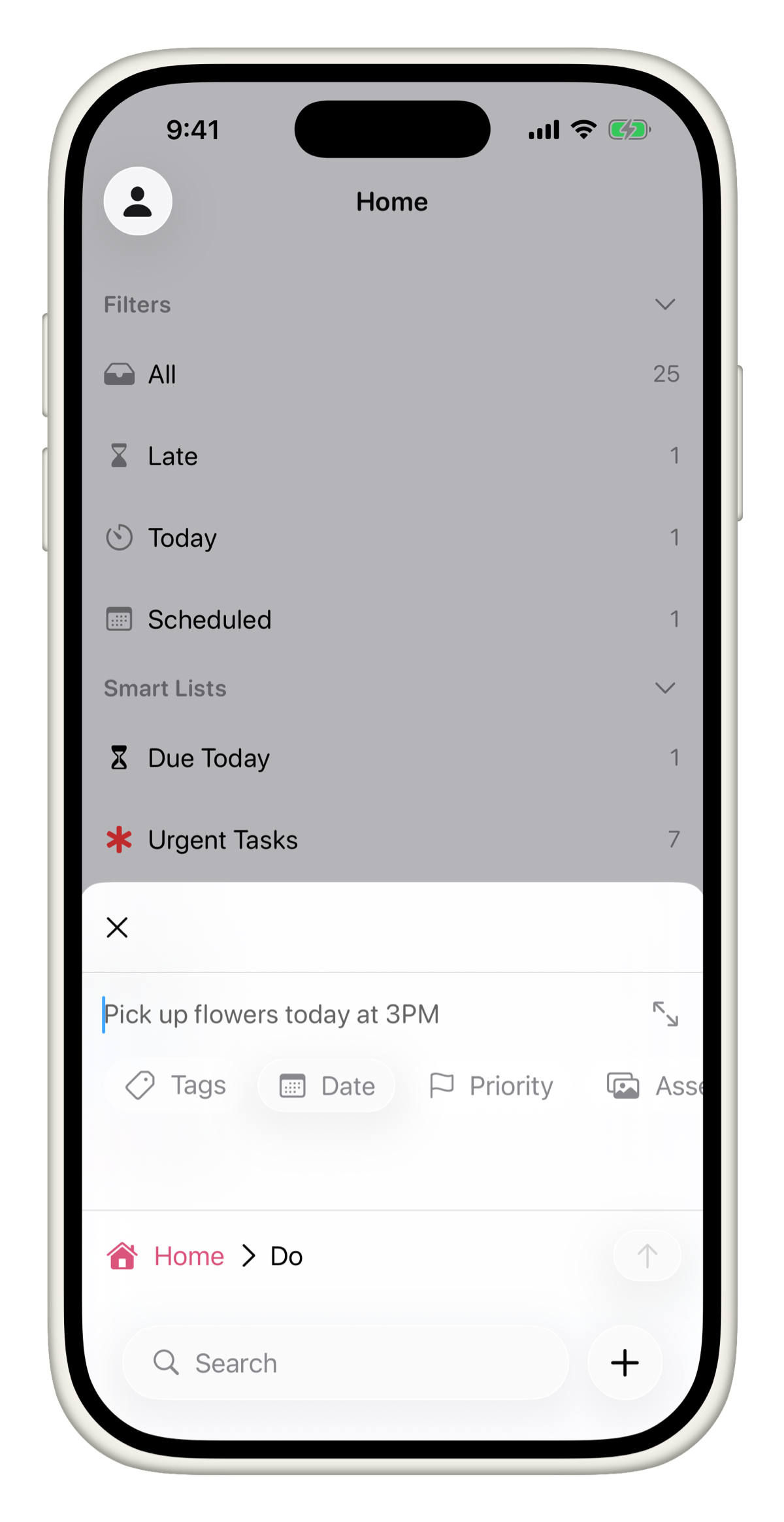
Add a title
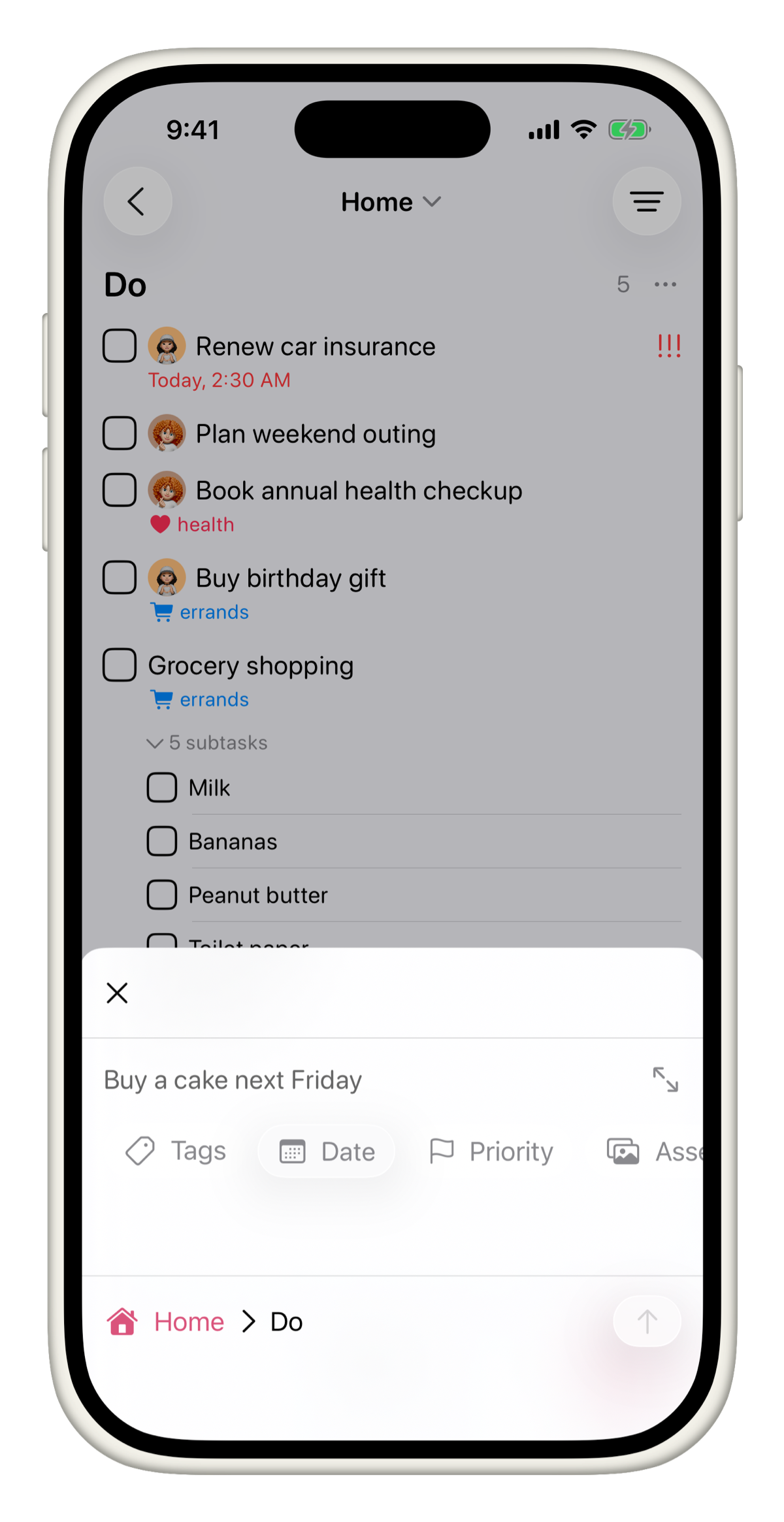
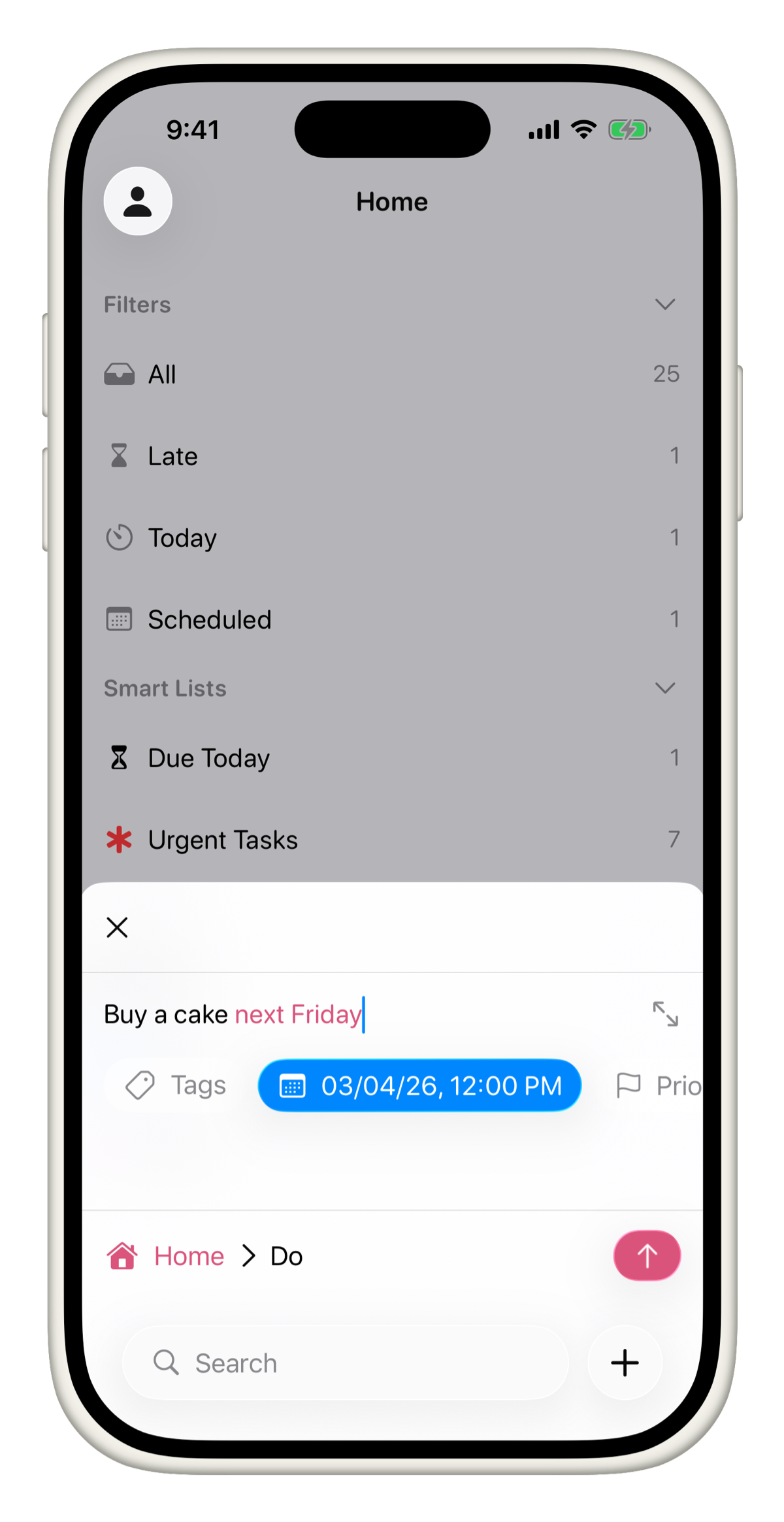
Type your task title. Keep it specific and actionable. "Buy a cake next Friday" is better than "cake."
Set a date
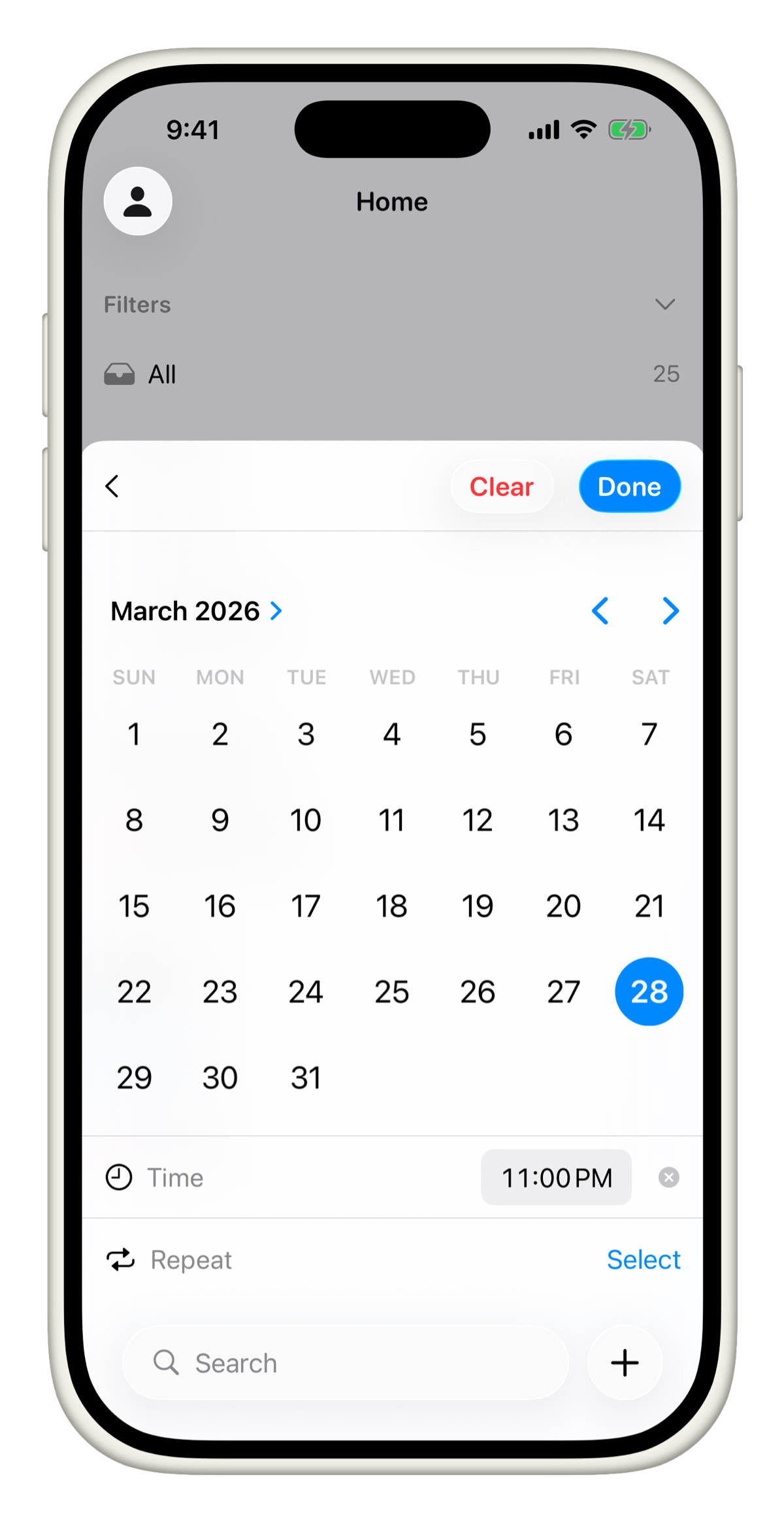
Assigning a date is one of the most important things you can do for a task. It keeps your Today and Scheduled views accurate and ensures nothing slips through.
Tap or click Date and pick a date. Tasks will also pick up natural language if you type the date directly in the title.
Fill in other fields
On iPhone, scroll down inside the task to see all available fields such as Priority, Assets, Tags, and more.
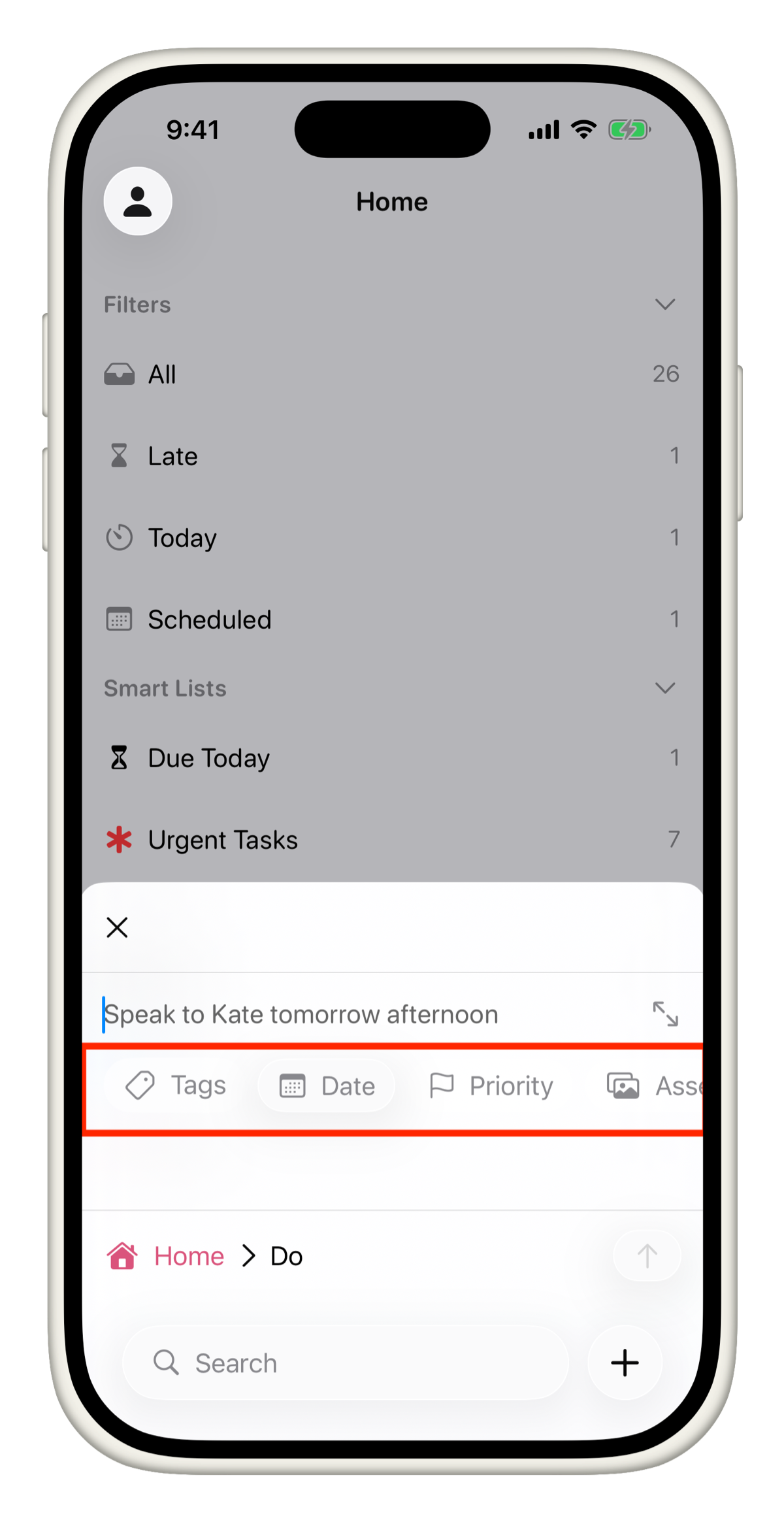
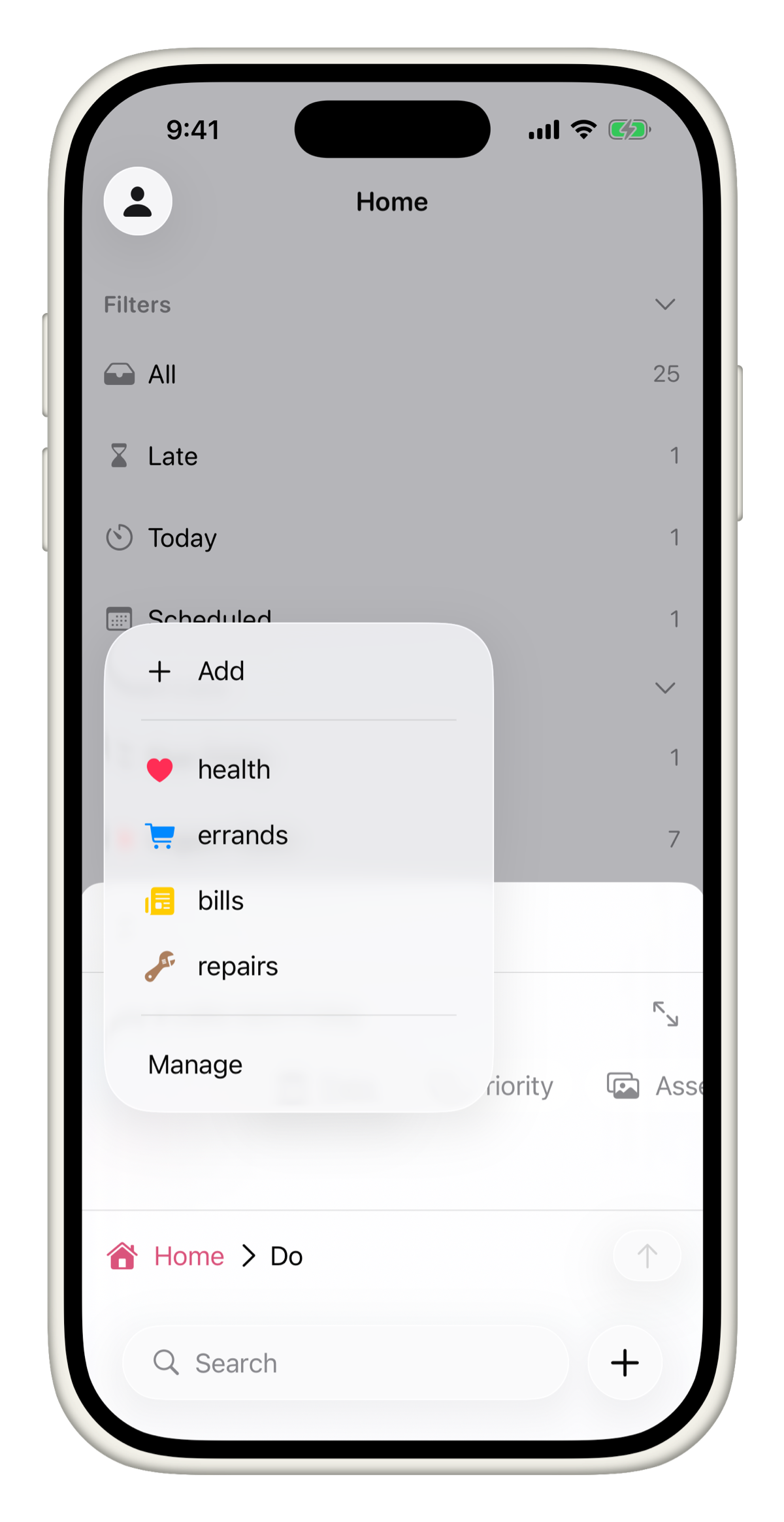
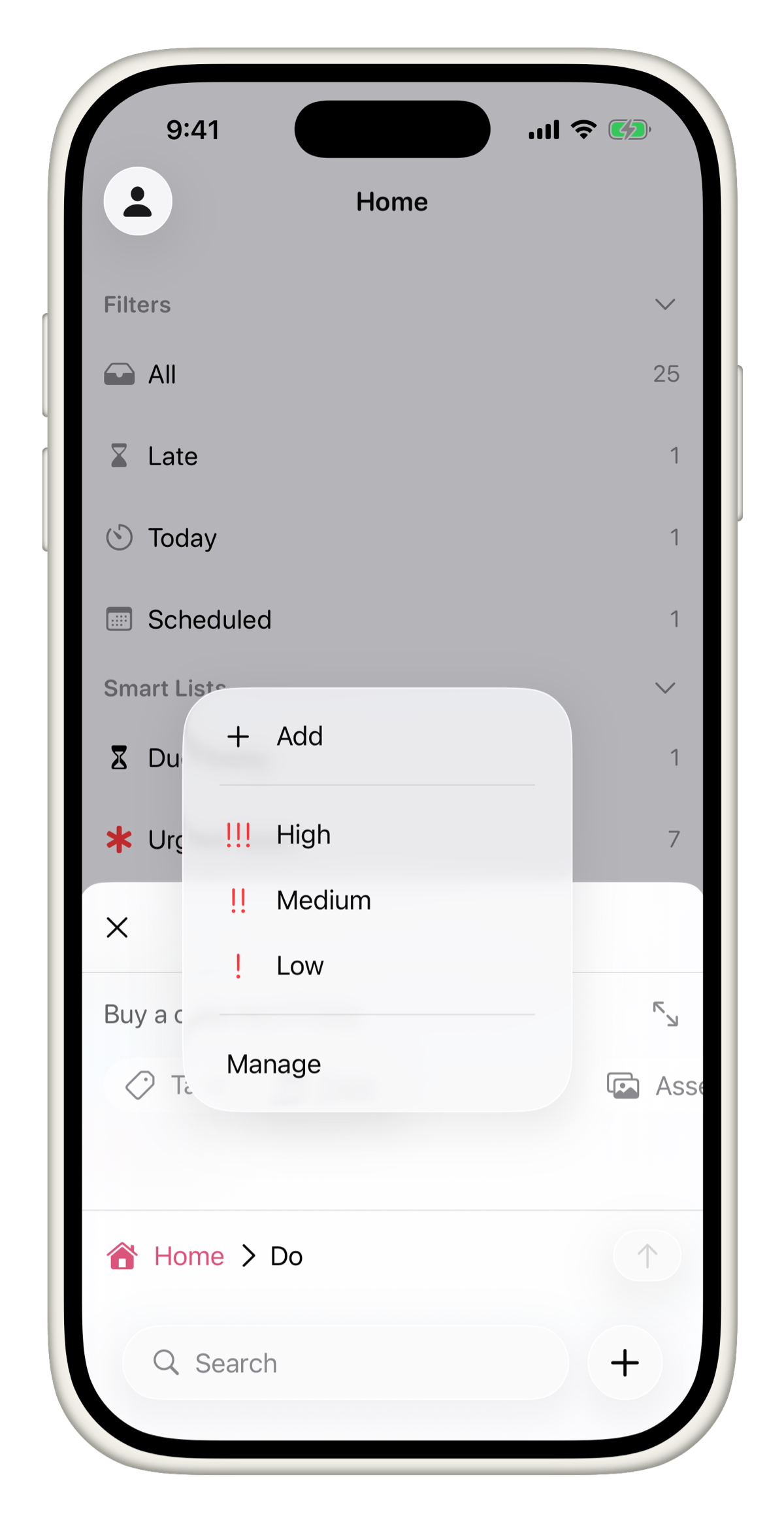
If a field you need is missing, tap Modify Fields to add or rename fields for that project.
The fields available on a task depend on how the project is configured. Each project can have its own set of fields.
Change the project
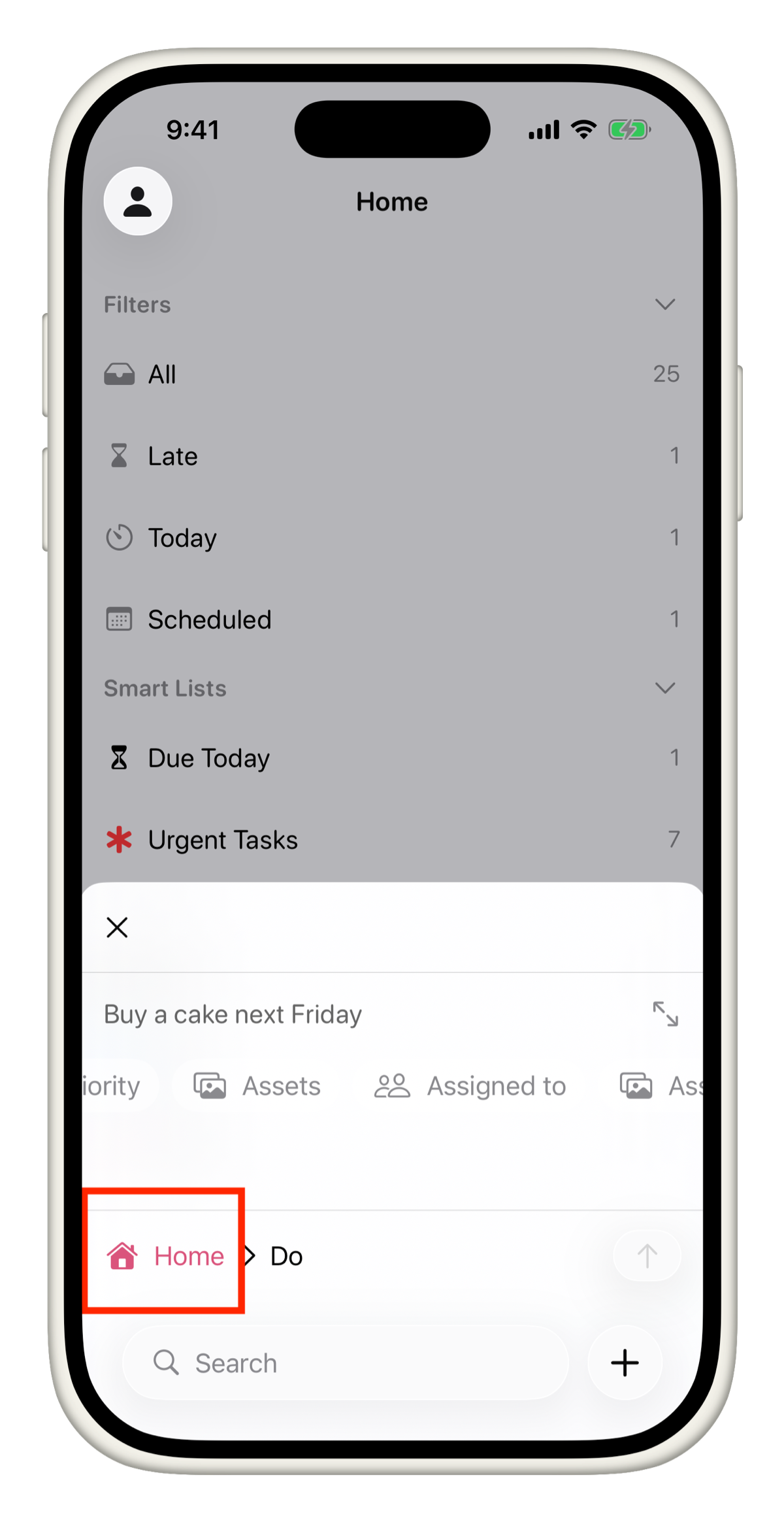
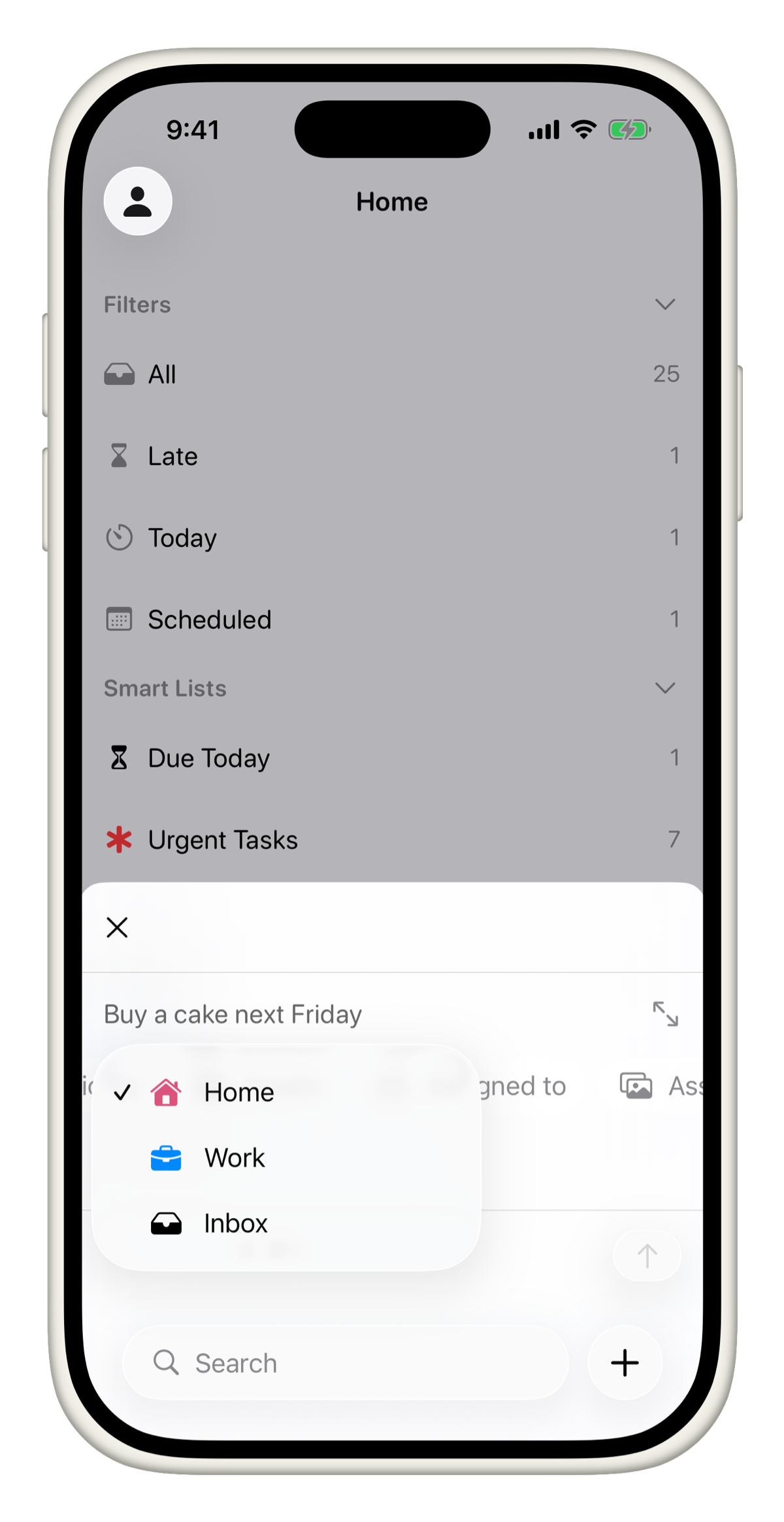
At the bottom of the task, you will see the project it currently belongs to. Tap or click the project name to move the task to a different project.
Change the status
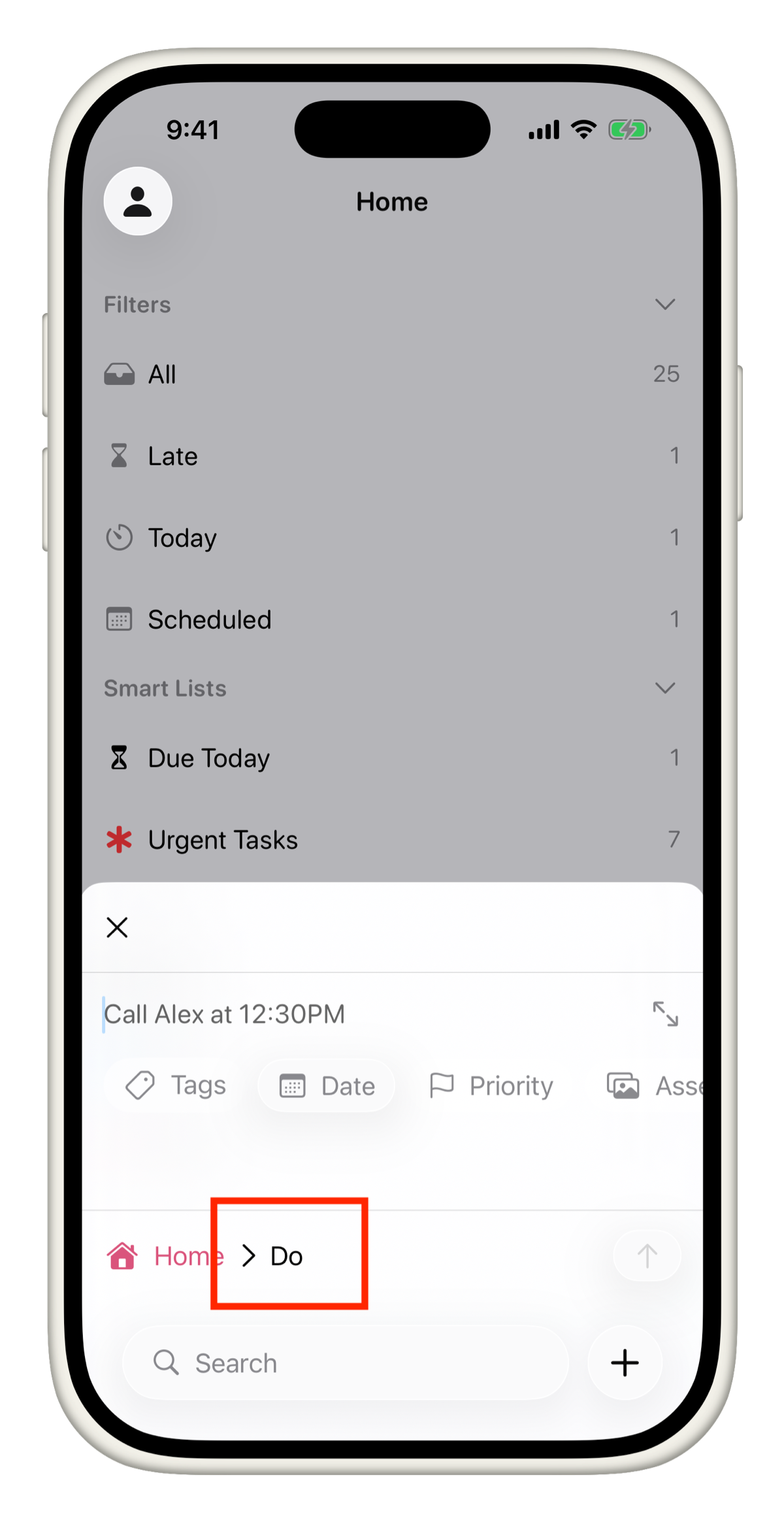
Next to the project name, you will see the current status of the task, for example Backlog. Tap or click it to change it to any status available in that project such as In Progress, Review, or Completed.
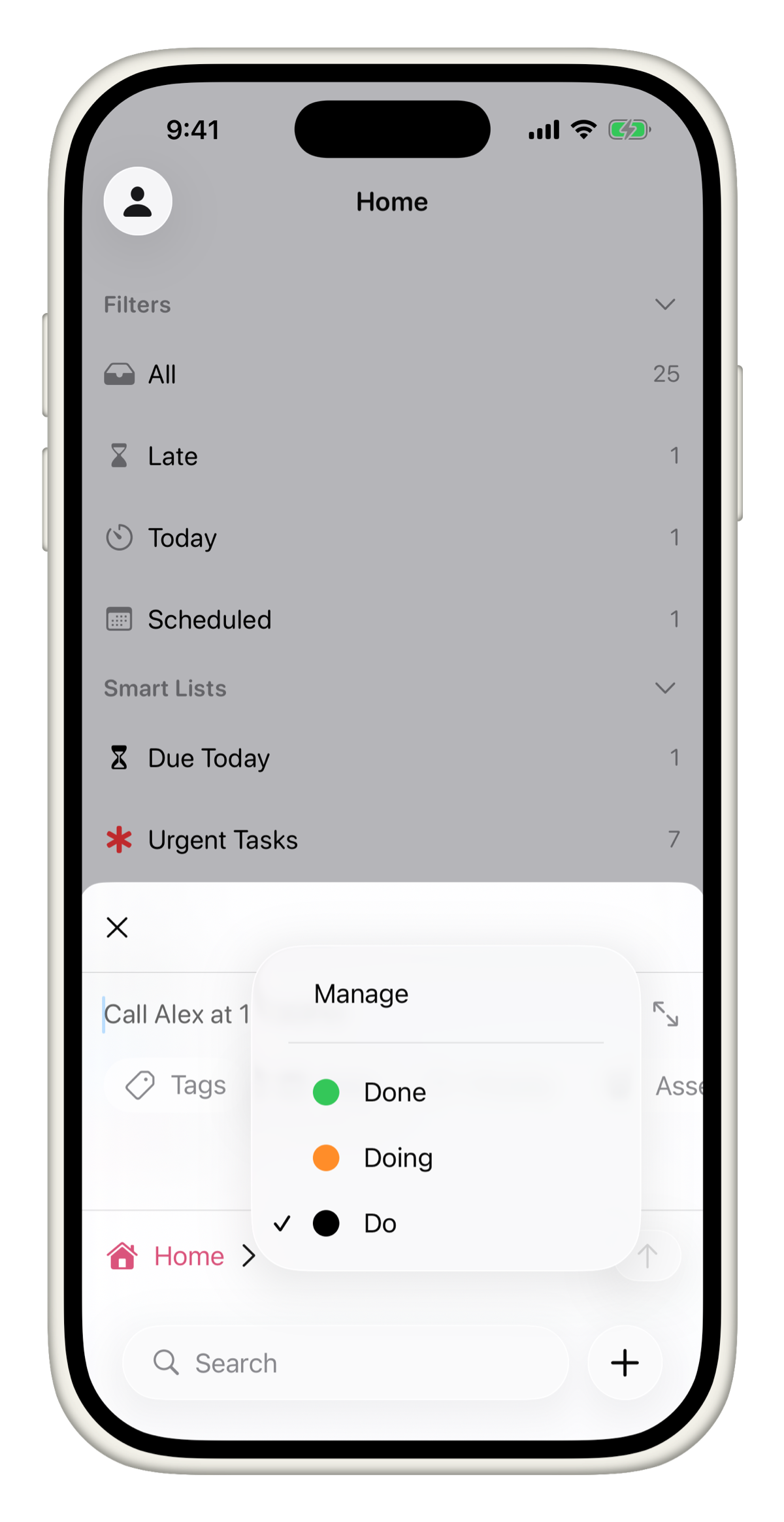
That is all it takes. Title, date, right project, right status. Everything else is optional but available when you need it.