Recurring Tasks
Some tasks never really go away. Weekly groceries. Monthly rent. Daily vitamins. Instead of recreating them every time, set them to repeat automatically.
Set a date first
Recurring tasks need a date to repeat from. When creating a task, you can type the date naturally and Tasks will pick it up. Just write "buy groceries tomorrow" and Tasks pulls out the date automatically.
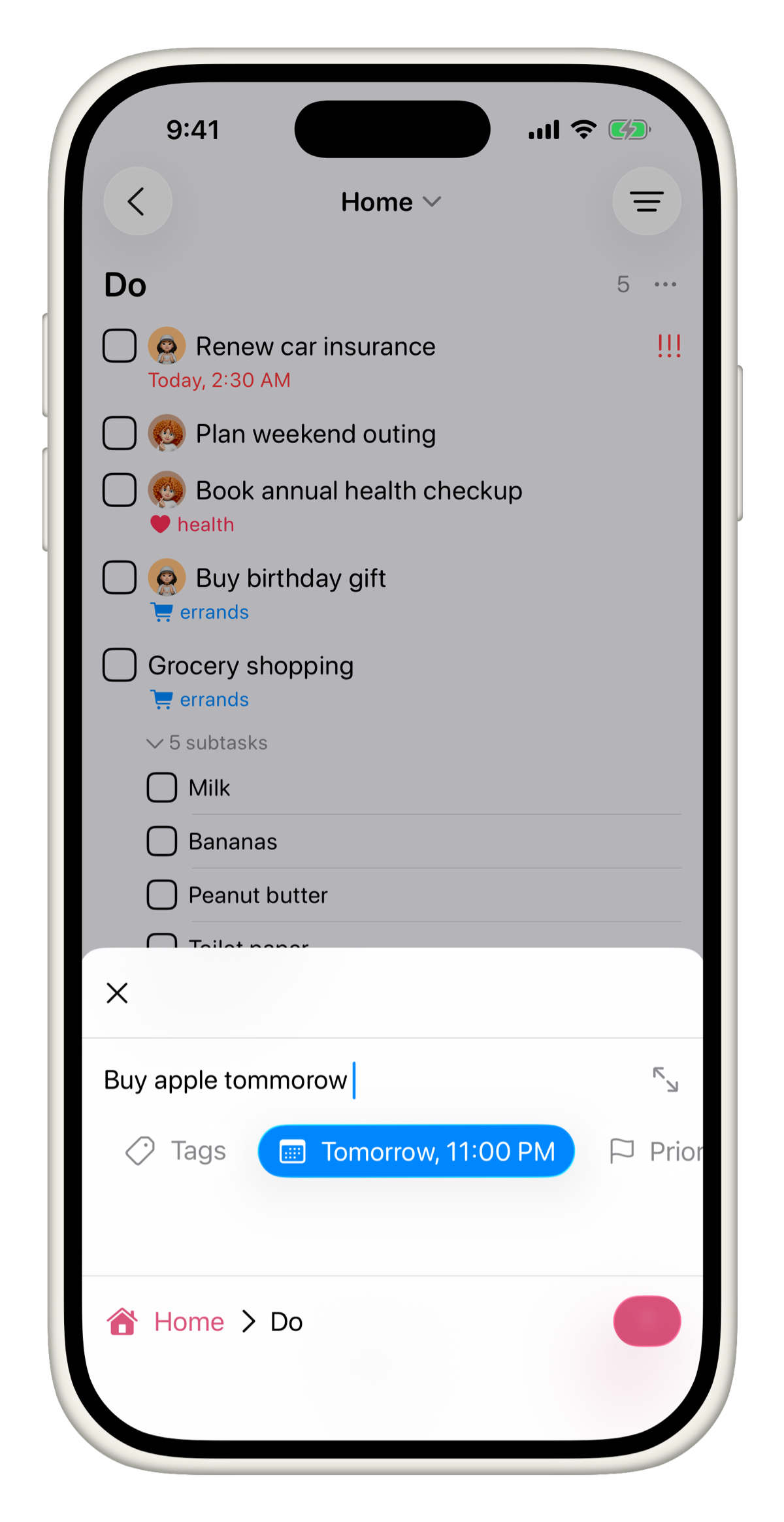
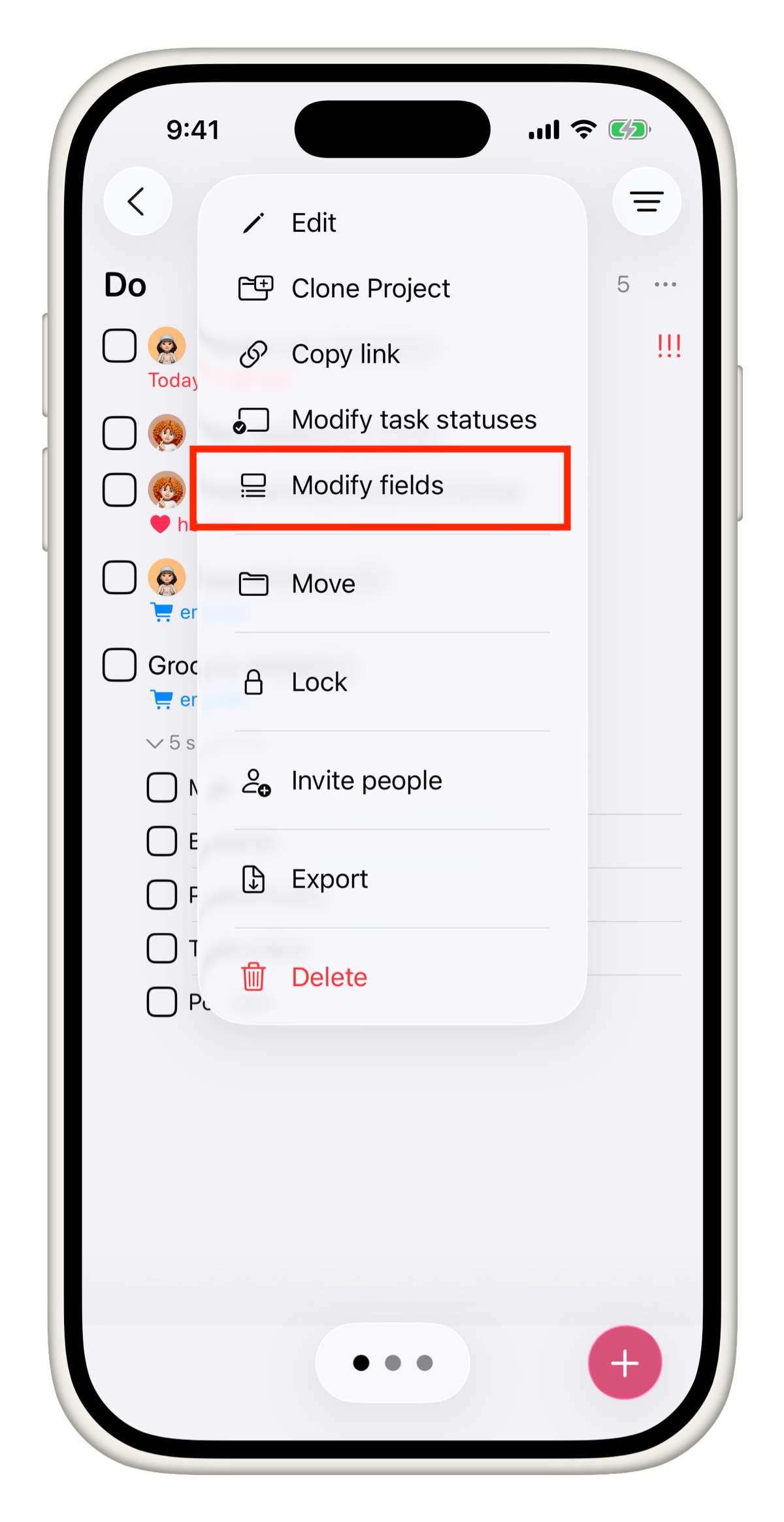
If your task does not have a date yet:
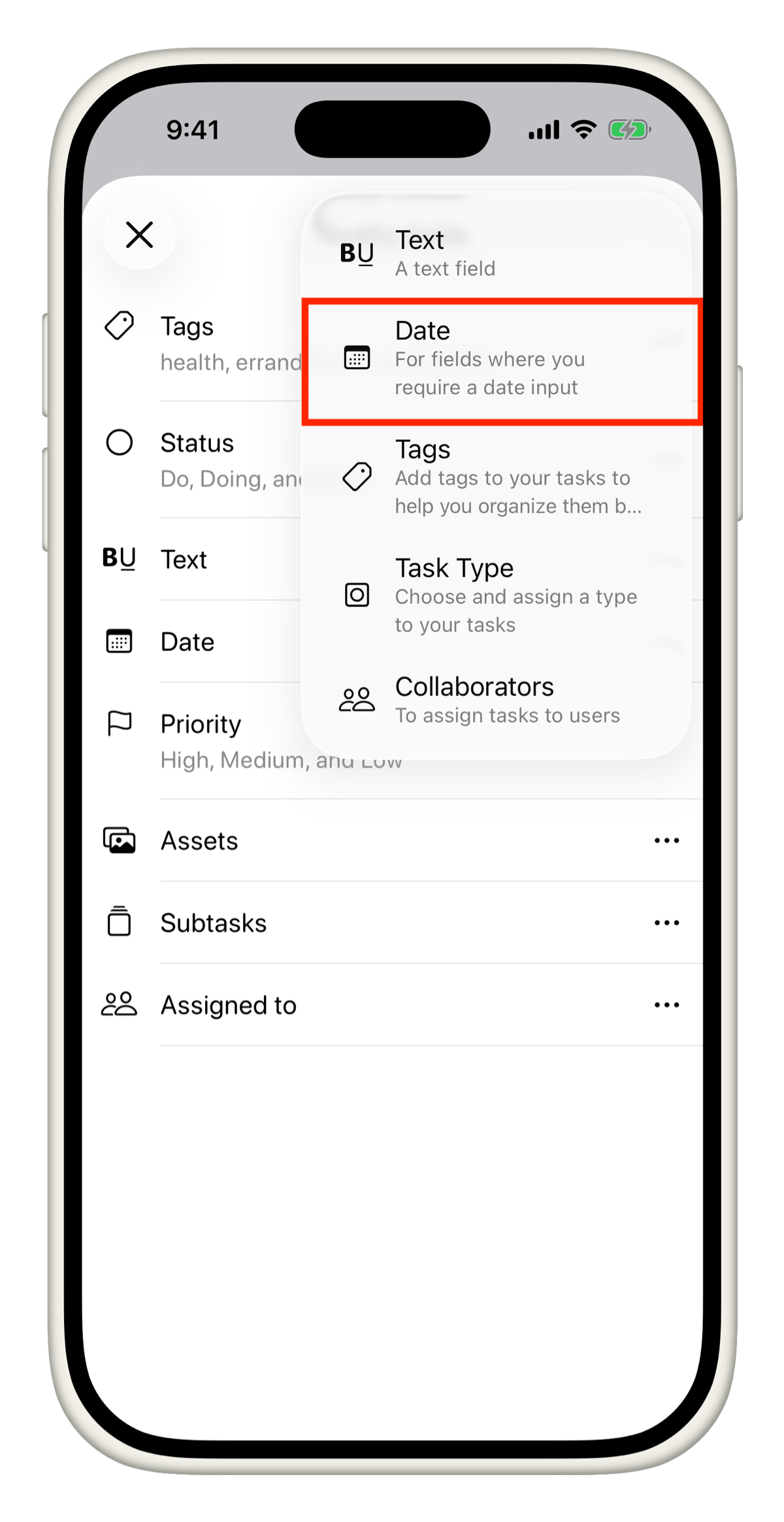
- Open the task.
- Tap Modify Fields.
- Add the Date field.
- Set your date.
Set a recurrence
Once your task has a date:
- Open the task.
- Tap the date to open the date picker.
- Tap Repeat and select a frequency.
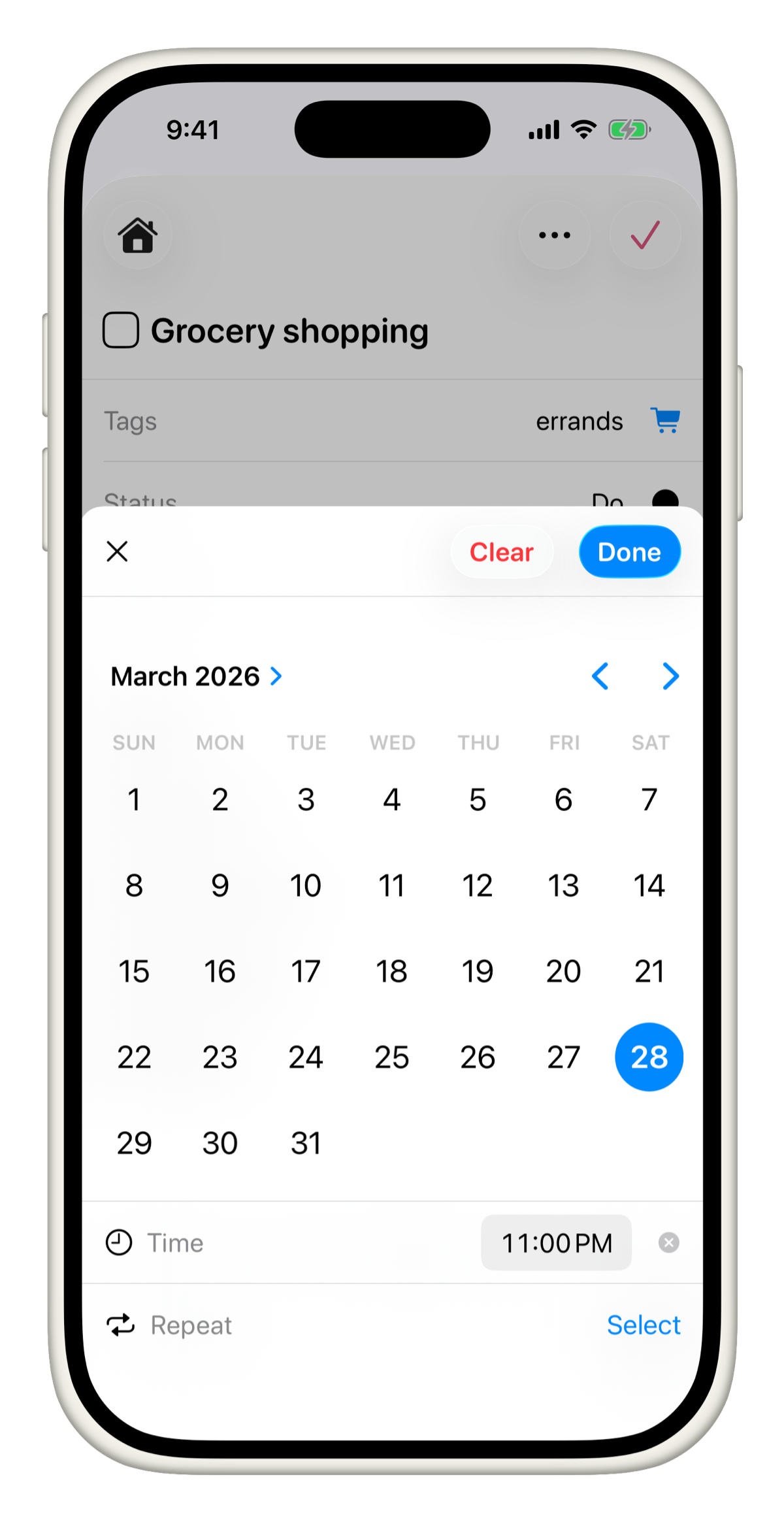
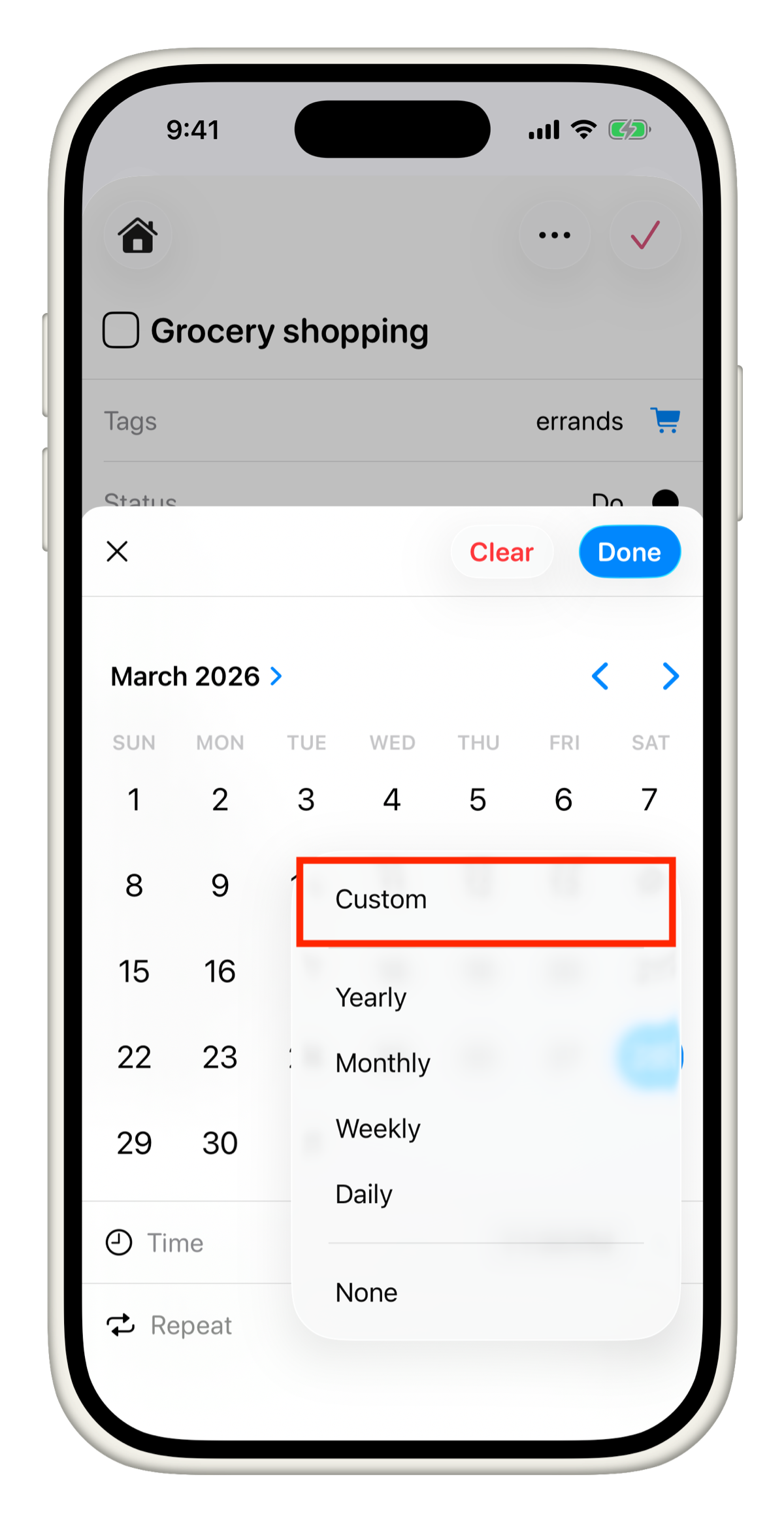
You can choose from:
- None - no repeat
- Daily
- Weekly
- Monthly
- Yearly
- Custom
Quick examples
Not sure which frequency to pick? Here are some everyday tasks to give you an idea:
- Daily - Take medication, drink 8 glasses of water, journal before bed
- Weekly - Buy groceries, water the plants, call mom, team standup
- Monthly - Pay rent, review your budget, clean the fridge
- Yearly - Renew car insurance, file taxes, birthday reminder
Custom recurrence
Custom gives you full control over how and when a task repeats. Great for anything that does not fit a standard schedule.
Based on
Choose whether the next occurrence is calculated from the Scheduled date or the Completion date.
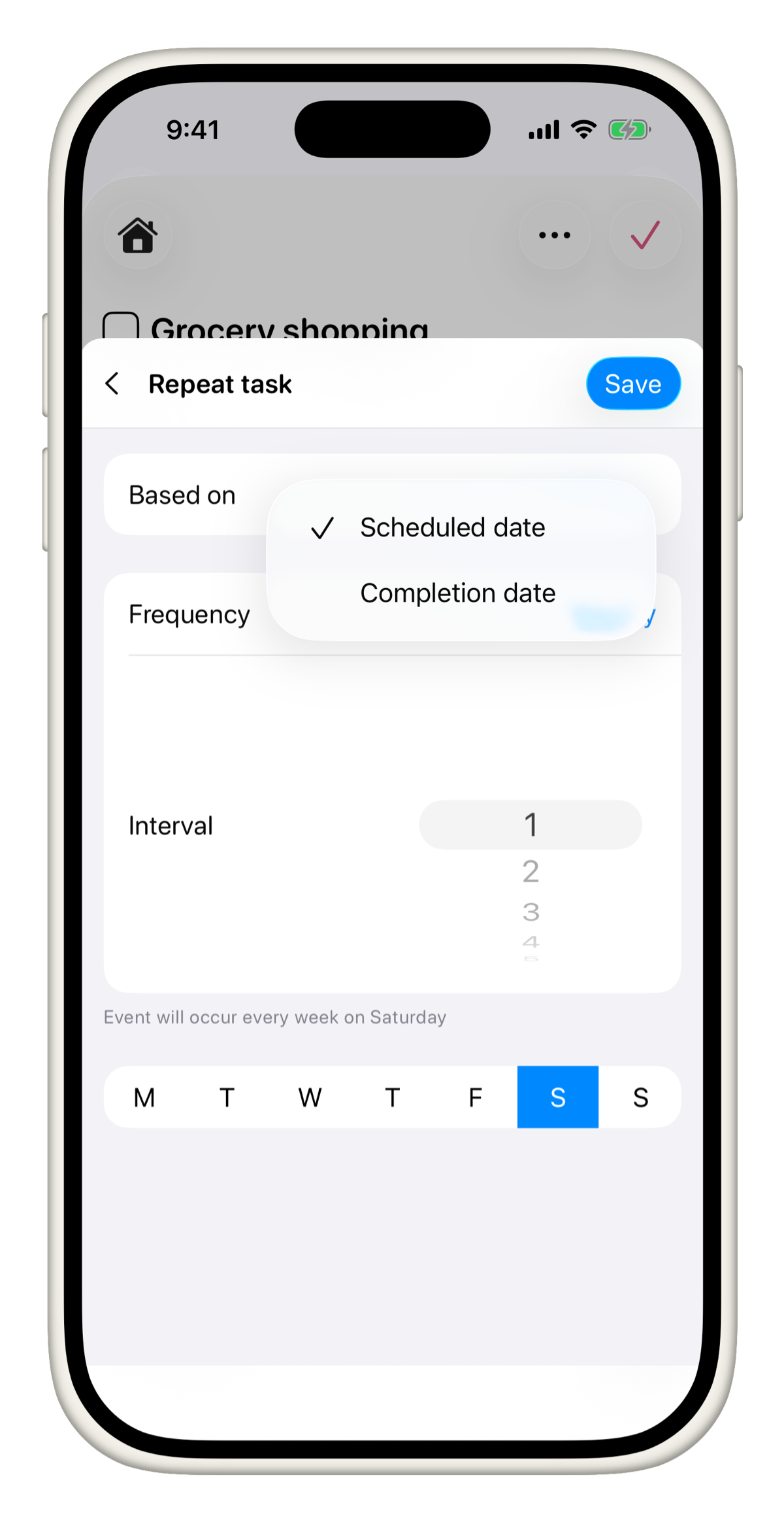
Use Completion date for tasks where timing depends on when you actually finish. For example, "Water the plants again 5 days after I last watered them" makes more sense based on completion. Use Scheduled date for fixed-cadence tasks like a Monday grocery run or a weekly team sync.
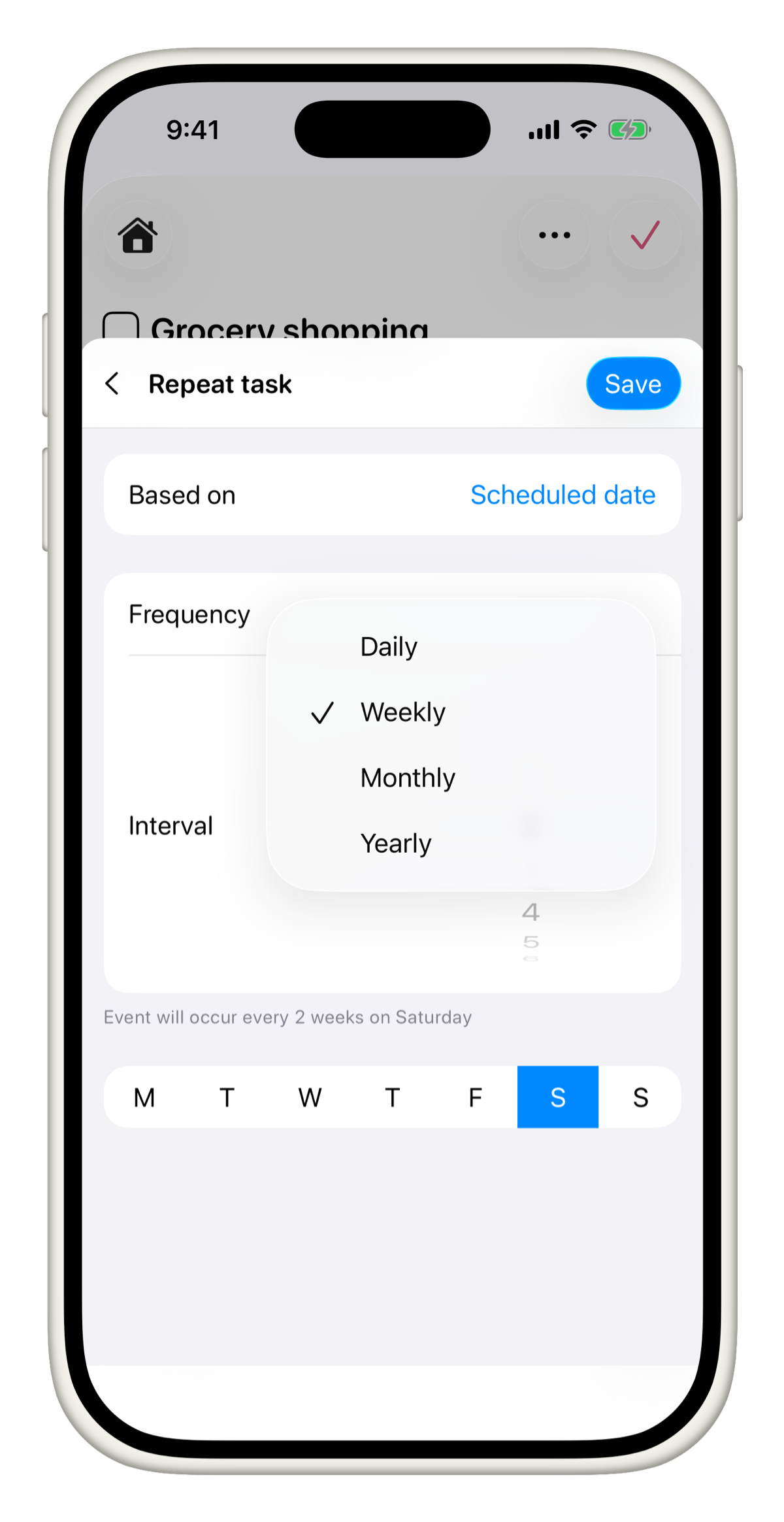
Frequency
Set how often the task repeats: Daily, Weekly, Monthly, or Yearly.
Interval
Set the gap between repetitions. An interval of 2 on a Weekly frequency means the task repeats every 2 weeks.
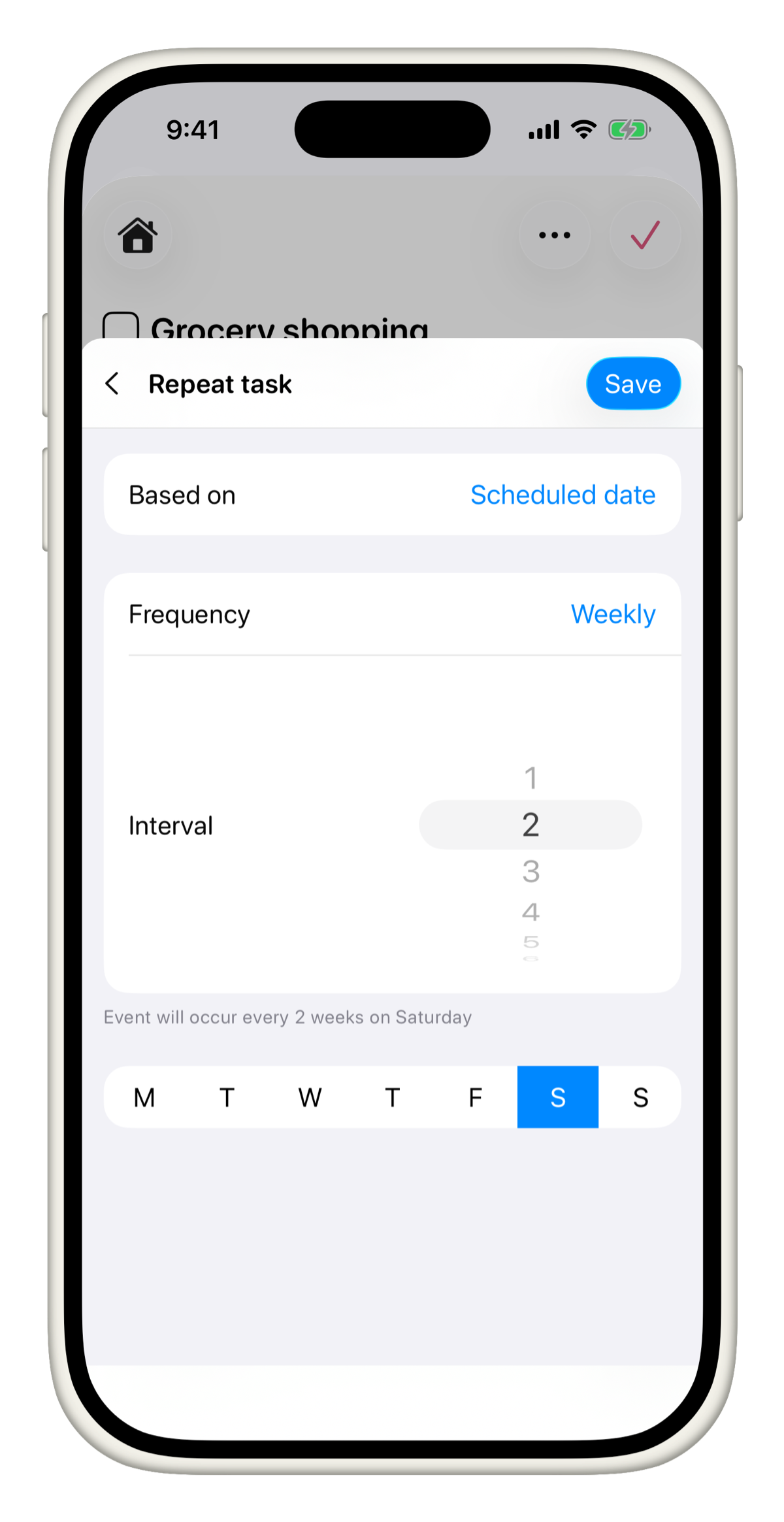
A trip to Costco every 2 weeks instead of every week? Set Frequency to Weekly and Interval to 2.
Examples by frequency
Weekly
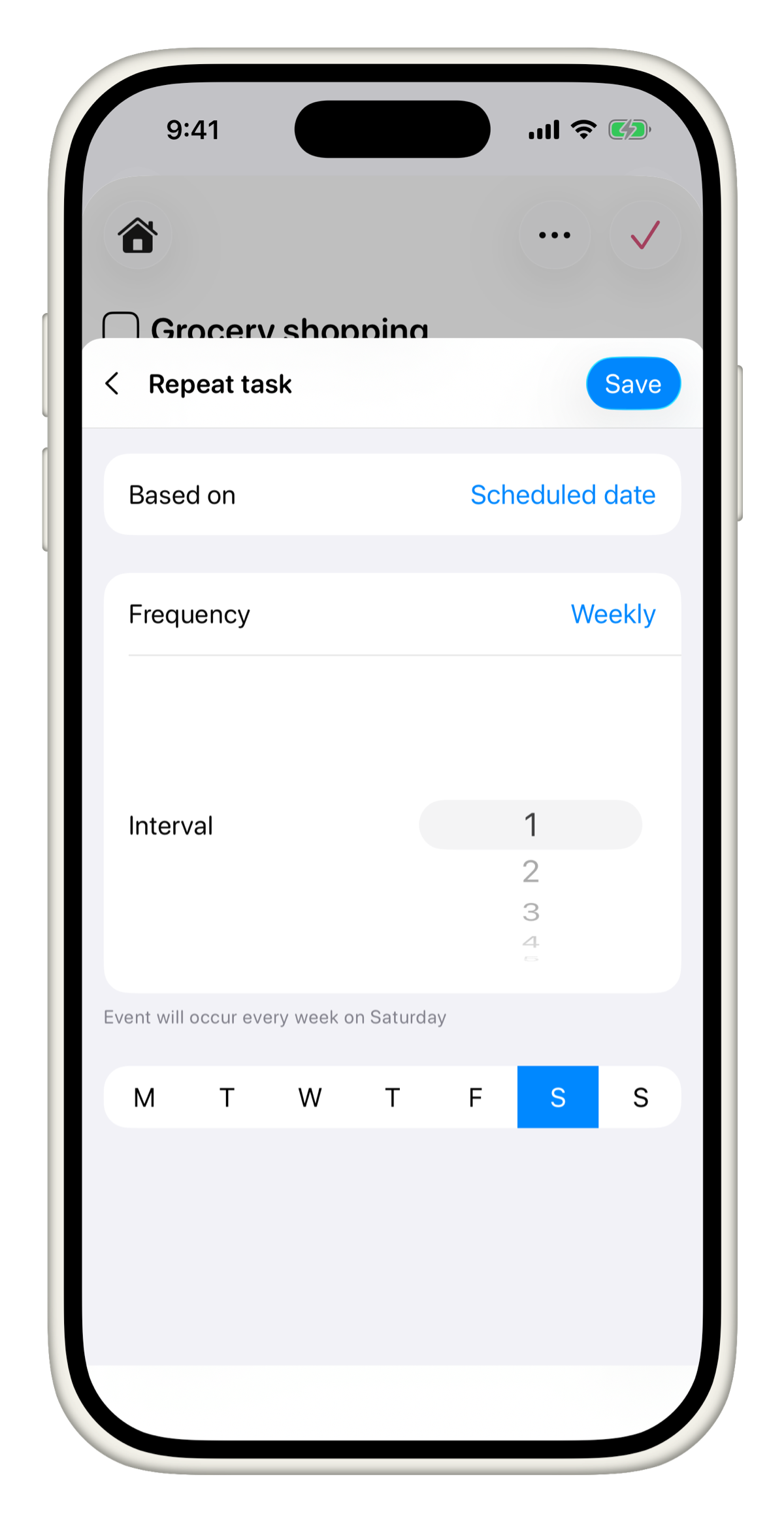
Set Frequency to Weekly, pick the day(s) of the week, and set your Interval.
Example: "Buy groceries every Saturday" would be Weekly, Interval 1, Saturday selected.
Monthly
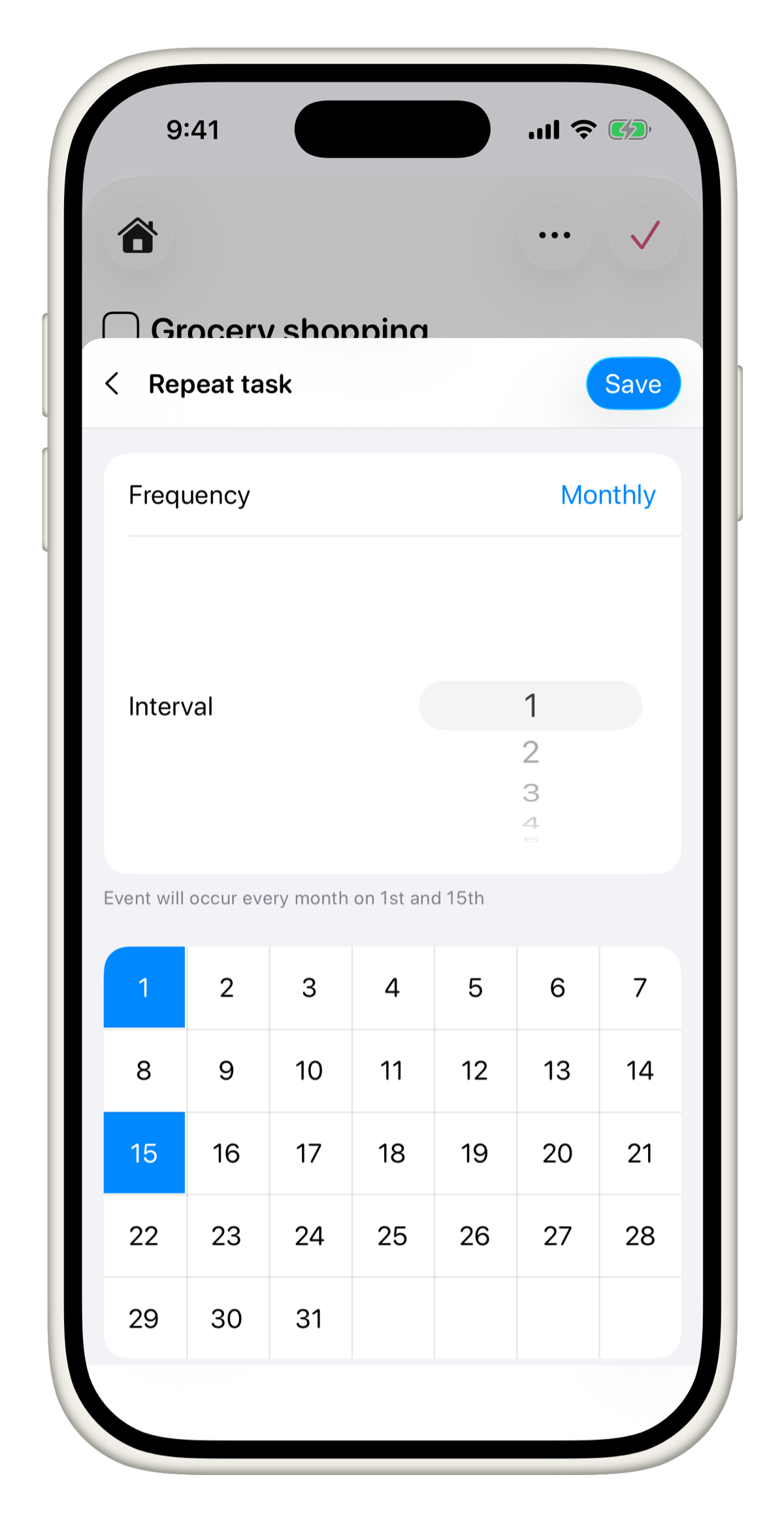
Set Frequency to Monthly and tap the days of the month you want the task to repeat on. You can select multiple days.
Example: "Pay credit card bill on the 1st and 15th" would be Monthly, Interval 1, days 1 and 15 selected.
Yearly
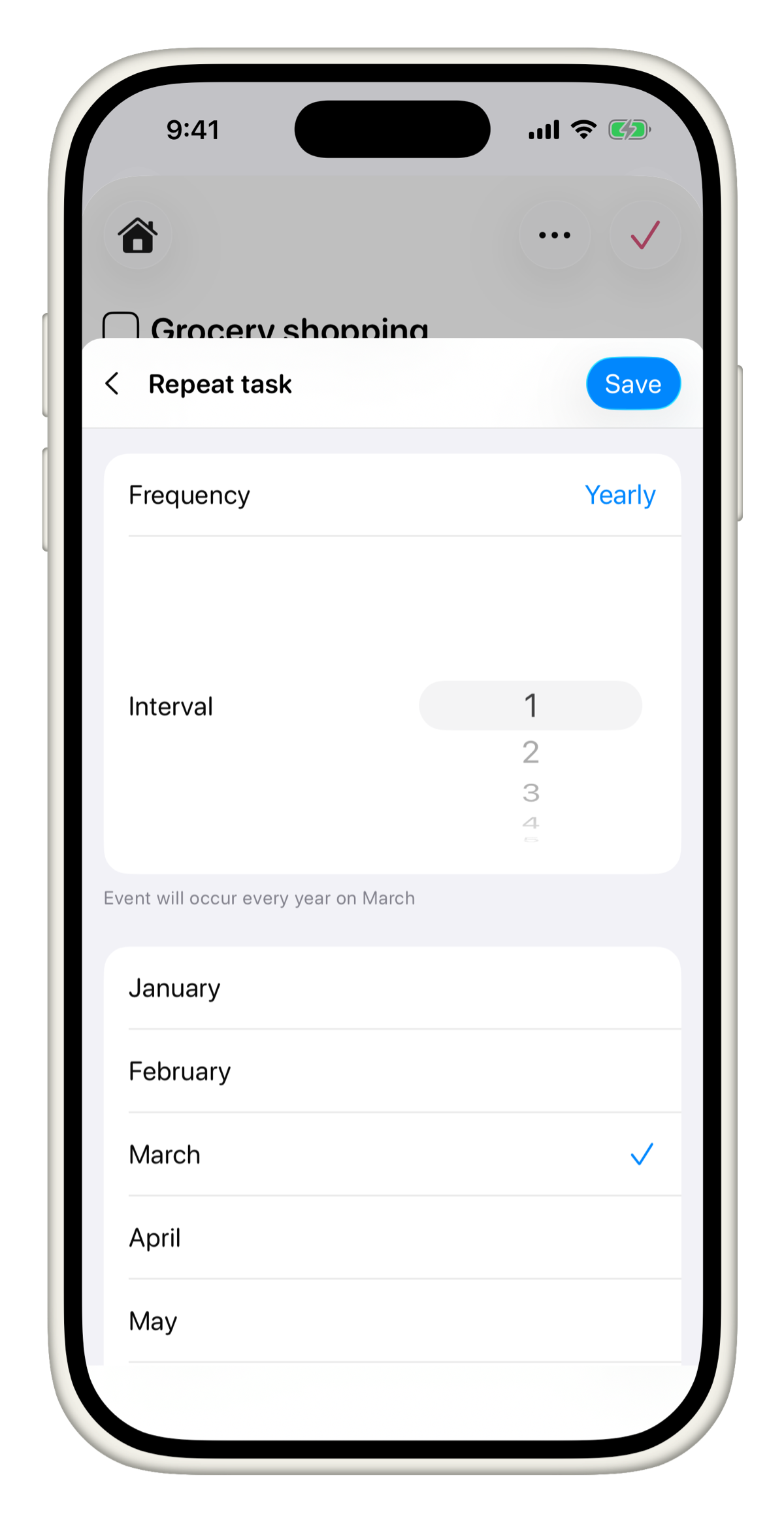
Set Frequency to Yearly and select the month.
Example: "Renew gym membership every March" would be Yearly, Interval 1, March selected.
Once you complete a recurring task, Tasks automatically creates the next occurrence based on your settings. Your grocery run will be waiting for you next Saturday without you lifting a finger.